Showing posts with label Office 365. Show all posts

Wednesday, July 08, 2015

Office 365 Message Shows Openness at Microsoft

I was quite surprised to see this message in an Office 365 help page:

Why isn't my Office 365 app launcher working as expected?
If you're using Internet Explorer when you visit a team site or other SharePoint Online page in Office 365, the app launcher may not show customizations you've made, like resized tiles or apps pinned to the navigation bar.

What can you do?
## Try this first! Use a different browser. We recommend using Microsoft Edge on Windows 10, and if you don't have Windows 10, try using the latest versions of Mozilla Firefox or Google Chrome.

Everyone has been hacking on IE forever, but to see this level of openness from Microsoft itself is quite telling. Yes, they're promoting Microsoft Edge, but nothing wrong with that. There was a time when people at MS were saying silly things like "don't call it a bug, it's an unintended feature." I was at an event when Steve Ballmer called out that behaviour and told the audience to be open with customers. "If it's a bug, call it a bug." That was around 2002. It's good to see the openness continues.


Thursday, January 30, 2014

The Mystery of Why People Use SharePoint

I had to laugh when I read this blog post from the Calgary Herald: Is SharePoint a pain point? Maybe it’s time to ditch it. They used the image below (slightly modified here) to distance themselves from the "righteous" supporters of SharePoint.

image

Of course SharePoint isn't perfect, but if you require some features that SharePoint provides, then you should run a pilot and try it out; base your decision on your actual use cases. This quote from a white paper that I co-wrote with Colin Spence (he wrote this particular text) sums it up nicely:

“If end users already know how to use SharePoint and have received training on the key tools provided by SharePoint the organization can be more ambitious in the implementation. On the other hand if end users are completely unfamiliar with SharePoint and in general not open to change and not willing to take training, IT should carefully control the complexity of the SharePoint configuration. Projects can be seen as “failures” if a few important end users complain that the SharePoint solution is ‘too complicated,’ or ‘too time consuming.’”

It's a classic case of people believing that there is a perfect system out there and all they need to do is pick the right one. It's simply not reality.

Monday, September 23, 2013

Changing Site Access Request Email in SharePoint 2013 (Office 365)

The option to set the email address for any SharePoint site access requests has moved around in the last few versions, so I thought I’d post this for those searching through old posts looking for one about SharePoint 2013.

This setting determines who will receive an email when a user requests access to a particular site—usually when the user tries to access the site and is denied. The tricky part is that the email address for this request is not related to the site owner permissions, it’s just a string.

To find the setting, navigate to:

Site Settings (Gear icon on top-right) > Site permissions > Access Request Settings (in the ribbon)

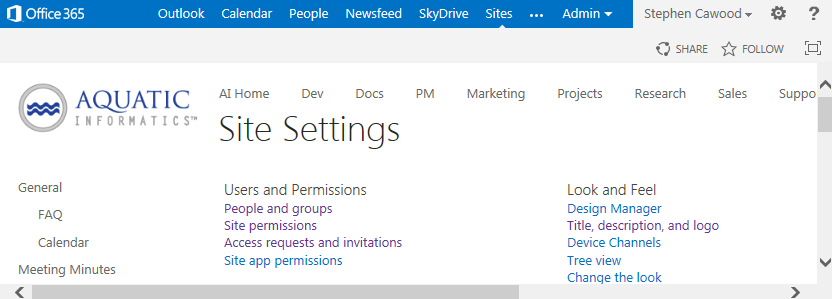
First use the gear icon in the top-right corner to get to the Site Settings page. If you don’t see the Site Settings link, you probably don’t have sufficient rights to make this change.

image

Once there, click on Site permissions.

SNAGHTMLf46205b

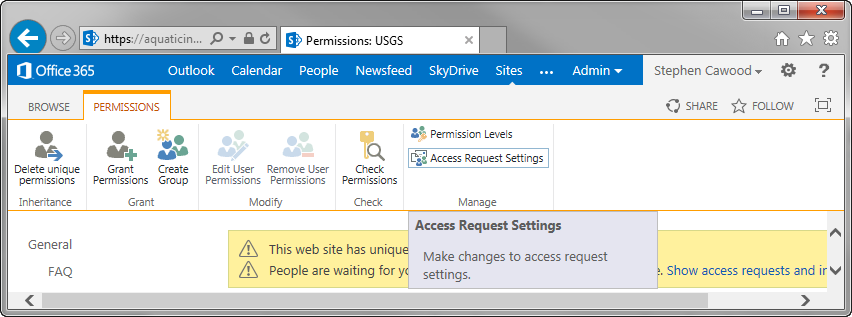
This will open the “Permissions: <site name>” page where you can access the Access Request Settings option from the ribbon at the top of the screen. The option you’re changing is “Send all access requests to the following e-mail address.”

SNAGHTMLf4595d8

Simply enter the email address you’d like to use for access requests and you’re done.

Tuesday, August 06, 2013

Enable SharePoint Document Sets in Office 365

This still requires a number of steps, so here’s the rundown:

This first key point is that this feature is only available to Office 365 Enterprise plans. If you’re not sure which plan you’re on, check with an admin.

Note: You must be a Site Collection Administrator or a Site Owner to create or configure Document Set content types.

image
- Creating a new document set

1. Enable Document Sets for a site collection

2. Create a new Document Set content type

Note: you don’t need to worry about the “Configure or customize a Document Set content type” unless you actually want to customize something.

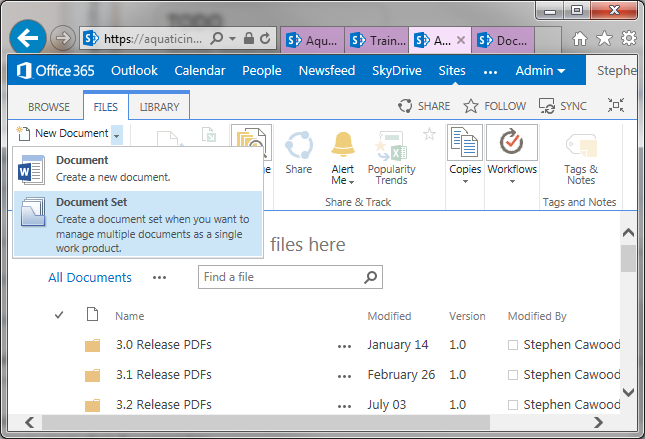
3. Create a new instance of a Document Set

image

After you create and configure a Document Set content type, you must add it to the library where you want users to create their Document Sets.

To do this, go to Library Settings > Content Types (section) > Add from existing site content types

image
- adding the new content type to the site

Monday, October 15, 2012

How to Do Everything SharePoint 2013

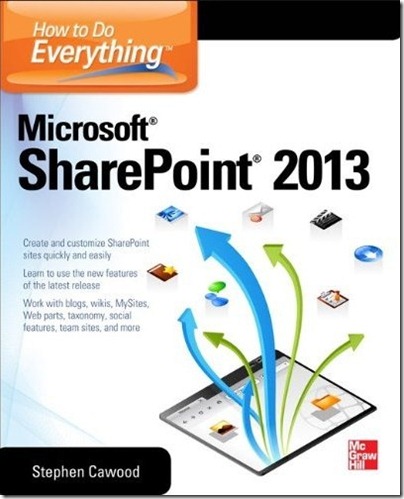
My latest book project is an end-user SharePoint 2013 book called How to Do Everything: Microsoft SharePoint 2013. this is, of course, a new edition of my last book, How to Do Everything: Microsoft SharePoint 2010. As with the 2010 version, my good friend, Arpan Shah, Microsoft Senior Director of Office 365, has contributed a section on the history of SharePoint and also written the foreword.

What I set out to do in the first edition was focus on the most important cases for the day-to-day user. I trust readers are conscious of the fact that the “How to Do Everything” series name doesn’t mean that all of SharePoint can be summed up in one book. This book is squarely focused at the end-user.

How to do Everything HTDE SharePoint 2013 Cover by Stephen Cawood

For the second edition, I don’t want to stray too far from my original goal. However, I’ve listened to all the feedback from the first book. Readers wanted an end-user book, but some wanted it to take them a bit further, so that’s what I’m going to do. I’m adding content about SharePoint administration and other topics that aren’t necessarily required for every user, but will be interesting to those who want a bit more.

I’ve worked with McGraw-Hill Osborne Media on other projects and they’re a great publisher to work with—professional and helpful.

Here’s some text from the 2010 book description:

"Written by a former member of the SharePoint development team, this is a step-by-step guide to mastering the latest release of this integrated suite of server capabilities.In How to Do Everything: Microsoft SharePoint 2010, Stephen Cawood—one of the people who helped build SharePoint—offers advice from his many years of working with SharePoint customers, cutting to the core and focusing on key features to get you up to speed quickly. You’ll get easy-to-follow tutorials on blogs, wikis, My Sites, Web parts, taxonomy, document management, workflow, publishing sites, team sites, and much more. Take full advantage of the content management, enterprise search, collaboration, and information-sharing capabilities of SharePoint 2010 with help from this practical guide."

Monday, March 05, 2012

BPOS Upgraded to Office 365–Why Does it Look the Same?

Obviously, there’s a lot more to Office 365 than SharePoint Online. The Microsoft Online Services offering also includes Exchange Online for email, Lync Online for communication, the Office Web Apps, and some plans even include a copy of Office Professional Plus. But I’ll let others blog about the various pieces—this post is about SharePoint Online.

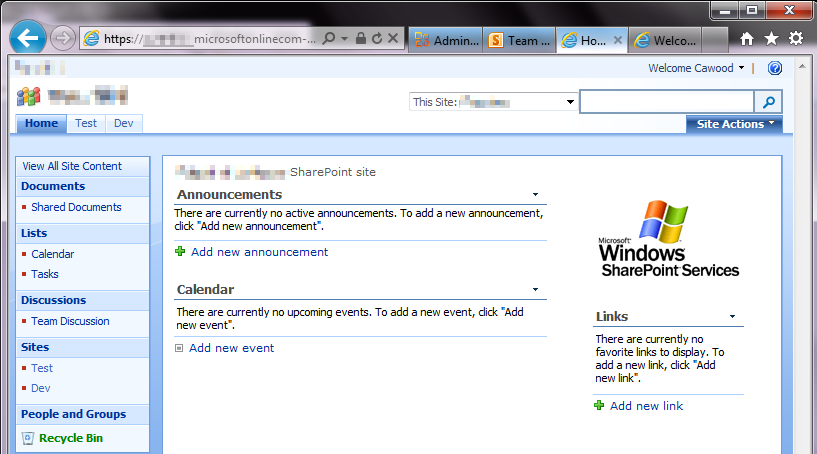
If you have a Business Productivity Online Suite (BPOS) account, you’ll know that BPOS comes with Microsoft Office SharePoint Server 2007 (MOSS) and Office 365 comes with SharePoint Server 2010. Since I work for a Microsoft Partner, Metalogix Software, my GovernanceHx project is part of the BizSpark program, and I’m a Microsoft MVP, I have a few different SharePoint Online accounts—including both BPOS and Office 365. One of these accounts was recently upgraded from BPOS to Office 365, so I’ve experienced the SharePoint upgrade firsthand.

BPOS Site Upgraded Office 365 geeklit.com stephen cawood
- A BPOS SharePoint site upgraded to Office 365

The funny thing about the SharePoint Online portion of the upgrade is that it’s really hard to tell that anything has happened. Sure, you get an email that advises you that your site is ready for upgrade, but when you actually visit your SharePoint Online site, it looks exactly the same. Well, we all know that looks can be deceiving.

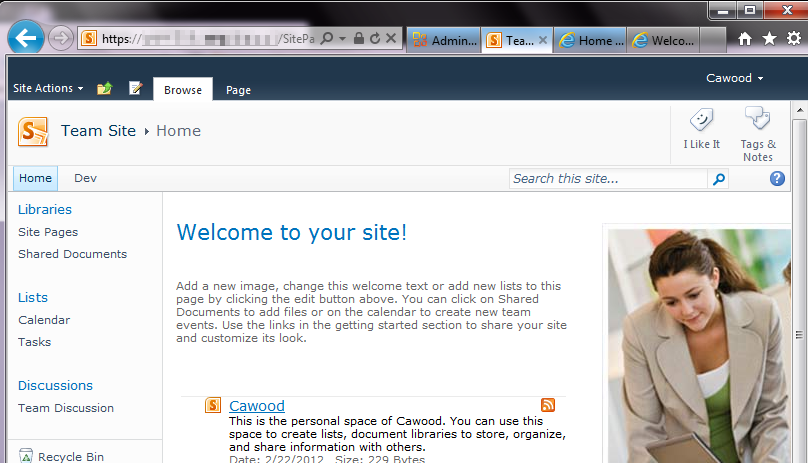
If, however, you enter using the Team Site link from the Office 365 customer portal, you’ll be taken to a spanky new SharePoint Server 2010 site. This is actually a new page; the BPOS content retains the same URL after the upgrade and a link will be added to your new home page.

Office365SharePointOnline_Edit
- The SharePoint “Team Site” home page after BPOS (MOSS 2007) is upgraded to Office 365 (SharePoint 2010)

So why does the BPOS SharePoint Online content still look like MOSS? It’s actually a feature of SharePoint Server 2010. Specifically, the “Visual Upgrade” feature. Visual Upgrade allows MOSS sites to be upgraded to 2010 without changing the look and feel. This is meant to ease the transition to the new version of SharePoint. A site admin can go to the site settings and choose to upgrade to the SharePoint 2010 look and feel. When a BPOS site is upgraded to Office 365, the SharePoint Online content is put in a site collection under the Office 365 account.

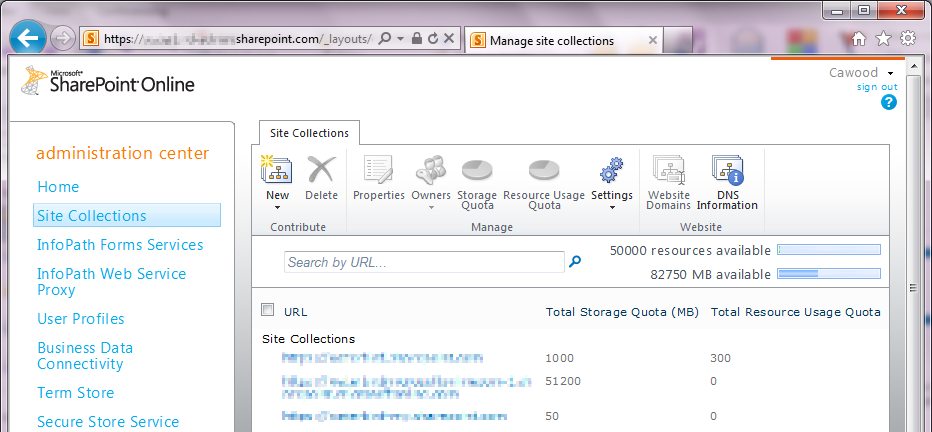
To see the site collections, go to the Microsoft Online Services (Office 365) Administration portal and scroll down to SharePoint Online. Once there, click the “Manage” link. This opens the SharePoint Online Administration Center. Next, click on “Site Collections” to see the Office 365 site collections that were provisioned for you during the upgrade.

Office 365 Admin geeklit.com stephen cawood
- The Office 365 administration interface

Here you’ll see that there’s a new site collection under your Office 365 domain name (yes, the Office 365 URLs are much nicer than the old BPOS mouthful), and that there’s one for your MySites (a feature that wasn’t available in BPOS), as well as one for your old BPOS content. If you don’t want to use the new SharePoint 2010 interface, that’s your choice, but personally, I’d go for it.

Office 365 SharePoint Online geeklit.com stephen cawood
- The new SharePoint Online Administration Center interface

I only wanted one site collection, so I used Metalogix Migration Manager for SharePoint, to migrate the old BPOS content to the main Office 365 site collection.

Having my site (and my MySite) on SharePoint 2010 means I can take advantage of great features that are only available in SharePoint 2010. For example, Enterprise Metadata Management (a.k.a. SharePoint taxonomy), the new SharePoint UI with the fluent ribbon and a tighter integration with Microsoft Office.

Saturday, August 27, 2011

What is SharePoint Governance to YOU? - Stephen Cawood

A couple of weeks ago at SharePoint Saturday The Conference in
DC, I recorded a short video for NothingButSharePoint.com’s video blog series What is SharePoint Governance to YOU?
I hadn’t announced GovernanceHx yet, so I didn’t talk about my own community project to provide SharePoint Governance administration in the cloud. But now that GovernanceHx has been announced, it’s clear why I chose the particular message for my contribution to What is SharePoint Governance to YOU? Check out the GovernanceHx post for more details.
Stephen Cawood NothingButSharePoint.com NBSP SharePoint Governance Office 365 reporting

Saturday, August 13, 2011

Announcing GovernanceHx – SharePoint Governance for Everyone!

I recently read an article that proclaimed--without any grey area--that Microsoft SharePoint governance has nothing to do with technology. I certainly understand the sentiment. Governing an enterprise platform such as SharePoint can be complicated and requires planning and buy-in from various people. However, I also believe that giving SharePoint users access to the right tools can empower them to keep track of whether their governance plans are being effectively enforced. To put it succinctly, wouldn’t you rather know right away about issues than wait until someone decides to proactively check for them?


In my vast spare time (for those who don’t know me, that’s a joke), I’ve been working on a SharePoint community application that I’m now ready to start talking about.

GovernanceHx is a web application that is bringing SharePoint governance to the Cloud. The application allows any SharePoint user to run free, read-only reports against their SharePoint servers with the express purpose of combatting SharePoint sprawl. This means that people without admin access, or development skills, can easily generate reports about the growth of their environment and use them to gain an insight into changes over time. This is why I chose to go with the name GovernanceHx. “Hx” is commonly used in the health care field as the abbreviation for history. GovernanceHx shows the governance health of your SharePoint server over time.

image
- A report results page from GovernanceHx

At this time, I’m showing some demos and recruiting a few SharePoint experts to be Governance Advisors on the project. I’m happy to announce that SharePoint expert and prolific conference speaker, Richard Harbridge, has joined the project as the first Governance Advisor.

Custom image

These advisors will help shape the future of the project by using their real-world SharePoint experience to identify the best application of the GovernanceHx framework. Since GovernanceHx tracks growth, the advisors will help figure out which growth reports will be most useful.
image 
And speaking of frameworks, that’s one of the coolest aspects of this project. I’ve developed the GovernanceHx reporting framework using Windows Azure, so users will not need to install anything at all on their SharePoint server to run reports against Office 365 or any SharePoint sites that are accessible over the net.

logo-office-365[1] 

Cloud-based SharePoint governance opens up all sorts of possibilities for Office 365/SharePoint online customers. For example, I’m sure there are plenty of small to medium businesses that would like a solution to help with their governance enforcement but simply can’t afford a large enterprise reporting application for the job. GovernanceHx will be the low friction way for these users to discover sprawl issues before they become unmanageable.

Tuesday, July 12, 2011

Microsoft.com Case Study with Metalogix

This week, Microsoft published a four-page case study about Metalogix Software. I’m the Director of Product Marketing (and Chief SharePoint Evangelist) for Metalogix, so I’m really happy to see this pat on the back from our most important partner. There are some quotes in there from me as well, so that’s another good reason for me to like it.

Metalogix helps organizations benefit from the collaboration and content management features of Microsoft SharePoint Server 2010. The company developed a portfolio of tools that customers use to manage and migrate from previous versions of SharePoint Server and third-party systems to SharePoint Server 2010. Metalogix also supports cloud migrations, helping customers flexibly adopt fully hosted and hybrid scenarios. Metalogix customers experience fast, easy, and cost-efficient migrations and on average, they report a lower total cost of ownership with SharePoint Server 2010 than competing solutions, experience cost savings from SharePoint Online, and achieve these gains faster by using Metalogix.

image

Since 2001, Metalogix has helped companies plan for and complete their transitions to Microsoft content management systems as quickly and cost-efficiently as possible. After acquiring two leading solution providers, Metalogix has expanded its product line to include binary large object (BLOB) storage/externalization, management, and archiving and technologies, and it has served more than 5,000 customers across the United States, Canada, Europe, and the Middle East. Metalogix is a member of the Microsoft Partner Network with a Gold Independent Software Vendor/Software competency.
 
With the release of Microsoft SharePoint Server 2010, Metalogix sees a significant number of organizations that want to take advantage of a unified environment for collaboration and content management. Metalogix customers are eager to embrace advancements to workflow, business intelligence, and content editing with the familiar Ribbon feature, part of the Microsoft Office Fluent user interface. “Customers are also attracted to the capabilities in SharePoint Server 2010 for connecting to external data,” says Stephen Cawood, Director of Product Marketing at Metalogix. Microsoft Business Connectivity Services in SharePoint Server 2010 enables organizations to easily connect their SharePoint Server 2010 intranets, extranets, and websites to line-of-business systems, databases, and other external systems. “The overarching theme of SharePoint Server 2010 for all customers is flexibility,” says Cawood.

Read the full Microsoft.com Metalogix Case Study and download the Microsoft Word version.

Tuesday, June 28, 2011

Microsoft’s SharePoint, Office 365 and ‘Cloud’ Terminology

With today’s launch of Office 365, I have cloud computing on the brain. It’s no exaggeration to say that “cloud” is the hottest buzz word in IT these days. According to IDC, the cloud market will hit $72.9 billion in 2015. However, there isn’t just one flavour of cloud. From cumulus to Office 365, clouds come in all sorts of varieties. So what does “cloud” actually mean? Here’s a run-down of the terminology currently being used by the SharePoint community and Microsoft in its SharePoint Online (SharePoint in the cloud) messaging.

logo-SharePoint-270_40[1]

SharePoint Online

The term “SharePoint Online” has been used to refer to any hosted versions of SharePoint—but the image above shows that Microsoft has really claimed the name. Office 365, BPOS and SharePoint hosted by a provider (e.g., Rackspace, SharePointHosting.com or Fpweb) all fall under the loose use of this term. I liked the general usage, but I guess I should stick with the fact that SharePoint Online is part of Office 365/BPOS and therefore refers to SharePoint hosted by Microsoft.

Office 365

Office 365 launched today! According to Microsoft, Office 365 is “where Office meets the cloud.” What that actually means is that it’s hosted versions of Exchange Server, SharePoint 2010 Server, and Lync Server. The previous version was called the Business Productivity Online Suite (BPOS). Users will have access to the web versions of Office products and some users will actually get a copy of Office Professional included.

Private Cloud

This is a mildly controversial term. According to Gartner, IT should be planning to move to private clouds. But if cloud computing is applications hosted online, then a private cloud is what exactly? According to a growing number of influences, a private cloud is not necessarily on the Internet at all—it’s any version of SharePoint that’s accessed over a network. A private cloud is usually SharePoint hosted in a private data center.

So what’s controversial about that? Well, cloud computing is meant to free organizations from the IT overhead of running their own systems. If a company is running SharePoint in a private data center then they’re not decreasing their overhead; they’re actually adding a complicated infrastructure.

Public Cloud

If the private cloud is a version of SharePoint that’s available to a restricted group and accessible over a private network, then a public cloud is a SharePoint system that’s accessible publicly across the Internet. Office 365 is an example of a public cloud since all you need is the right URL, username and password, and you’ll be able to access it from anywhere.

Hybrid Cloud

If you needed any proof that Microsoft is walking the walk when it comes to their “all in” cloud messaging. All you need to do is read the four-page Microsoft cloud ad in last month’s edition of Wired magazine. The main focus of that add is the hybrid cloud: part private cloud and part public cloud. Hybrid clouds are being promoted because they allow companies to get their feet wet in the cloud (pardon the mixed metaphor) without jumping all in.

I recently co-presented a SharePoint webinar with Bob Fahey, Senior Director at Avanade, on the subject of migrating to SharePoint online and hybrid clouds.

Business Productivity Online Suite (BPOS)

The Business Productivity Online Suite (BPOS) from Microsoft is a cloud computing subscription offering and the first version of what’s now called Office 365. BPOS includes hosted versions of LiveMeeting, Exchange, SharePoint (it was Microsoft Office SharePoint Server 2007 [MOSS]) and Office Communications Server. BPOS has two flavours: Standard (BPOS-S) and Dedicated (BPOS-D).

I’ve heard it through the grapevine that this was never meant to be a public name. It’s an awful acronym that has already been abandoned, so I wouldn’t be surprised if that little piece of gossip is true. Office 365 is a much better name.

BPOS-S

BPOS-S stands for “Business Productivity Online Suite – Standard Edition.” some people say “Shared Edition” but that’s incorrect.

From www.microsoft.com, “Microsoft Business Productivity Online Standard Suite is a set of messaging and collaboration tools, delivered as a subscription service, that gives your business rich capabilities without the need to deploy and maintain software and hardware on-premise. These online services are designed to help meet your needs for robust security, all-day every-day reliability, and user productivity.”

The difference between dedicated and standard editions is covered in the BPOS – What is it? blog post on TechNet. Basically, the standard edition is a multi-tenant environment with multiple customers sharing the same hardware and dedicated installs are reserved hardware for one account. In order to subscribe to the dedicated version, an organization needs to sign-up 5000 users.

BPOS-D

As mentioned above, the difference between dedicated and standard editions is covered in the BPOS – What is it? blog post on TechNet.

Shared Cloud

This is a general term for any multi-tenant cloud environment. As already mentioned, some people erroneously assumed that BPOS-S stood for BPOS “Shared” edition. BPOS and Office 365 both provide shared offerings. In fact, almost all BPOS and Office 365 customers use the shared cloud version of those offerings.

Standard Cloud

This refers to BPOS-S--Business Productivity Online Standard Suite--which is Microsoft’s shared cloud offering.

Microsoft Online Services

Microsoft Online Services (MOS) offers hosted applications such as Office 365. These services include Dynamics CRM Online, Windows Azure and SQL Azure.


Companies generally move to the cloud because they are looking to reduce overhead, so it can be all about saving money, but there are other reasons to move all or part of your applications to the cloud. Many BPOS customers moved to the cloud because they wanted to use Exchange Online. However, there will be plenty of cases where companies will move to Office 365 to use SharePoint online.

Furthermore, many companies will have a hybrid solution of SharePoint on-premises and SharePoint online. In closing, I’ll just mention that Metalogix Migration Manager for SharePoint is the only solution Microsoft has approved for migrating SharePoint content to Office 365 or BPOS dedicated.

Saturday, May 21, 2011

Microsoft Online Services Client Sign-in Issue

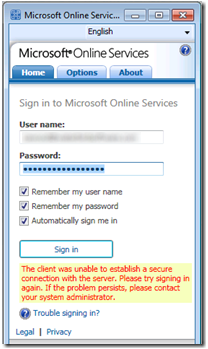
I ran into an interesting error last week. I’ve rarely had issues with computers clocks, but for some inexplicable reason, two of my machines were on the wrong time last week. One of the consequences of this fact was that the Microsoft Online Service (MOS) sign-in tool for BPOS (now called Office 365) failed to work. This is one of my public service announcement posts—hopefully, this will help the next person quickly resolve the problem.

image

The error didn’t give me any indication that it was an issue with the clock: “The client was unable to establish a secure connection with the server. Please try signing in again.”

The solution was simply to set the computer clock correctly and change the server that I was using for online synchronization.

The full error is below. it was also reproducible on the MOS customer portal web page.

image

This issue is discussed on the Microsoft Online: Services Sign In for Windows forums here: http://social.technet.microsoft.com/Forums/en/onlineservicessigninapplication/thread/3a5bd983-935b-4610-8cb4-6e11972cf3ee

Full Error:

The client was unable to establish a secure connection with the server. Please try signing in again. If the problem persists, please contact your system administrator.

The page requires a valid SSL client certificate

Your client certificate has expired or is not yet valid. A Secure Sockets Layer (SSL) client certificate is used for identifying you as a valid user of the resource.


Please try the following:

  • Contact the site administrator to establish client certificate permissions.
  • If you already have a valid client certificate, use your Web browser's security features to ensure that your client certificate is installed properly. (Some Web browsers refer to client certificates as browser or personal certificates.)
  • Change your client certificate and click the Refresh button, if appropriate.

HTTP Error 403.17 - Forbidden: Client certificate has expired or is not yet valid.
Internet Information Services (IIS)


Technical Information (for support personnel)

  • Go to Microsoft Product Support Services and perform a title search for the words HTTP and 403.
  • Open IIS Help, which is accessible in IIS Manager (inetmgr), and search for topics titled About Certificates, and About Custom Error Messages.