Tuesday, November 06, 2012

Installing SharePoint 2013 on Windows 8 Client Hyper-V

[Author’s Note: This content has been unlawfully copied and pasted into another blog. I’ve asked the offender to take it down and hopefully he’ll have the common sense to respect my request. Update: after I messed with the thief a bit, he finally took it down. Victory!]

For me, one of the biggest enhancements in Windows 8 is the ability to run Hyper-V in the client O/S. This means I don’t have to have a server O/S running on my laptop; I can simply run virtual machines with whatever I need. For example, the shiny new RTM build of SharePoint Server 2013 that was released recently.

There are already a bunch of useful and detailed posts describing the install process for the SharePoint 2013 Preview. Here’s the short version for people who want a relatively simple RTM setup on a Windows 8 client machine (i.e., not running Windows Server 2012 as the host operating system).

SharePoint working on it from geeklit.com by Stephen Cawood

Caution: Hyper-V will only work if your BIOS/hardware/CPU support Hyper-V. It’s a really good idea to check first before you try to use it and get frustrated. Whenever I order new hardware, I explicitly ask if it supports virtualization and Hyper-V. That way when I get something (e.g., a CPU) that doesn’t work—and that happens—I can return it for something that will work.

First, this setup is “relatively simple” because I chose a particular setup and I repeat it often. I run SharePoint in a Hyper-V virtual machine in a single-server farm. I install SQL Server and the domain controller role on the same virtual machine. This means I can export the VM, import into a different Hyper-V instance and it all just works. Because the whole setup is self-contained and doesn’t require Internet access, it’s great for demos, webinars, conference sessions and other presentations. However, this is not the best practice for a production SharePoint install. For example, you should not install SharePoint on a domain controller.

[Update: By request, here are the hardware specs for my setup: Dell Precision M4600 laptop with 16GB RAM and Intel Core i7-2860QM CPU @ 2,5 GHz. I’m allocating up to 8GB of RAM to the SharePoint VM because it’s self contained and I only have to run the one image.]
Step 1: Install Windows 8 and Add the Hyper-V Feature.

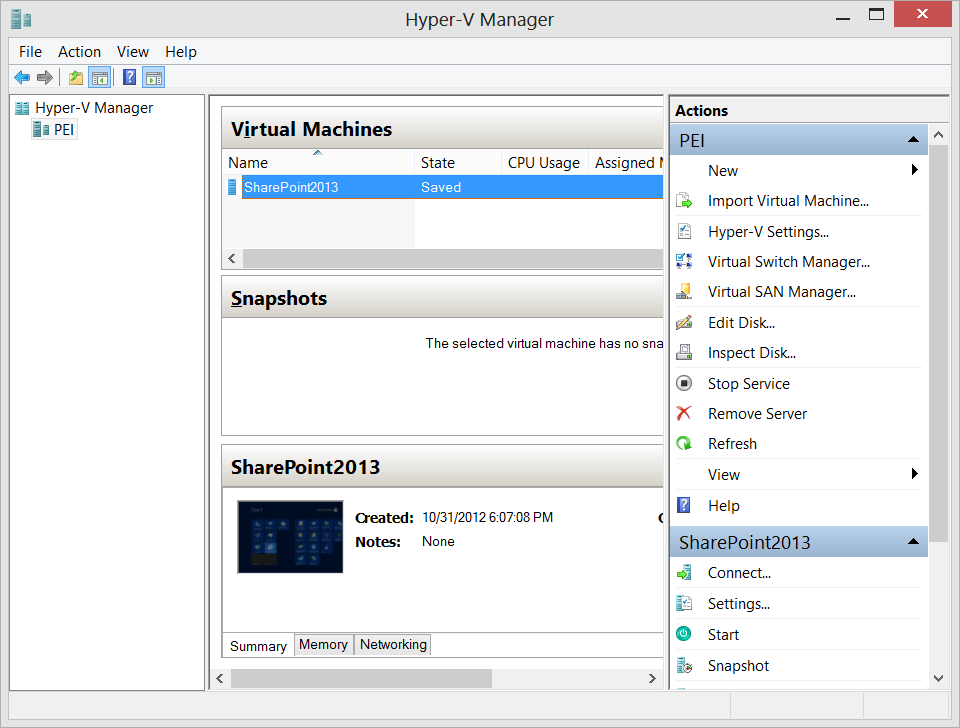
Once you have Windows 8 running, scroll to the top or bottom corner on the right side to open the fly out menu and then choose Settings > Control Panel > Programs and Features > Turn Windows features on or off. Then check the box next to Hyper-V and install it. This will require a reboot.

SharePoint 2013 install from geeklit.com by Stephen Cawood

Step 2: Create a New VHD in Hyper-V
I’m choosing Windows Server 2012 so I’ve downloaded that .ISO file from MSDN and selected it as the O/S when I created the new virtual machine in Hyper-V. I’m going with a 30GB VM with 8GB of RAM (but I can always up these numbers later). If you don’t need Office and/or Visual Studio, you won’t need 30GB of space.

Note: The initial O/S image file will be less than 10GB. After installing SharePoint Server, the VHD is roughly 19GB and the image is using 30GB of the 50GB.
Step 3: Install the O/S (Windows Server 2012) and Name Your Virtual Machine
(Changing the name after installing SharePoint has historically been tricky.) I’m installing W2K12 Datacenter Edition with the GUI. Remember to activate Windows after you install. No one likes a VM with an O/S that hasn’t been activated. After you’ve installed the O/S, run Windows Update.

Note: If you choose Windows Server 2008 as your O/S, it will take a while. The last time I installed it, there were 123 W2K8 updates.
SharePoint 2013 install from geeklit.com by Stephen Cawood

Step 4: Add the Web Server and Active Directory Domain Services Roles
I also add the Wireless LAN Services feature. Once you’ve installed AD, you’ll have the option of promoting the server to a domain controller. After that is finished, create the domain accounts you’ll need. I always add one for myself and another to use as the SharePoint admin account.

Step 4: Install SQL Server
I’m installing SQL 2012 as a stand-alone server (default instance). It’s a simple install process. I install the Engine (obviously) with the client and management tools. If I need more, I’ll add it later.

SharePoint 2013 install from geeklit.com by Stephen Cawood

Note: I often export the virtual machine and save a copy at this point so that I have a base image of the O/S with SQL Server. Since both of them have been released recently, that’s what I did this time. You can also create a snapshot, but I’d rather just export a reusable copy than increase the disk space needs of my base image.

Step 5: Run the SharePoint 2013 Prerequisite Installer

SharePoint 2013 install from geeklit.com by Stephen Cawood

Download the SharePoint RTM ISO from MSDN and launch the default.hta file. The setup file will run the product install, so don’t run that first. You want to first run the prereq install.

Note: I ran into an odd “File Not Found” error when installing the prerequisites. I have a theory, but no hard proof about why it was happening. I think that W2K12 mounting ISOs works differently than it did in W2K8. It seems that when a mounted ISO needs to continue an install after a reboot, it can’t find the files because the mounting doesn’t persist. To get around that, I burned the ISO to disk.

Step 6: Install SharePoint 2013
The actual product installer doesn't really ask any questions—that’s saved for the two configuration wizards.

SharePoint 2013 install from geeklit.com by Stephen Cawood

Note: The first time I ran the installer, it failed. Eventually, I was able to get the install to complete. I manually restarted the VM, manually ran Windows Update and, I also ran the .NET Framework Repair Tool (thanks to Chris O’Brien for that tip).

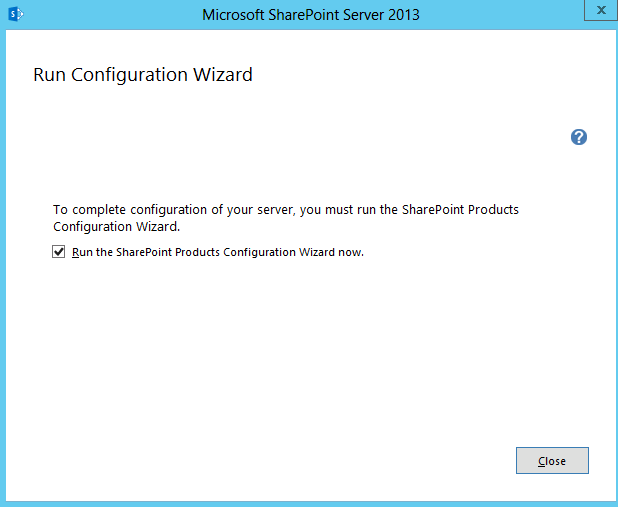
Step 7: Run the SharePoint 2013 Configuration Wizard
SharePoint 2013 install from geeklit.com by Stephen Cawood

There are lots of questions in the config wizard. I’m not going to go through them here. There are plenty of posts on that topic.

SharePoint 2013 install from geeklit.com by Stephen Cawood

Step 8: Run the Farm Configuration wizard.

After running the SharePoint Configuration Wizard, you’ll be asked to run the farm config. This step includes creating a root site collection and choosing which services will run on the server.
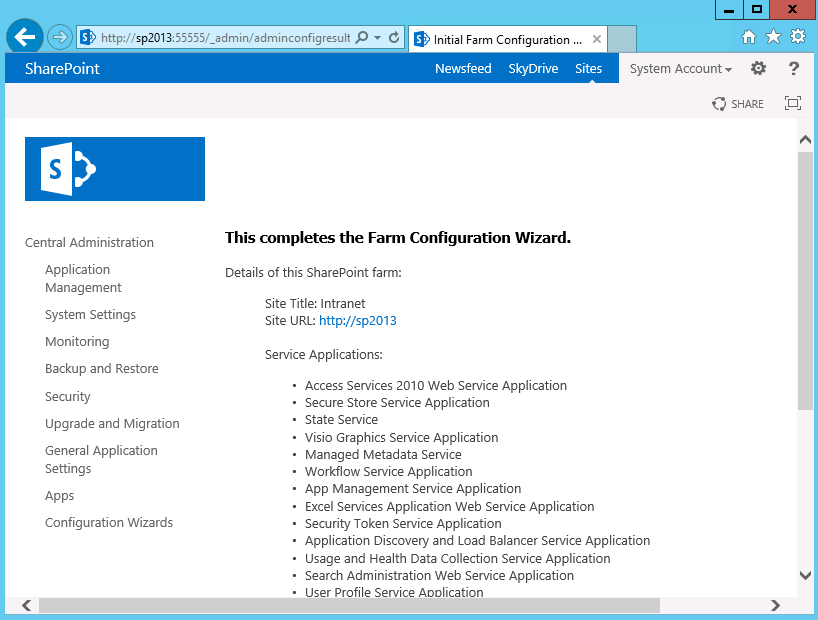
SharePoint 2013 install from geeklit.com by Stephen Cawood

That’s it, you’re done! Now you have a SharePoint 2013 image on Windows 8… so handy.
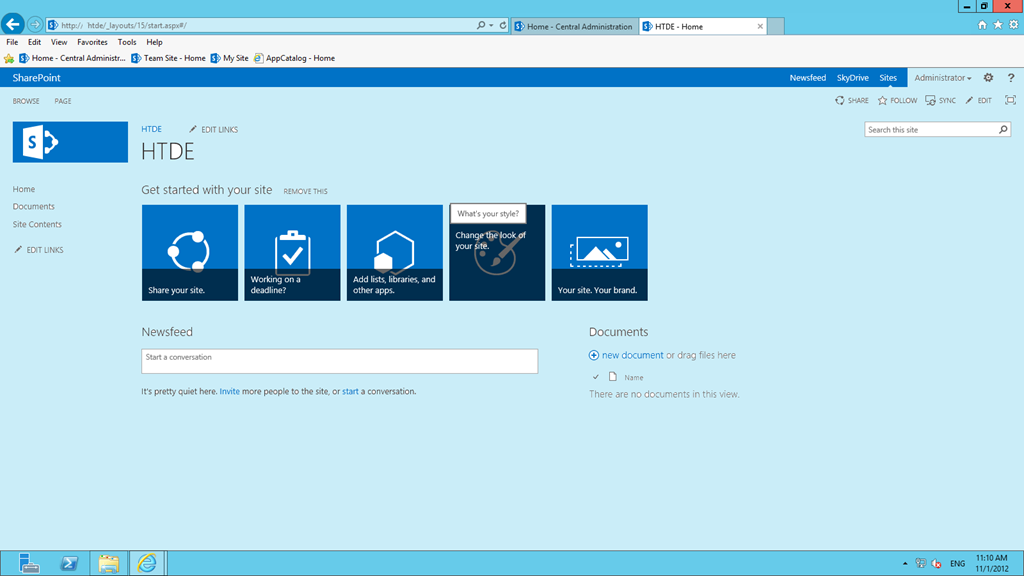
SharePoint 2013 install from geeklit.com by Stephen Cawood

Note: If you’re still installing the SharePoint 2013 Preview build (I won’t know why you would), don’t forget that the “Working on it…” screen for configuring the SharePoint services will not close—it just keeps going forever.

Tuesday, October 23, 2012

SharePoint Web Services are Deprecated

After telling everyone who would listen (for years) that they should switch to the SharePoint Client-side Object Model (CSOM), there is finally a clear statement for us to use as evidence.

Buried deep in the article, Choose the right API set in SharePoint 2013, you’ll find this text:

“Two API sets are still supported in the SharePoint 2013 Preview framework for backward compatibility, but we recommend that you not use them for new projects: the ASP.NET (asmx) web services, and direct Remote Procedure Calls (RPC) calls to the owssvr.dll file.”

RPC calls are also deprecated, but few were using those, it’s really the native web services that need to be retired. They served a purpose, but they were never complete and they are now based on what could be called ‘old’ technology.

Sure, the CSOM API isn’t complete either, but hopefully the missing power will come eventually. The features that were added in SharePoint 2013 seem to have all gotten appropriate attention in the CSOM API.

Tuesday, October 16, 2012

How do I Become a Microsoft MVP?

Quite regularly, I read this question in a forum, hear it asked at a conference, or someone asks me personally, “How does someone become an MVP?” There is no simple answer, but here’s my stab at it.

Microsoft MVP Banner geeklit.com

First of all, if there is only one thing to remember about the MVP award, it’s this: the Microsoft Most Valuable Professional (MVP) award isn’t a certification.

There are no set criteria or steps that someone can take to become an MVP. As the name implies, it’s an award. However, there are certainly things that you can do to work towards getting a nomination. As I mention below, most people would tell you not to aim for MVP status. It requires significant time and effort, so if you’re not having fun doing community-focused work, it’s probably not worth it.

I think a quick explanation is in order. The MVP award is given out based on specialties. Mine is Microsoft SharePoint Server, so that’s what I’ll be referring to throughout this post, but categories do not have to be products. There are MVPs for development languages (e.g., C#) and there are MVPs for platforms (e.g., ASP.NET or XNA). There are currently about 240 SharePoint MVPs around the world.

“This award is given to exceptional technical community leaders who actively share their high quality, real world expertise with others. We appreciate your outstanding contributions in SharePoint Services technical communities during the past year.”
-
Microsoft

In practical terms, this means helping with community-focused resources such as contributing to the SharePoint newsgroups, speaking at conferences, writing about SharePoint and contributing code to CodePlex (an open source site used by the SharePoint community).

The benefits of being an MVP include a TechNet subscription, a subscription to the Microsoft Developer Network (MSDN), access to MVP/product group forums/distribution lists/Yammer networks, software benefits such as access to Office 365 and TechSmith Camtasia Studio, early access to new product builds, and an invitation to the annual MVP Summit. However, the main benefit is being part of the MVP community. I greatly enjoy spending time with other MVPs. If you have a technical question, they’re the best people to ask, and we share common experiences so I often either commiserate or celebrate with them.

The award is given based on nominations--a panel ultimately decides who receives it. There are no published criteria and the members of the panel aren’t disclosed. Also, one key factor is that Microsoft likes to have representation around the world. If there are already a bunch of MVPs in your area—and for your specialty/product—that could make it harder to get the award. However, there is a surprising number of SharePoint MVPs in Toronto, Canada, so this is isn’t a hard rule.

Microsoft MVP Banner geeklit.com

These are the main things that historically have helped with MVP status:

· Speaking at events, conferences and user groups
· Writing original content (e.g., blog posts, articles and books). You must have a blog.
· Developing community apps (usually posted to CodePlex)
· Taking Microsoft certification courses
· Contributing/organizing/starting user groups
· Contributing to the MSDN forums (mainly answering questions).
· Participate in social media and social events (e.g., Twitter, Yammer and social events such as SharePint). You need to get your name out there as a subject matter expert (SME), so the people on the panel have heard your name and seen your work.

I tell people that trying to get the award should not be their focus; there should be value to the things they’re doing independent of trying to become an MVP. However, if I were to set out to get the award today, this is what I would do:

1. Pick a well-defined audience (end-user, dev or admin) and a well-defined sub-topic within SharePoint (or your area of expertise) to focus your efforts. SharePoint is simply too big a topic to do everything.

2. Talk to MVPs and MVP leads (especially your local lead) to get their insight into what would help you get nominated.

3. Meet in person with the current MVP lead for your region. This can help you figure out what’s most important to Microsoft now.

4. Submit presentation proposals to the biggest conferences you can afford to attend, the Microsoft SharePoint Conference plus some user groups and smaller private shows. For the bigger shows, it’s best to submit more than one session since they get way more proposals than they can accept.

5. Make sure you’re regularly posting original content about your expertise. Blog posts, articles, etc.

6. Take some certification courses. Becoming a Certified Master or Certified Architect is a good (but expensive) way to get ‘street cred.’

7. Answer some questions in the MSDN forums, but keep in mind there’s a new certification (Microsoft Community Contributor Award) that’s meant specially for people who do this a lot. I have a notification that goes off every weekday to remind me to go to the SharePoint forums and answer questions.

8. Regularly participate in social media to ensure that the current MVPs in my area and the Microsoft reps know who I am.

Note that somebody has to nominate you. It’s unlikely that you’ll just get an email one day saying you’ve won an MVP award. You need to be talking to people in the community and from Microsoft so that you have a relationship with them and you have some visibility for the good work you’re doing, Note that I’m not suggesting that it’s just a popularity contest; networking and visibility are only helpful if you’re contributing something that has value.

It’s not easy to win the MVP award, so once again, it’s not a good idea to aim to get one—do the things you love to do and if you win the award, it’s a bonus. I feel fortunate to have received three MVP awards and I certainly make good use of the benefits. But I don’t expect that it will be just handed to me… when it comes to renewal… Microsoft will only consider what you’ve done in the last 12 months, so winning the award once doesn’t mean you’ve reached the end of the journey.

Hope that helps keep it clear as mud.

Monday, October 15, 2012

How to Do Everything SharePoint 2013

My latest book project is an end-user SharePoint 2013 book called How to Do Everything: Microsoft SharePoint 2013. this is, of course, a new edition of my last book, How to Do Everything: Microsoft SharePoint 2010. As with the 2010 version, my good friend, Arpan Shah, Microsoft Senior Director of Office 365, has contributed a section on the history of SharePoint and also written the foreword.

What I set out to do in the first edition was focus on the most important cases for the day-to-day user. I trust readers are conscious of the fact that the “How to Do Everything” series name doesn’t mean that all of SharePoint can be summed up in one book. This book is squarely focused at the end-user.

How to do Everything HTDE SharePoint 2013 Cover by Stephen Cawood

For the second edition, I don’t want to stray too far from my original goal. However, I’ve listened to all the feedback from the first book. Readers wanted an end-user book, but some wanted it to take them a bit further, so that’s what I’m going to do. I’m adding content about SharePoint administration and other topics that aren’t necessarily required for every user, but will be interesting to those who want a bit more.

I’ve worked with McGraw-Hill Osborne Media on other projects and they’re a great publisher to work with—professional and helpful.

Here’s some text from the 2010 book description:

"Written by a former member of the SharePoint development team, this is a step-by-step guide to mastering the latest release of this integrated suite of server capabilities.In How to Do Everything: Microsoft SharePoint 2010, Stephen Cawood—one of the people who helped build SharePoint—offers advice from his many years of working with SharePoint customers, cutting to the core and focusing on key features to get you up to speed quickly. You’ll get easy-to-follow tutorials on blogs, wikis, My Sites, Web parts, taxonomy, document management, workflow, publishing sites, team sites, and much more. Take full advantage of the content management, enterprise search, collaboration, and information-sharing capabilities of SharePoint 2010 with help from this practical guide."

Monday, September 24, 2012

DoxTree–the Social Network for Doctors and Patients

I've been less visible lately in the SharePoint space because I've been working hard to get a new project off the ground. DoxTree is a social network for doctors and patients and getting a private Beta launched has taken up most of my time for the past few months. I say "most" because I've also started my new SharePoint book--which I clearly need to write a post about soon.

DoxTreeLogo_Beta

I'm really excited about DoxTree and as co-founder/CTO, I'm enjoying putting together a great platform and talking to potential partners. We had some great meetings in Seattle with the University of Washington and we’re excited about working with them in our Beta phase.

At this point, we're being noticeably cagey about the feature set that www.doxtree.com will offer, but it's safe to say that you can expect some social features from a social platform. We're not just a LinkedIn clone for doctors, or just a doctor directory. We'll offer some features that have been made available outside of healthcare, but we're aspiring to be much more. To learn more about DoxTree, check out the DoxTree blog.

Wednesday, August 08, 2012

Enabling Remote Access to SQL Server on an Azure VM

The basic requirements for enabling remote access to SQL Server are pretty straightforward:

1. Ensure that “Allow Remote Connections” is enabled in SQL Server Management Studio.

2. Open your firewall to allow communication (by default TCP port 1433).

To get access to your SQL Server running on a Windows Azure Virtual Machine (VM), you need to take some additional steps—just as you would using an Amazon Web Services virtual machine. The same is true for opening HTTP access (e.g., over port 80), or any other port for that matter.

Note: This post is not about SQL Azure. This applies to an install of SQL Server on a Windows Azure Virtual Machine.

  1. First login to the new Azure Management Portal (currently in “Preview).

image

2. Click on the Virtual Machine you want to configure and then click “Endpoints.”

image

3. By default, SQL Server will use TCP port 1433, so add an endpoint with any name (using the allowed characters and character limit).

(I haven’t read up on it yet, but I’m assuming the public port is what you’ll be using from the outside and the private port is the one that will actually be forwarded to the VM. To keep it simple, I left them the same in my test.)

That’s it, you’re done! Now you can connect from a client machine to your remote SQL Server machine.

Friday, August 03, 2012

SharePoint 2013: Platform or Application?

I would not have expected the debate about SharePoint as an application vs. a platform to begin again, but that seems to be the case. A number of SharePoint consultants and other SharePoint experts are expressing concern about a few features that have been changed or removed from SharePoint with the SharePoint 2013 Preview release. The most obvious being the SharePoint Designer Design View--which has prompted a hot discussion on the MSDN SharePoint forums. These individual items may be annoying some people, but there’s more going on here. This isn’t just a few items being removed, it’s part of a fundamental shift in the SharePoint messaging. SharePoint has been promoted heavily as a customizable platform, but that message is changing. I posted this reply in the forums:

I believe this is part of a larger discussion. If you read the messaging coming from the SharePoint team, this change is consistent with a move away from SharePoint being such an open and customizable platform. That's not my opinion; here's the supporting quote:

"Use SharePoint as an out-of-box application whenever possible - We
designed the new SharePoint UI to be clean, simple and fast and work great
out-of-box. We encourage you not to modify it which could add complexity,
performance and upgradeability and to focus your energy on working with users
and groups to understand how to use SharePoint to improve productivity and
collaboration and identifying and promoting best practices in your organization." -
Jeff Teper, VP SharePoint - The New SharePoint (SharePoint team blog post)

This forum response, from a user named Intrawebs, gives you an idea of the reaction: “I am a developer, but, when it comes to SP I try and do as much as possible in SP Designer vs. Visual Studio.  It federates responsibility and enables non devs to contribute more easily.  This will be a deal breaker for us, we use SP on our public and intranet sites.  Poor decision from MS…”

When SharePoint first came out, it's primary value was as an application--a quick way to create an Intranet. MCMS at the same time was designed as a platform--build your own site, but build any type of site. The market responded that they wanted both in one product and SharePoint made huge strides as a platform. Now it seems that the SharePoint team has decided that the pendulum has swung too far.

Is this a good change for SharePoint customers? Is it a good change for SharePoint customers? These are hard questions to answer. What is clear is that less SharePoint customization is probably not good for SharePoint consultants. There seems no way around the simple formula that less customization = less work.

Some ISVs could benefit from this change. For example, migration vendors have to work extremely hard to support customizations, so there may be less work in that area. However, one of the reasons customers use third-party migration products (such as my former company, Metalogix) is to deal with customizations, so that’s not clear. Also, this is a preview release.

While the new SharePoint App model does add a new dimension to SharePoint development, I’m sure that most SharePoint devs would say that they expected this to be an additional choice rather than the only choice.

Monday, July 16, 2012

SharePoint 2013 Deferred Site Collection Upgrade

Today, the next generation of Microsoft Office, Microsoft Office 365 Enterprise and SharePoint 2013 were all made available via technical preview. As a SharePoint MVP, I’ve been under the NDA curtain, so it’s great to finally have a bunch of news in out in the wild so we can all talk about the next release.

The differences between SharePoint 2010 and SharePoint 2013 are outlined in this TechNet post: Changes from SharePoint 2010 to SharePoint 2013 Preview. I wanted to clarify something that I believe could be confusing to SharePoint administrators as they first hear about the new “deferred site collection upgrade option.”

Here is the section about SharePoint 2013 upgrade:

Visual upgrade

Description: The visual upgrade feature in SharePoint Server 2010 is not available in SharePoint 2013 Preview. For the upgrade from Office SharePoint Server 2007 to SharePoint Server 2010, you could choose to use the visual upgrade feature to give site collection owners and site owners the opportunity to preserve the previous user interface temporarily while still upgrading the infrastructure and databases, site collections, and features to the latest version. This allowed site collection owners and site owners to update customizations to work in the new user interface. Once the database and site collection upgrade was complete, the user had the option to upgrade the user interface on a more granular level of the website (SPWeb object).

Reason for change: The visual upgrade feature is replaced with deferred site collection upgrade. The site collection upgrade process is not reversible. The deferred site collection upgrade is a more comprehensive upgrade process than visual upgrade.

Visual upgrade preserved only the old master pages, CSS files, and HTML files. Deferred site collection upgrade preserves much more, including SPFeature functionality. To achieve the deferred site collection upgrade, major changes in the architecture were required, including the removal of visual upgrade.

With deferred site collection upgrade, you can continue to use the UI from the previous version (SharePoint Server 2010) more seamlessly than is possible with visual upgrade. The master page, CSS, JScript, and SPFeatures will remain in SharePoint Server 2010 mode. One key difference is that the granularity of upgrading the user interface is per site collection (SPSite) instead of site (SPWeb). Users can still preview their site in the new SharePoint 2013 Preview user interface before committing. However, this is accomplished by creating and upgrading a temporary copy of their site collection instead of a preview in the existing instance of the site collection. The reason for previewing a copy of the site collection is because of the complexity of what occurs during site collection upgrade. Once a site collection is upgraded, it cannot be rolled back. Therefore, performing a preview would not be possible except in a copy of the site collection.

Migration path: Site collection administrators who are using visual upgrade to continue to use SharePoint Server 2007 must move to the SharePoint Server 2010 user interface before upgrading to SharePoint 2013 Preview. After the content database is upgraded, users can use deferred site collection upgrade to continue to use the SharePoint Server 2010 experience for their site collections. Site collection administrators can be notified by their farm administrator when a site collection is ready for upgrade and the site collection administrators can then choose to either perform the upgrade of their site collection or optionally first preview the new functionality in a temporary copy of their site collection.

Any SharePoint user interface might have dependencies on visual upgrade. The main dependency was getting the user interface version and then outputting the correct user interface (new or legacy). The visual upgrade API feature is updated so that the user interface version is remapped to the new site collection compatibility level property. This returns the same information about which version the site uses as before. Therefore, dependent code does not need to change.

--- end snippet ---

There is no doubt that the new deferred site collection upgrade is a great improvement; rather than just the look and feel of the site staying in the previous version (as you could do in SharePoint 2010), the actual schema can be left in the old version of SharePoint and virtually everything (read: customizations) will continue to function as before. This clearly means that less work is done and the upgrade process will be faster; albeit with the requirement to finish the site collection upgrade at some later point.

For anyone looking at this new feature and thinking about their upgrade or migration to SharePoint 2013, it’s important to differentiate deferred upgrade from a gradual or granular upgrade. I’m sure some people will refer to deferred as gradual, and I can see how that could be just a semantic argument. However, it’s clear that there is a difference between a granular migration and a deferred migration. Although the deferred site collection upgrade allows a content database to be upgraded without the underlying schema being upgraded, it is still scoped at the database level. If you are looking to migrate or upgrade part of your SharePoint 2010 implementation to SharePoint 2013, the new deferred upgrade is not meant to enable that scenario.

Friday, June 29, 2012

ASP.NET Html.ActionLink Multiple Parameters Not Working

I ran into this issue in ASP.NET MVC 3 (Razor), I believe this ActionLink call should work fine, but it does not. It returns an error because the routeValues aren’t being passed properly. With only one parameter, the issue didn’t occur.

@Html.ActionLink("Delete", "DeleteSomething", "Profile", new { id = ID, something = @item.Name })

The error message: “The parameters dictionary contains a null entry for parameter 'id' of non-nullable type 'System.Int32' for method 'System.Web.Mvc.ActionResult OrderDevice(Int32)' in 'MvcKVteam.Controllers.ImportXMLController'. An optional parameter must be a reference type, a nullable type, or be declared as an optional parameter.”

The solution was to add “null” for the final variable HtmlAttributes.

@Html.ActionLink("Delete", "DeleteSomething", "Profile", new { id = ID, something = @item.Name }, null)

Whether it’s a bug or by design, it sure isn’t intuitive.

Wednesday, May 30, 2012

Top 1 Way to Write a Blog Post Title

Put a number in the title.

How often do you see “Top 10 Ways To…” or “5 Important Rules for…” It’s an effective technique but I’m tired of it.

(See How To Write Attention Grabbing Blog Post Titles – With Examples for actual advice on writing catchy blog posts.)

Wednesday, April 25, 2012

Twitter Bootstrap, Less and PHP Setup on IIS 7.5 and Windows 7

It’s certainly not news to me that setting up any technology on Windows that’s typically associated with the LAMP stack can be a bit tricky. Today, I found myself wanting to run a Twitter Bootstrap site that was built in PHP. I use Windows 7 and IIS 7.5 on my laptop, so I had to get through a few minor setup considerations. Here are some of them—hopefully, this will help others get going quickly.

Essentially, you need to download PHP (http://windows.php.net/download or http://php.iis.net/), configure it to work with IIS. Download Twitter bootstrap, configure it to work with IIS… etc. etc. etc. Here are some quick tips for getting going. The PHP.net article on Enabling FastCGI support in IIS was helpful. There are some steps that are optional, so you might want to first check whether the handler mapping is already in IIS, but for the most part, it’s a useful page to follow. For example, installing the CGI component for IIS is required. Without that feature, you won’t be able to run any PHP code in IIS.

If you want to use the short form of the PHP server-side tag (“<? … ?>” instead of “<?php … ?>” ), you’ll need to turn the option on in your php.ini configuration file. Since this file is typically being used, you can’t just open it and save change. The easiest way to edit it is to search for the php.ini file, copy it to some other location, then open the file and search for the “short_open_tag =” line. Change it to On to use the short form and then copy the PHP.ini file back to it’s original location and restart IIS.

; This directive determines whether or not PHP will recognize code between
; <? and ?> tags as PHP source which should be processed as such. It's been
; recommended for several years that you not use the short tag "short cut" and
; instead to use the full <?php and ?> tag combination. With the wide spread use
; of XML and use of these tags by other languages, the server can become easily
; confused and end up parsing the wrong code in the wrong context. But because
; this short cut has been a feature for such a long time, it's currently still
; supported for backwards compatibility, but we recommend you don't use them.
; Default Value: On
; Development Value: Off
; Production Value: Off
;
http://php.net/short-open-tag
short_open_tag = On

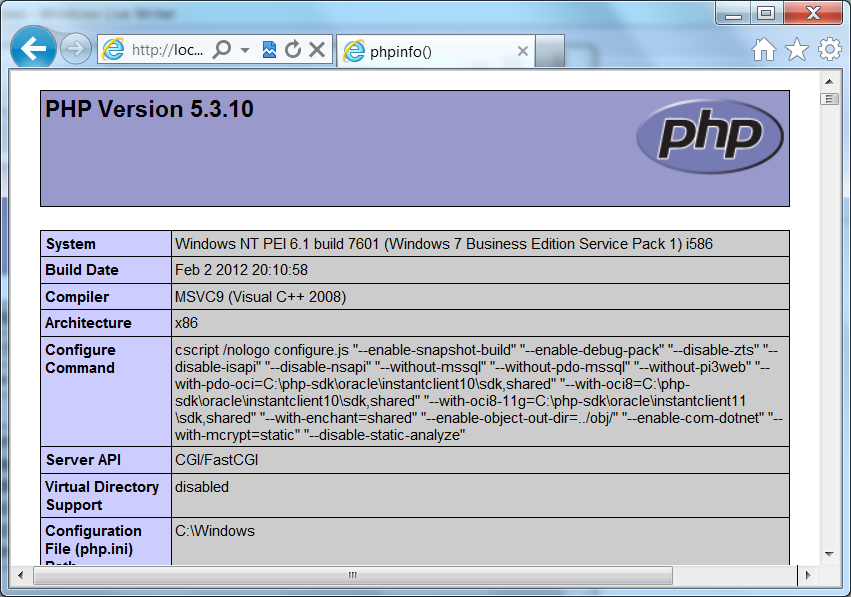
To test whether PHP is working, you can run <?php phpinfo() ?> or <? phpinfo() ?> in a .php file under wwwroot. Call it whatever you want .php. Then open the page (e.g., http://localhost/phpinfo.php) and see what’s displayed. If everything is working, you’ll see a page that shows verbose information about your environment (see screen below). If you try to run the command with the short form notation, and you haven’t enabled that option, the page will be completely blank.

image
- PHPINFO() shown in Internet Explorer

If you have any issues getting Less or Bootstrap files to load, open up your site in Chrome or IE and use the developer tools to inspect what’s going on with the scripts.

image
- Chrome developer tools showing Resources (scripts)

For example, I had to add an IIS mime type for “.less” files to get Less to work on my machine (IIS 7.5). Without setting the mime type, I was getting a 404.3 error for the file bootstrap.less. This isn’t difficult to do, just open Internet Information Services (IIS) Manager and find the “Mime Types” feature under “HTTP Features.” Make sure you’ve selected the website in the left panel before you look for this option on the right side. I just add a new mime type for .less files and set it to “text/plain” and everything worked.

image

Monday, March 26, 2012

ASP.NET MVC 3: A default document is not configured

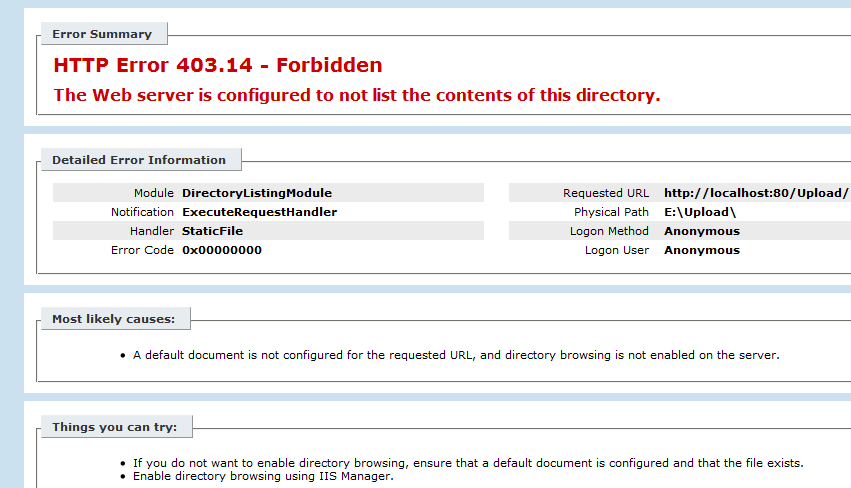
I ran into a strange issue and so many different solutions have been posted online that I thought I’d add what worked for my scenario. I have an ASP.NET MVC 3 “Razor” web application which I ran successfully on W2K8 R2 and when I tried to open it on Windows 7  (IIS 7.5), it wouldn’t run. The error message was “HTTP Error 403.14 – Forbidden. A default document is not configured for the requested URL.” I know that I don’t need to set a default document, so what is wrong?

image

There are an awful lot of posts about this error, but the key here is that this solution worked fine on one machine and wouldn’t run on another. I found the solution that worked for me on StackOverflow.com. It was the suggestion from Dommer that helped with my issue. (Note that there is a 32bit version of the same fix.)

“did you try running the aspnet_regiis -i command in the Visual Studio 64 bit command prompt (with admin privileges)? When I did that it fixed it for the 64-bit mode. To clarify, I right clicked on Visual Studio x64 Win64 Command Prompt (2010) and chose Run as Administrator. Then I went here: C:\Windows\Microsoft.NET\Framework64\v4.0.30319
And did this: aspnet_regiis –i And now it works perfectly.”

image

Yes, yes it does. Thanks!

Monday, March 05, 2012

BPOS Upgraded to Office 365–Why Does it Look the Same?

Obviously, there’s a lot more to Office 365 than SharePoint Online. The Microsoft Online Services offering also includes Exchange Online for email, Lync Online for communication, the Office Web Apps, and some plans even include a copy of Office Professional Plus. But I’ll let others blog about the various pieces—this post is about SharePoint Online.

If you have a Business Productivity Online Suite (BPOS) account, you’ll know that BPOS comes with Microsoft Office SharePoint Server 2007 (MOSS) and Office 365 comes with SharePoint Server 2010. Since I work for a Microsoft Partner, Metalogix Software, my GovernanceHx project is part of the BizSpark program, and I’m a Microsoft MVP, I have a few different SharePoint Online accounts—including both BPOS and Office 365. One of these accounts was recently upgraded from BPOS to Office 365, so I’ve experienced the SharePoint upgrade firsthand.

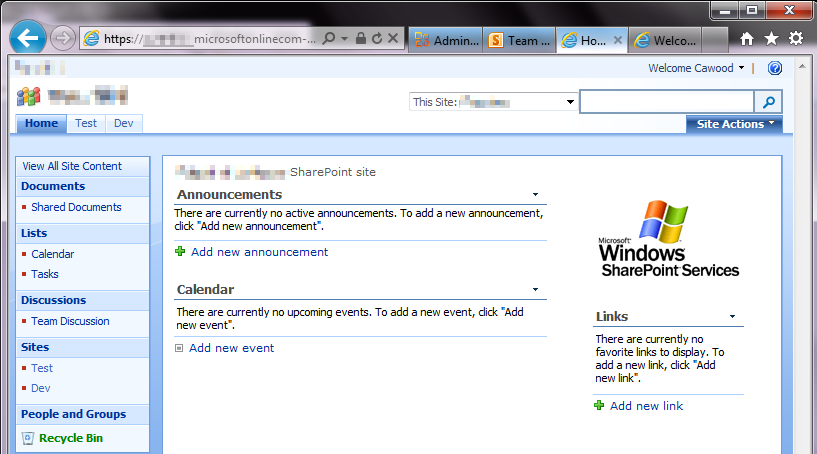
BPOS Site Upgraded Office 365 geeklit.com stephen cawood
- A BPOS SharePoint site upgraded to Office 365

The funny thing about the SharePoint Online portion of the upgrade is that it’s really hard to tell that anything has happened. Sure, you get an email that advises you that your site is ready for upgrade, but when you actually visit your SharePoint Online site, it looks exactly the same. Well, we all know that looks can be deceiving.

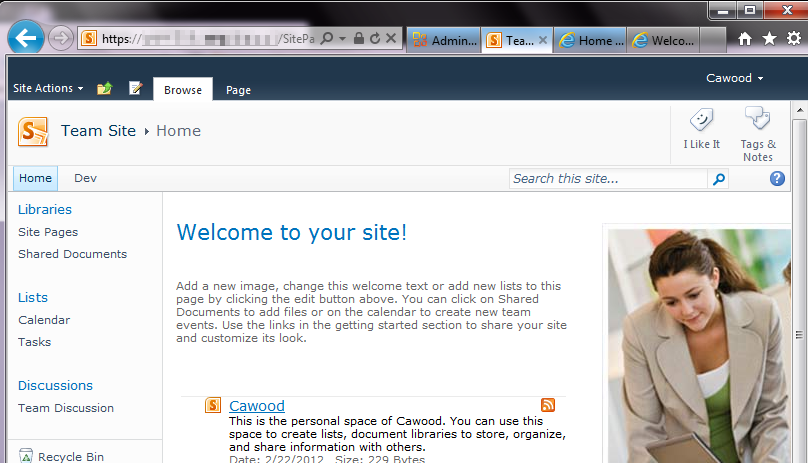
If, however, you enter using the Team Site link from the Office 365 customer portal, you’ll be taken to a spanky new SharePoint Server 2010 site. This is actually a new page; the BPOS content retains the same URL after the upgrade and a link will be added to your new home page.

Office365SharePointOnline_Edit
- The SharePoint “Team Site” home page after BPOS (MOSS 2007) is upgraded to Office 365 (SharePoint 2010)

So why does the BPOS SharePoint Online content still look like MOSS? It’s actually a feature of SharePoint Server 2010. Specifically, the “Visual Upgrade” feature. Visual Upgrade allows MOSS sites to be upgraded to 2010 without changing the look and feel. This is meant to ease the transition to the new version of SharePoint. A site admin can go to the site settings and choose to upgrade to the SharePoint 2010 look and feel. When a BPOS site is upgraded to Office 365, the SharePoint Online content is put in a site collection under the Office 365 account.

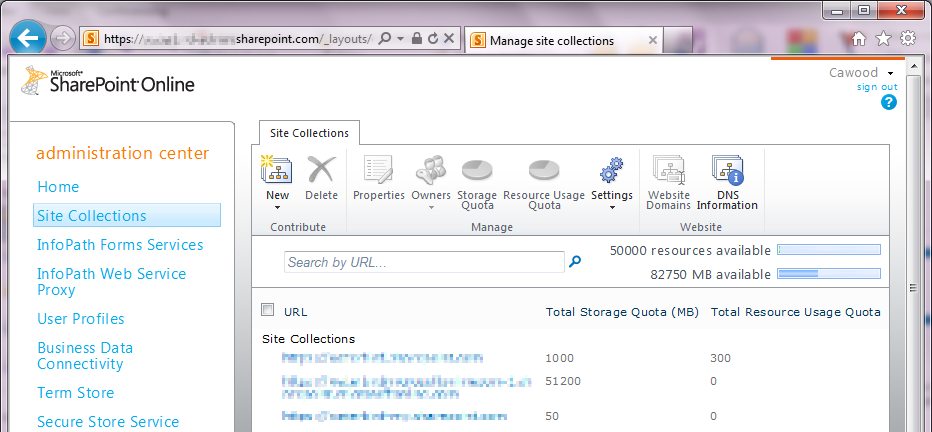
To see the site collections, go to the Microsoft Online Services (Office 365) Administration portal and scroll down to SharePoint Online. Once there, click the “Manage” link. This opens the SharePoint Online Administration Center. Next, click on “Site Collections” to see the Office 365 site collections that were provisioned for you during the upgrade.

Office 365 Admin geeklit.com stephen cawood
- The Office 365 administration interface

Here you’ll see that there’s a new site collection under your Office 365 domain name (yes, the Office 365 URLs are much nicer than the old BPOS mouthful), and that there’s one for your MySites (a feature that wasn’t available in BPOS), as well as one for your old BPOS content. If you don’t want to use the new SharePoint 2010 interface, that’s your choice, but personally, I’d go for it.

Office 365 SharePoint Online geeklit.com stephen cawood
- The new SharePoint Online Administration Center interface

I only wanted one site collection, so I used Metalogix Migration Manager for SharePoint, to migrate the old BPOS content to the main Office 365 site collection.

Having my site (and my MySite) on SharePoint 2010 means I can take advantage of great features that are only available in SharePoint 2010. For example, Enterprise Metadata Management (a.k.a. SharePoint taxonomy), the new SharePoint UI with the fluent ribbon and a tighter integration with Microsoft Office.

Thursday, February 23, 2012

Microsoft MVP Summit 2012 is Coming

Microsoft MVP Banner geeklit.com

Next week is the Microsoft Most Valuable Professional (MVP) Summit. I enjoyed last year’s summit very much, so I’m looking forward to this year’s event. You can read about the summit on the MVP Award Program Blog:

“This year, more than 1,500 MVPs will travel from 70 countries to meet with members of the Microsoft community. They share their valuable real-world feedback with our product teams to help drive improvements and innovation in Microsoft technologies, and they learn about what’s new and what’s coming in our products.”

The summit takes place in Redmond and Bellevue and it the best chance to spend time with other MVP award recipients. The tracks are divided by topic, so I’ll mainly be seeing the SharePoint and Office 365 MVPs.

The sessions are presented by SharePoint team members, so it’s a great chance to pick the brains of the product team members. Not to mention there are still a few people who I worked with during my time on the MCMS and SharePoint teams, so it will be great to see some old friends as well.

Stephen Cawood Microsoft MVP Summit 2011 Safeco Field geeklit.com
- last year’s attendee party was at Safeco Field

Wednesday, January 18, 2012

The Web Goes Dark Thanks to SOPA

SOPA Wikipedia geeklit.com

Wikipedia and O’Reilly Media are just two of the websites that went dark today in protest of the proposed Stop Online Piracy Act (SOPA) legislation in the United States. The US already has anti-piracy legislation and this new bill goes too far. As an author, I understand how terrible it feels to have your work stolen. My first Halo book was actually hand scanned then posted online and many of my other books have also been pirated in one way or another. I also have an interesting perspective on this issue because I was also wrongly accused of violating a legal agreement by writing one of my books—something I put to rest when I hired a lawyer and then went on to write two more books on the subject (one for O’Reilly Media BTW). The publisher in that case handled the issue extremely poorly and it’s precisely the sort of thing that would enable SOPA to shut down an innocent website. Copyright infringement is awful, but this bill simply isn’t the right way to deal with the issue.

What’s in this bill? Here’s some text from the summary: “This bill would establish a system for taking down websites that the Justice Department determines to be dedicated to copyright infringment [sic]. The DoJ or the copyright owner would be able to commence a legal action against any site they deem to have "only limited purpose or use other than infringement," and the DoJ would be allowed to demand that search engines, social networking sites and domain name services block access to the targeted site.”

From the Washington Post: “Why are tech start-ups so vehemently opposed? These companies have argued that the bills are tantamount to Internet censorship. Rather than receiving a notification for copyright violations, sites now face immediate action — up to and including being taken down before they have a chance to respond”

If you would like a quick visual explanation of this issue, visit americancensorship.org.

SOPA Oreilly geeklit.com

From today’s O’Reilly message…

Today, we’re going dark to show the world that O’Reilly Media does not support the Stop Online Piracy Act (SOPA) in the U.S. House of Representatives or the PROTECT IP Act (PIPA) in the U.S. Senate.

These legislative attacks are not motivated by clear thinking about the future of the Internet or the global economy, but instead seek to protect entrenched companies with outdated business models. Rather than adapting and competing with new and better services, these organizations are asking Congress for cover.

Any forward-looking country must encourage its emerging industries, not protect its laggards. Yet, in a time when the American economy needs to catalyze domestic innovation to succeed in a hyper-competitive global marketplace, members of the United States Congress have advanced legislation that could damage the industries of the future.

Here’s what you can do:

1) Learn if your U.S. Representative or Senators support SOPA or PROTECT IP through SOPAOpera.org.

2) Use the tools at AmericanCensorship.org, StopTheWall.us and POPVOX to tell Congress where you stand.

3) Participate in Better Activism Day, a free livestream of experts discussing ways to "improve your power in Washington from people who’ve been successful at moving it."

4) Call or meet with your representatives in Congress. The single most effective action any concerned citizen who wants to talk to Congress can take is to see your Senator or Representative in person. Failing that, call them. Write them a letter. Make sure your voice is heard.

– Tim O’Reilly, CEO and Founder of O’Reilly Media


Wednesday, December 07, 2011

SharePoint Saturday Honolulu 2011

This year marked the first SharePoint Saturday Honolulu event. And to distinguish themselves, they held the event on a Friday. I greatly enjoyed this event and it was well organized, so hats off to the organizing committee and the volunteers. It also didn’t hurt that I got to spend the week in Oahu, Hawaii.

Stephen Cawood SharePoint Saturday Honolulu SPSHNL
- Yes, it was on a Friday

At the event, I presented a session about the SharePoint 2010 SP1 supportability changes and how these changes affect real-world storage considerations. Naturally, since Remote BLOB Storage (BLOB offloading) is the future of SharePoint storage management, I spent a good deal of my time talking about RBS.

Ask the Experts Stephen Cawood SharePoint Saturday Honolulu SPSHNL

I also enjoyed being on the Ask the Experts panel, which featured some prominent SharePoint community characters and some great conversation.

Stephen Cawood SharePoint Saturday Honolulu SPSHNL
- Yes, that’s a dinosaur foot behind me. Honolulu Community College has dinosaurs

Thank you to the organizers and thanks for the invite to return next year. BTW –the real flower leis upon arrival were a nice touch.

Ask the Experts Stephen Cawood speaker SharePoint Saturday Honolulu SPSHNL

Friday, November 25, 2011

Movember Coming to an End

Well, it’s the final week of Movember and I’m only $23 out of 2nd place on my Metalogix team. If you can space a few bucks for a good cause (men's health), please visit my page and make a donation.

clip_image002

You can contribute to my Movember effort here: http://mobro.co/cawood

“During November each year, Movember is responsible for the sprouting of moustaches on thousands of men’s faces, in Canada and around the world. With their “Mo’s”, these men raise vital funds and awareness for men's health, specifically prostate cancer.”

IMG_0094

At the end of the month, I’ll be posting the “after” photo showing my Tom Selleck-esque look.

Tuesday, November 22, 2011

Speaking at SharePoint Saturday Honolulu

I’m pleased to be presenting at SharePoint Saturday Honolulu, Dec 2, 2011. I’ve been fortunate to present at a number of SharePoint Saturday events—from small ones all the way up to SharePoint Saturday the Conference in DC.

I’ll be doing a presentation about the SharePoint 2010 SP1 supportability changes. I’ve never been to Hawaii, so I’m looking forward to seeing the islands as well.

SharePoint Saturday Honolulu Stephen Cawood

Yes, SharePoint Saturday Honolulu is on Friday.

clip_image001

Friday, November 04, 2011

I’m Speaking at Microsoft TechDays in Vancouver

This year, I’ll be presenting a session about migration file shares to Microsoft SharePoint at Microsoft TechDays 2011 in Vancouver.

36881_408613573010_91715813010_4202587_1734786_n[1]

I’ve attended TechDays Halifax in the past, but this will be my first session at the conference.

Thursday, October 20, 2011

Microsoft SharePoint Conference 2011 Wrap-up

This year’s sold out Microsoft SharePoint Conference (#SPC11) was so busy for me that it caught me a little off guard. You know those blog posts about preparing for conferences that list things such as stocking up on business cards and organizing meetings ahead of time, well I ran out of cards and completely ran out of time to talk to all the people I had meant to chat with. That same craziness explains why this post is just a tad late.

SharePoint Conference 2011 SPC11 Anaheim convention center

This year’s conference was October 3-6 in Anaheim, CA at the Anaheim Convention Center. Right next to Disneyland, you could argue that this is the happiest convention center on Earth.

image

The show was a smashing success for Metalogix—one of the reasons it was so busy for me. We had our most popular booth ever, talked our throats dry about SharePoint and Office 365, hosted multiple parties and met with countless partners and customers. We also had a pretty popular Metalogix prize giveaway.

SharePoint Conference 2011 SPC11 Anaheim convention center
The Anaheim convention center is a great venue

Metalogix SharePoint Conference 2011 SPC11
A swarm of people at the Metalogix booth

Metalogix SharePoint Conference 2011 SPC11
After the exhibit hall closed, I managed a shot without people blocking the Metalogix booth

Microsoft rented Disneyland for the attendee party. The last time I went to Disneyland was in 2005 for the E3 conference. I was happy to be able to ride Splash Mountain this time around as it went down for maintenance while I was in line last time. And, no, I didn’t get wet; others from Metalogix came out soaked, but I basically got sprayed once.

Metalogix SharePoint Conference 2011 SPC11 Disneyland Party

Stephen Cawood Metalogix SharePoint Conference 2011 SPC11 Disneyland Party
The @NBSharePoint “I’m just here for SharePint” shirt (I’m holding Minnie Mouse ears for my daughter)

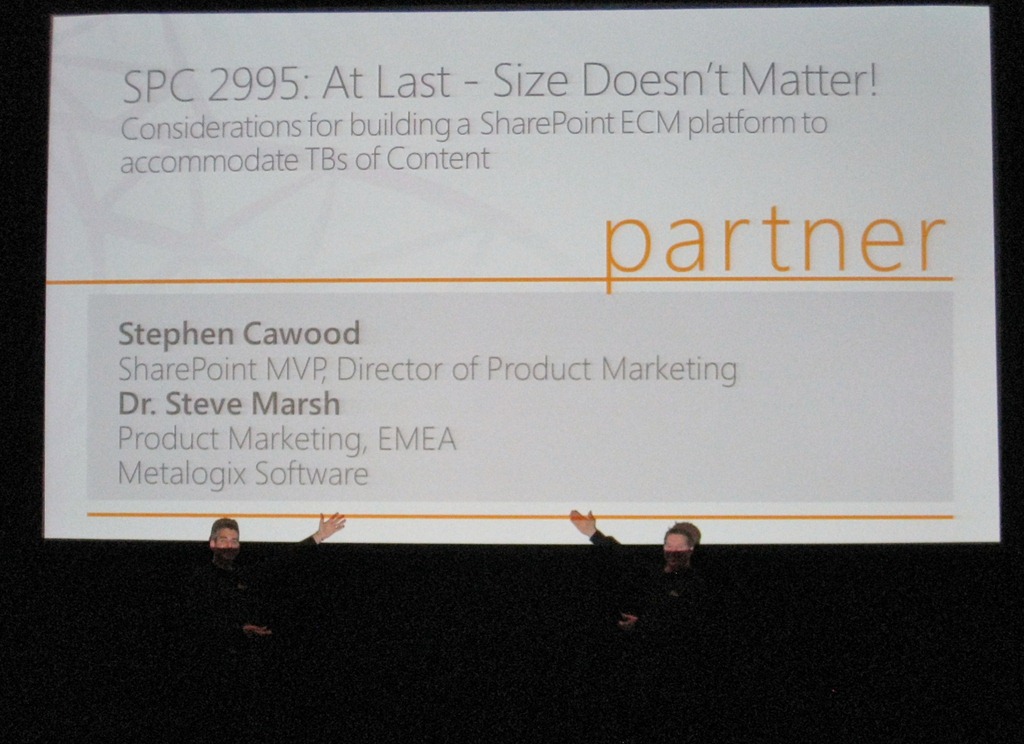
At this year’s show, I presented a session with Steve Marsh about considerations for creating SharePoint farms with terabytes of data. Our session was literally the last one in the guide. It was fun closing the conference, but I have to admit that I prefer to speak early and then have the rest of the event to meet with people; until I actually speak, I can’t help but tweak my presentation, so it’s always on my mind.

Stephen Cawood Metalogix SharePoint Conference 2011 SPC11

Stephen Cawood Marsh Microsoft SharePoint Conference 2011 SPC11 Metalogix Speakers
The rooms were darkly lit, so not a great speaker photo op

Metalogix also had great representation in other sessions. For example, the session about the Microsoft Search First Initiative, co-presented by our partners Microsoft and Arcovis.

Microsoft SharePoint Search First at SharePoint Conference SPC11 Arcovis

I’ll finish with one more shot of the venue. Doesn’t this image just yell, “SharePoint in the cloud?”

SharePoint in the cloud Office 365 SPC11

All in all, SPC11 was a great event and I’m really psyched about the Microsoft SharePoint Conference (#SPC12) in Las Vegas in 2012.