Saturday, August 27, 2011

What is SharePoint Governance to YOU? - Stephen Cawood

A couple of weeks ago at SharePoint Saturday The Conference in
DC, I recorded a short video for NothingButSharePoint.com’s video blog series What is SharePoint Governance to YOU?
I hadn’t announced GovernanceHx yet, so I didn’t talk about my own community project to provide SharePoint Governance administration in the cloud. But now that GovernanceHx has been announced, it’s clear why I chose the particular message for my contribution to What is SharePoint Governance to YOU? Check out the GovernanceHx post for more details.
Stephen Cawood NothingButSharePoint.com NBSP SharePoint Governance Office 365 reporting

Saturday, August 13, 2011

Announcing GovernanceHx – SharePoint Governance for Everyone!

I recently read an article that proclaimed--without any grey area--that Microsoft SharePoint governance has nothing to do with technology. I certainly understand the sentiment. Governing an enterprise platform such as SharePoint can be complicated and requires planning and buy-in from various people. However, I also believe that giving SharePoint users access to the right tools can empower them to keep track of whether their governance plans are being effectively enforced. To put it succinctly, wouldn’t you rather know right away about issues than wait until someone decides to proactively check for them?


In my vast spare time (for those who don’t know me, that’s a joke), I’ve been working on a SharePoint community application that I’m now ready to start talking about.

GovernanceHx is a web application that is bringing SharePoint governance to the Cloud. The application allows any SharePoint user to run free, read-only reports against their SharePoint servers with the express purpose of combatting SharePoint sprawl. This means that people without admin access, or development skills, can easily generate reports about the growth of their environment and use them to gain an insight into changes over time. This is why I chose to go with the name GovernanceHx. “Hx” is commonly used in the health care field as the abbreviation for history. GovernanceHx shows the governance health of your SharePoint server over time.

image
- A report results page from GovernanceHx

At this time, I’m showing some demos and recruiting a few SharePoint experts to be Governance Advisors on the project. I’m happy to announce that SharePoint expert and prolific conference speaker, Richard Harbridge, has joined the project as the first Governance Advisor.

Custom image

These advisors will help shape the future of the project by using their real-world SharePoint experience to identify the best application of the GovernanceHx framework. Since GovernanceHx tracks growth, the advisors will help figure out which growth reports will be most useful.
image 
And speaking of frameworks, that’s one of the coolest aspects of this project. I’ve developed the GovernanceHx reporting framework using Windows Azure, so users will not need to install anything at all on their SharePoint server to run reports against Office 365 or any SharePoint sites that are accessible over the net.

logo-office-365[1] 

Cloud-based SharePoint governance opens up all sorts of possibilities for Office 365/SharePoint online customers. For example, I’m sure there are plenty of small to medium businesses that would like a solution to help with their governance enforcement but simply can’t afford a large enterprise reporting application for the job. GovernanceHx will be the low friction way for these users to discover sprawl issues before they become unmanageable.

Speaking at SharePoint Saturday The Conference 2011

I had a great time this weekend presenting at SharePoint Saturday The Conference. It was the largest SharePoint Saturday event ever and it’s a great credit to the teams of organizers, volunteers, vendors and speakers that it went so well.

Sharepoint Saturday Conference

It is truly remarkable how the SharePoint community continues to produce these sorts of quality events. With 280 sessions, you can imagine how much effort went into the three days.

image

Where else can you see a talent show where a Metalogix employee (Corey) sings Mack the Knife while migrating a SharePoint 2007 site to SharePoint 2010?

At this year’s show, I co-presented two sessions about SharePoint migration and BLOB offloading with fellow Metalogix employee Corey Milliman and I also did two book signings for How to Do Everything: SharePoint 2010.

image

So now that #SPSTCDC is over, what will I do? I’m goin’ to Disneyland!

(For those who haven't heard, the attendee party is at Disneyland)

Thursday, August 04, 2011

Metalogix Loves SharePoint Saturday

This weekend I was in New York for SharePoint Saturday. I presented a session on migrating to Microsoft Office 365 (Metalogix was a Microsoft Office 365 sponsor). This was the third time I’ve attended the SharePoint Saturday New York event and I always enjoy going. This year was no exception, there were some great speakers and things ran smoothly.

In addition to sponsoring the event, we wanted to do something different. What we came up with was to post “Metalogix loves SharePoint” sign in Times Square. It was great to walk around Times Square and see the Metalogix logo between an infinite number of ads for the Smurfs. Metalogix is also giving away Flip cameras to people who tweeted photos of the billboard.

Stephen Cawood Metalogix loves SharePoint Times Square

You can read all about it on the Metalogix blog: Metalogix Loves SharePoint Saturday, NY

Metalogix was a proud Microsoft Office 365 sponsor at SharePoint Saturday New York this weekend. To show our pride, we arranged to have "Metalogix loves SharePoint" shown on one of the big billboards in Times Square.

We also held a contest to win Flip cameras. People who took a photo of the Metalogix billboard in Times Square tweeted their photos to the @metalogix Twitter account and are now entered to win a camera. We will be notifying the winners of the Flip cameras this week.

Metalogix loves SharePoint Times Square

Wednesday, August 03, 2011

Why I FINALLY became a OneNote User—and I’m not turning back

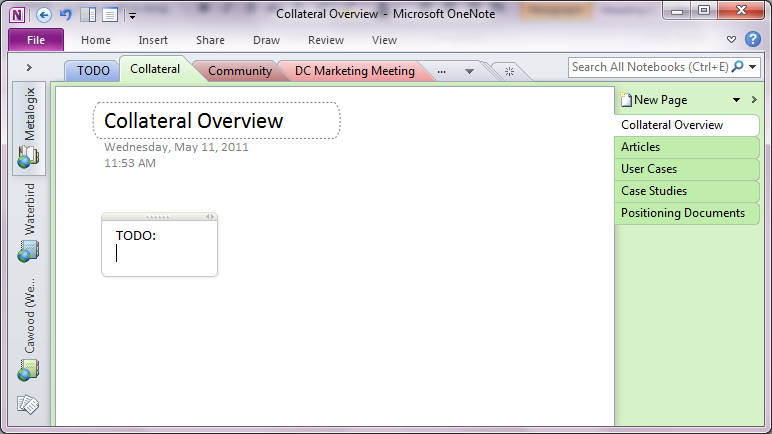
I’ve been meaning to write a post about how Microsoft Office OneNote has improved my productivity, but really, who has the time? OK, sorry no more of that. Today, Microsoft announced that the Office OneNote iPhone app will be free for a limited time. (It was published to the Canadian app store last week). Now I can use the same TODO list on my PC, online and on my phone--all nicely synchronized.

image
- the new OneNote iPhone app

I only recently became a devoted OneNote user. I know, I know… What took me so long? Well, I don’t have a great excuse. When I tried the first OneNote Beta build, it wasn’t able to create tables—obviously, it had far fewer features than the current release—but the inability to create tables was a deal breaker for me. Since then, I’ve seen a flood of people adopt OneNote and sing its praises. I often questioned if I was missing out, but I kept holding back. I’m a big Outlook fan and I just kept using Outlook for everything. E-mail, appointments, reminders… Why not keep notes in there as well? That’s what I did, but lately my inbox was getting the best of me and despite my best efforts, I could use some help. (I wrote about managing my Outlook inbox in my post, Don’t be an E-mail Hoarder–Improve Your Outlook Productivity.)

So what was I waiting for? It turns out that the killer feature for me was the ability to use Windows Live SkyDrive to synchronize my OneNote notebooks across multiples machines and the OneNote Web App. And, of course, as of today, my phone as well.

For me, the ability to share OneNote notebooks effortlessly across devices is a game changer. I can make notes at work, update them online and then when I grab my laptop, I can rest assured that it will update automatically when I go online. The cloud-based synchronization also means that my notebooks are automatically backed up for me—a hard drive crash isn’t going to mean any note data loss at all. The fact that SkyDrive, the OneNote web app, and the iPhone app are all free is a nice bonus.

If you’re still not sold on OneNote, take a look at the OneNote blog post about using OneNote notebooks to plan a vacation.

image
- Use the Office Web Apps version of OneNote to work with your notebooks online.

I’m happy that I finally took the time to investigate what OneNote can do and I don’t see myself giving up this excellent productivity tool. If nothing else, it will as least give my Outlook inbox a bit of a break.

image
- The Office client version of OneNote

Wednesday, July 27, 2011

Metalogix Times Square Contest for SharePoint Saturday NY

If you’re going to SharePoint Saturday New York this weekend, you’re probably planning to go to Times Square anyway, so why not take a picture that could win you a Flip video camera?

All you have to do is take a picture of yourself in front of the Metalogix loves Microsoft SharePoint billboard, follow the @metalogix account and then tweet the photo with @metalogix and #SPSNY in the message and you’re entered to win a Flip video camera. (Winners will be notified by Twitter DM, so don’t forget to follow @metalogix.) The Metalogix banner will appear every hour 7am to 1am on Friday and 7am to 3pm on Saturday—the exact time is random. To get an idea of what it will look like, see the image below.

You can read about the contest on the Metalogix blog.

image

Metalogix is the official Office 365 sponsor for the event. I’ll be there to present a session about migrating file shares, ECM systems, Exchange public folders and other SharePoint systems to Office 365.

Tuesday, July 26, 2011

Speaking at SharePoint Saturday New York 2011

For the third year in a row, I’ll enjoy the privilege of being at the SharePoint Saturday New York (#spsnyc) community conference.

Metalogix is the Office 365 sponsor and I’ll be speaking about SharePoint upgrade and migration.

website: http://www.sharepointsaturday.org/ny

Tuesday, July 12, 2011

Microsoft.com Case Study with Metalogix

This week, Microsoft published a four-page case study about Metalogix Software. I’m the Director of Product Marketing (and Chief SharePoint Evangelist) for Metalogix, so I’m really happy to see this pat on the back from our most important partner. There are some quotes in there from me as well, so that’s another good reason for me to like it.

Metalogix helps organizations benefit from the collaboration and content management features of Microsoft SharePoint Server 2010. The company developed a portfolio of tools that customers use to manage and migrate from previous versions of SharePoint Server and third-party systems to SharePoint Server 2010. Metalogix also supports cloud migrations, helping customers flexibly adopt fully hosted and hybrid scenarios. Metalogix customers experience fast, easy, and cost-efficient migrations and on average, they report a lower total cost of ownership with SharePoint Server 2010 than competing solutions, experience cost savings from SharePoint Online, and achieve these gains faster by using Metalogix.

image

Since 2001, Metalogix has helped companies plan for and complete their transitions to Microsoft content management systems as quickly and cost-efficiently as possible. After acquiring two leading solution providers, Metalogix has expanded its product line to include binary large object (BLOB) storage/externalization, management, and archiving and technologies, and it has served more than 5,000 customers across the United States, Canada, Europe, and the Middle East. Metalogix is a member of the Microsoft Partner Network with a Gold Independent Software Vendor/Software competency.
 
With the release of Microsoft SharePoint Server 2010, Metalogix sees a significant number of organizations that want to take advantage of a unified environment for collaboration and content management. Metalogix customers are eager to embrace advancements to workflow, business intelligence, and content editing with the familiar Ribbon feature, part of the Microsoft Office Fluent user interface. “Customers are also attracted to the capabilities in SharePoint Server 2010 for connecting to external data,” says Stephen Cawood, Director of Product Marketing at Metalogix. Microsoft Business Connectivity Services in SharePoint Server 2010 enables organizations to easily connect their SharePoint Server 2010 intranets, extranets, and websites to line-of-business systems, databases, and other external systems. “The overarching theme of SharePoint Server 2010 for all customers is flexibility,” says Cawood.

Read the full Microsoft.com Metalogix Case Study and download the Microsoft Word version.

Monday, July 11, 2011

Canadian Microsoft Azure ISV Twitter Account and Blog

Microsoft canadian ISV blog


“I See Value,” the Canadian Microsoft Azure ISV blog, now has a Twitter account @ISeeValue.


On the Canadian Microsoft Azure ISV blog, read about Connect2Fans, a BizSpark Startup that has developed a solution to help artists, writers and other people in the arts and entertainment industry who find it difficult to connect directly with their fans.

Sunday, July 10, 2011

Windows Azure Table has Phantom Columns

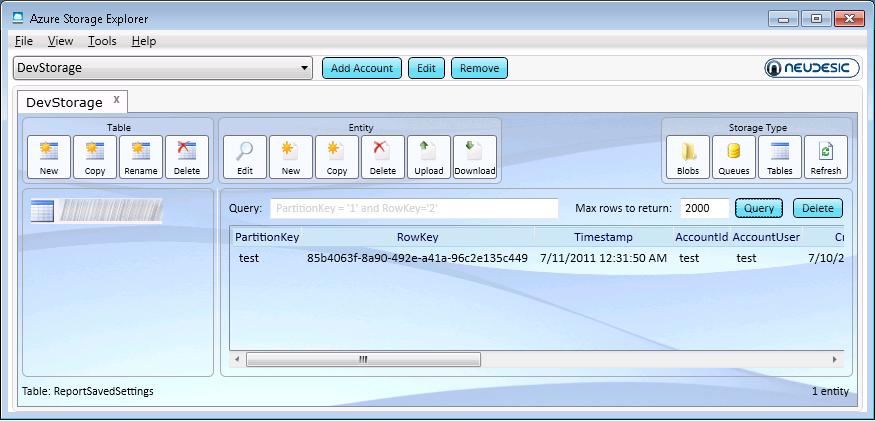
While working on my Windows Azure application this weekend, I ran into an issue that had me stumped for a few minutes until Neudesic’s Azure Storage Explorer helped me attain the moment of clarity that brought the resolution to me.

The issue I was running into was that one of my Azure tables was showing a number of columns that I wasn’t using. The answer was quite simple—I WAS using them in the past. Therefore, even if I deleted all the rows in the table, I wasn’t removing those old columns and they were showing null data.

image

- You can download Neudesic’s Azure Storage Explorer from www.codeplex.com.

In this case, it didn’t show my anything other than my Azure table had empty columns that I didn’t think I was adding, but that was enough for me to ‘see’ the issue.

Friday, July 08, 2011

Error Deserializing XML: There is an error in XML document (2, 2)

While working with some XML documents, I ran into this cryptic error: “There is an error in XML document (2, 2).” The problem turned out to be a surprising case sensitivity in the C# code. When I was trying to deserialize from XML to an object, the XML elements didn’t match the case of the class properties.

Here is my original XML file:

<?xml version="1.0" encoding="utf-8" ?>
<test>
  <name>stephen</name>
</test>

Test class:

public class Test
{
  public string Name { get; set; }
}

And the code that I was using to deserialize the XML into the Test class object.

string xmlFile = String.Concat(HttpContext.Current.Request.PhysicalApplicationPath, "test.xml"); System.IO.StreamReader reader = System.IO.File.OpenText(xmlFile);
XmlSerializer xs = new XmlSerializer(typeof(ReportTemplate));
Test testData = (ReportTemplate)xs.Deserialize(reader);

The solution was quite simple. The case of the XML tags did not match the case of the class properties. By changing them to match, I resolved the error. Here is the working XML:

<?xml version="1.0" encoding="utf-8" ?>
<Test>
   <Name>stephen</Name>
</Test>

BTW – If the root element case matches, but one of the sub-elements does not, you will see the beloved error “Object reference not set to an instance of an object.

Tuesday, June 28, 2011

Microsoft’s SharePoint, Office 365 and ‘Cloud’ Terminology

With today’s launch of Office 365, I have cloud computing on the brain. It’s no exaggeration to say that “cloud” is the hottest buzz word in IT these days. According to IDC, the cloud market will hit $72.9 billion in 2015. However, there isn’t just one flavour of cloud. From cumulus to Office 365, clouds come in all sorts of varieties. So what does “cloud” actually mean? Here’s a run-down of the terminology currently being used by the SharePoint community and Microsoft in its SharePoint Online (SharePoint in the cloud) messaging.

logo-SharePoint-270_40[1]

SharePoint Online

The term “SharePoint Online” has been used to refer to any hosted versions of SharePoint—but the image above shows that Microsoft has really claimed the name. Office 365, BPOS and SharePoint hosted by a provider (e.g., Rackspace, SharePointHosting.com or Fpweb) all fall under the loose use of this term. I liked the general usage, but I guess I should stick with the fact that SharePoint Online is part of Office 365/BPOS and therefore refers to SharePoint hosted by Microsoft.

Office 365

Office 365 launched today! According to Microsoft, Office 365 is “where Office meets the cloud.” What that actually means is that it’s hosted versions of Exchange Server, SharePoint 2010 Server, and Lync Server. The previous version was called the Business Productivity Online Suite (BPOS). Users will have access to the web versions of Office products and some users will actually get a copy of Office Professional included.

Private Cloud

This is a mildly controversial term. According to Gartner, IT should be planning to move to private clouds. But if cloud computing is applications hosted online, then a private cloud is what exactly? According to a growing number of influences, a private cloud is not necessarily on the Internet at all—it’s any version of SharePoint that’s accessed over a network. A private cloud is usually SharePoint hosted in a private data center.

So what’s controversial about that? Well, cloud computing is meant to free organizations from the IT overhead of running their own systems. If a company is running SharePoint in a private data center then they’re not decreasing their overhead; they’re actually adding a complicated infrastructure.

Public Cloud

If the private cloud is a version of SharePoint that’s available to a restricted group and accessible over a private network, then a public cloud is a SharePoint system that’s accessible publicly across the Internet. Office 365 is an example of a public cloud since all you need is the right URL, username and password, and you’ll be able to access it from anywhere.

Hybrid Cloud

If you needed any proof that Microsoft is walking the walk when it comes to their “all in” cloud messaging. All you need to do is read the four-page Microsoft cloud ad in last month’s edition of Wired magazine. The main focus of that add is the hybrid cloud: part private cloud and part public cloud. Hybrid clouds are being promoted because they allow companies to get their feet wet in the cloud (pardon the mixed metaphor) without jumping all in.

I recently co-presented a SharePoint webinar with Bob Fahey, Senior Director at Avanade, on the subject of migrating to SharePoint online and hybrid clouds.

Business Productivity Online Suite (BPOS)

The Business Productivity Online Suite (BPOS) from Microsoft is a cloud computing subscription offering and the first version of what’s now called Office 365. BPOS includes hosted versions of LiveMeeting, Exchange, SharePoint (it was Microsoft Office SharePoint Server 2007 [MOSS]) and Office Communications Server. BPOS has two flavours: Standard (BPOS-S) and Dedicated (BPOS-D).

I’ve heard it through the grapevine that this was never meant to be a public name. It’s an awful acronym that has already been abandoned, so I wouldn’t be surprised if that little piece of gossip is true. Office 365 is a much better name.

BPOS-S

BPOS-S stands for “Business Productivity Online Suite – Standard Edition.” some people say “Shared Edition” but that’s incorrect.

From www.microsoft.com, “Microsoft Business Productivity Online Standard Suite is a set of messaging and collaboration tools, delivered as a subscription service, that gives your business rich capabilities without the need to deploy and maintain software and hardware on-premise. These online services are designed to help meet your needs for robust security, all-day every-day reliability, and user productivity.”

The difference between dedicated and standard editions is covered in the BPOS – What is it? blog post on TechNet. Basically, the standard edition is a multi-tenant environment with multiple customers sharing the same hardware and dedicated installs are reserved hardware for one account. In order to subscribe to the dedicated version, an organization needs to sign-up 5000 users.

BPOS-D

As mentioned above, the difference between dedicated and standard editions is covered in the BPOS – What is it? blog post on TechNet.

Shared Cloud

This is a general term for any multi-tenant cloud environment. As already mentioned, some people erroneously assumed that BPOS-S stood for BPOS “Shared” edition. BPOS and Office 365 both provide shared offerings. In fact, almost all BPOS and Office 365 customers use the shared cloud version of those offerings.

Standard Cloud

This refers to BPOS-S--Business Productivity Online Standard Suite--which is Microsoft’s shared cloud offering.

Microsoft Online Services

Microsoft Online Services (MOS) offers hosted applications such as Office 365. These services include Dynamics CRM Online, Windows Azure and SQL Azure.


Companies generally move to the cloud because they are looking to reduce overhead, so it can be all about saving money, but there are other reasons to move all or part of your applications to the cloud. Many BPOS customers moved to the cloud because they wanted to use Exchange Online. However, there will be plenty of cases where companies will move to Office 365 to use SharePoint online.

Furthermore, many companies will have a hybrid solution of SharePoint on-premises and SharePoint online. In closing, I’ll just mention that Metalogix Migration Manager for SharePoint is the only solution Microsoft has approved for migrating SharePoint content to Office 365 or BPOS dedicated.

Happy Birthday Office 365

Today, Microsoft is launching Office 365, which includes SharePoint 2010 online.

I wrote a SharePoint 2010 birthday post when SharePoint 2010 launched that included the image below of the Metalogix office cake.

Metalogix has announced Office 365 support in Migration Manager for SharePoint.

From the Metalogix website:

“Whether you are using SharePoint on-premises, or SharePoint online in the cloud, Migration Manager for SharePoint (formerly SharePoint Site Migration Manager) is the best-of-breed solution for your needs. You might be moving to Office 365, or upgrading from SharePoint 2003 or 2007 to SharePoint 2010, moving between SharePoint servers, managing a hybrid cloud environment, or re-organizing your SharePoint content--regardless of your use case, Migration Manager for SharePoint is an easy-to-use and convenient way of moving, synchronizing or managing your SharePoint data. With its familiar copy-and-paste-style user interface, you can quickly migrate and manage all SharePoint sites, libraries, lists, web parts and permissions between servers.”

Sunday, June 19, 2011

Azure Blob.FetchAttributes Throws “The specified blob does not exist.”

I was working on a Windows Azure application this weekend and I ran into a strange error. I was trying to access the metadata associated with blobs using (blob.FetchAttributes()) and received an error message. The problem was actually that the metadata wasn’t being associated properly with the blobs, so there was nothing to return. However, the error thrown was, “The specified blob does not exist.” Needless to say, I found this to be strange.

My solution was to check the metadata count before trying to fetch any metadata. This allowed my code to return blank results rather than throw a misleading error.

// Check for the case where attributes haven't been set
if (blob.Attributes.Metadata.Count > 0)
{
     blob.FetchAttributes();
}

Update: Upon further investigation, I found that this didn’t work even when the BLOB metadata was properly set. If you run into this, check that you’re blob container reference isn’t null.

Monday, May 30, 2011

Twitter for Business Part 2: Twitter Usage and Etiquette

Not long ago, I posted a defence of Twitter called Twitter for Business: Beyond what you had for lunch. That post focused on the value and benefits of the Twitter service—emphasising that Twitter is open, democratic and acts as an instant worldwide bulletin board.

In the first post, my goal was to distinguish the legitimate value of Twitter from the widespread misunderstanding that Twitter is just people ranting about their pets and what they last ate. I didn’t cover the nuts and bolts of how to actually use Twitter for business and how to distinguish your marketing efforts from simple automated tweets—the ‘sock puppets’ for hire.

The reason I didn’t cover the ins and outs of using Twitter in the first post is simple that Twitter is not new; it has been around for many years and it should be the case that most people on Twitter understand how to use it. However, that’s not necessarily true. I’ve seen plenty of examples recently in the Microsoft SharePoint community of tweets that demonstrate a lack of understanding of the basics of Twitter. So here’s a quick refresher on using tweets.

Tweeting in All Capitals

Let’s get a quick one out of the way first. Do not tweet with the Caps Lock key. Just like other media—such as e-mail, newsgroups, forums, and texting—the convention on Twitter is that writing in all caps is tantamount to shouting. Don’t do it unless your team just won the Stanley cup or your daughter  just got accepted to med school. In a business context, it’s easier—don’t do it.

(Ironic Note: The Heading 2 tag of this blog changes text to all caps, and the title of this blog template is always in caps. Let’s say that’s the exception that proves the rule.)

# Tags (read: HashTags)

Are hashtags important? Absolutely! (Or should I write, “ABSOLUTELY"!”?). Hashtags (the # symbol) are one of the best ways to get your tweets read and to attract new Twitter followers.

Hashtags started out as a workaround to the fact that there isn’t editable metadata associated with tweets. In other words, you can’t add your own taxonomy tags (like the categories on this blog) and use them to categorize or search. People would follow the @hashtags Twitter account and their tweets would be added to the data store that hashtags.org collects about tweets. Or in their own words, “Hashtags.org is the defacto standard for hashtag information. The # symbol, called a hashtag, is used to mark keyword or topic in a Tweet. Any Twitter user can categorize or follow topics with hashtags.”

This mechanism allows Twitter users to identify ‘trending’ topics or keep track of messages about a certain topic by searching for the hashtag. While it’s true that lots of people only read tweets coming through on the feed from the accounts they follow, it’s also true that many people set up searches on particular topics and read those feeds as well. In fact, if you’re a heavy Twitter user, these may be the only feeds you read.

But you’re saying to yourself, “I can create my own keyword search in my favourite Twitter client, so why do I need hashtags?” Yes, it’s true that you can create you own search using any words and look for tweets about a particular topic. However, let’s say you were interested in Microsoft’s cloud development framework: Windows Azure. If you were to create a Twitter search for “azure,” you would get all sorts of noise that didn’t interest you. For example, messages such as, “I’m putting up new drapes. I think I’ll go with azure.” On the other hand, if you use the hashtag #azure, then you know that you’ll only be reading tweets about Windows Azure. Hashtags are also a convenient shorthand for phrases that would otherwise be too long for convenient Twitter usage. For example, the 2011  Microsoft SharePoint Conference is nicely abbreviated to: SPC11, so I can search for that tag to follow tweets about the event. In many cases, these tags are advertised on websites, but often they are organically spawned by the community.

If you are using Twitter for business then you want to ensure that your tweets are reaching the right audience. In the previous example, any tweets that you put out without the # symbol before the word “azure” would not reach the enthusiastic Azure development community. In other words, you may as well not be tweeting. Note that you only need to use these symbols once for each tweet, so “#SharePoint is cool. I like #SharePoint” is not necessary. Just use the hashtag once. Otherwise you’re wasting characters and demonstrating a lack of understanding of the Twitter medium.

At the beginning of this post, I mentioned that one dimension of Twitter that I’ll be touching on is how to gain more followers. Using hashtags is an excellent example of how to use Twitter tools to increase your followers. If your fascinating tweets consistently show up under a particular topic, the people interested in that topic will follow you.

In the current generation of Twitter clients, hashtags have taken on even more importance because the creative client developers have added some features that make them even more user-friendly. Personally, I use the TweetDeck client and adding search columns for hashtags is ridiculously easy, you literally click on a hashtag and you’re done; TweetDeck will create the search column for you.

Here’s some more information about hashtags from Wikipedia:

“Short messages on services such as Twitter, FriendFeed or identi.ca may be tagged by including one or more hashtags: words or phrases prefixed with a hash symbol (#) … Then, a person can search for … this tagged word will appear in the search engine results. These hashtags also show up in a number of trending topics websites, including Twitter's own front page. … The feature has been added to other, non-short-message-oriented services, such as the user comment systems on YouTube and Gawker Media … Real-time search aggregators such as Google Real-Time Search also support hashtags in syndicated posts, meaning that hashtags inserted into Twitter posts can be hyperlinked to incoming posts falling under that same hashtag.”

@ Tags(read: account tags)

Just like hash tags, the @ tag is a fundamental tool in the Twitter toolbox. Instead of writing, “I like Windows Azure,” you should tweet, “I like @WindowsAzure.” The difference may seem minimal, but it is key. The former is just text, the latter is the Twitter account name. Most Twitter users will monitor their ‘mentions.’ By using the account name instead of just a string of text, you’re alerting the user that someone has tweeted about them specifically—not just the subject in general. These mentions are often reciprocated by ’retweets’ (the next topic) and follows. Of course, this example applies when there is actually an official account. It would be harder to do this if your tweet was about wood or milk—although I’ve seen TV ads for both, so maybe not.

If you want people to notice you on Twitter, one of the best ways is to mention their personal account or their organization’s account in your tweets—it’s all about building a buzz and people won’t build you up if you don’t reciprocate. Furthermore, if you’re tweeting about your own organization, you should use your account name—with the @ symbol—so that any retweets show up in your twitter mentions. Mentions are another example of a feature that Twitter clients leverage. By tracking your mentions, it makes it simpler to keep track of who is tweeting about you.

“RT” (read: Retweet Tags)

A ‘retweet’ is the real power of Twitter; it’s like the old shampoo commercial, when someone retweets, you’ll tell two friends and they’ll tell two friends, etc. More retweets means more people will see your message (generally speaking) and you’ll have a wider audience. When a user retweets a tweet, they use the convention “RT “ and then the original users account name “@account:” to give credit to the person who first tweeted the message. Lack of the “RT “ convention in the same message sent out by multiple accounts is often an effective way to detect sock puppet accounts.

When you retweet, the user’s account will be included in the tweet, so the longer your account name, the shorter your tweets can be—if you want to make them easy to reweet, and you should. I like to call this the ‘Twitter tax’ since it take away characters that you’d be able to use. For example, my Twitter account is @cawood, so my Twitter tax is 10 characters because I also need to add the three characters used by “RT “. Every time I write a tweet that I want others to tweet, I should limit it to 140 – 7 – 3 = 130 characters. I don’t have to do this, but it makes my tweet easier to retweet and therefore reduces friction.

It is considered bad form to retweet someone else’s tweet without giving them credit (i.e., leaving off their account name). In the case where their “twitter tax” is too high to allow you to do a simple retweet, you can edit the message to allow it to work. I often have to edit tweets to retweet them properly. When I do this, I make sure that the spirit of the original tweet is maintained. Misquoting a tweet is a really bad idea.

Messages to People

If you are following an account, and that account is also following you, you will be able to send direct messages back and forth. These “DMs” allow you to have a private conversation over Twitter. For example, if you wanted to share your contact information with one account, but not send it out publicly. DMs are also a good way to send constructive feedback without publicly criticizing someone.

If you don’t want your twitter account to seem like a mindless sock puppet for hire, then make sure you actually engage in some social activity on the social network. Account’s that just send out retweets don’t have a personal feel and aren’t as likely to attract followers—which is conveniently the next topic.

How To Attract Followers

The simplest means to attract twitter followers is to have a focused account about a subject that interests you and then send out a reasonable number of tweets. If you send 20 tweets in a row, many users will find you too chatty and stop following. The appropriate number will vary, but understand that you can send out too many or too few tweets.

- Search for popular accounts that are also focused on your field of interest and follow them. Even if you don’t plan to read your Twitter feed regularly, you should follow these accounts because it will raise your profile. Some accounts will reciprocate your follow as a gesture of good will.

- Set up a search for hashtags relevant to your subject matter. Twitter clients such as TweetDeck are great for this.

- Retweet interesting tweets to get noticed by more accounts.

- Send messages to users answering questions or commenting on their tweets. In other words, engage.

There are services out that that advertise the ability to increase your Twitter followership. I haven’t looked into that option, because it seems like you’d just get a bunch of phony accounts building up your now meaningless follower number. However, it’s possible that I’m wrong about this, so I’ll just say that you can check out that option if it interests you.

Follow me on Twitter: @cawood

To read more about Twitter, you can read the Twitter usage Wikipedia article.

Saturday, May 21, 2011

Microsoft Online Services Client Sign-in Issue

I ran into an interesting error last week. I’ve rarely had issues with computers clocks, but for some inexplicable reason, two of my machines were on the wrong time last week. One of the consequences of this fact was that the Microsoft Online Service (MOS) sign-in tool for BPOS (now called Office 365) failed to work. This is one of my public service announcement posts—hopefully, this will help the next person quickly resolve the problem.

image

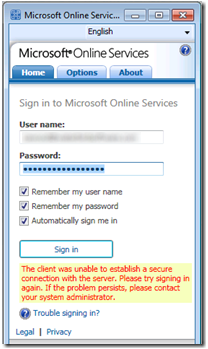
The error didn’t give me any indication that it was an issue with the clock: “The client was unable to establish a secure connection with the server. Please try signing in again.

The solution was simply to set the computer clock correctly and change the server that I was using for online synchronization.

The full error is below. it was also reproducible on the MOS customer portal web page.

image

This issue is discussed on the Microsoft Online: Services Sign In for Windows forums here: http://social.technet.microsoft.com/Forums/en/onlineservicessigninapplication/thread/3a5bd983-935b-4610-8cb4-6e11972cf3ee

Full Error:

The client was unable to establish a secure connection with the server. Please try signing in again. If the problem persists, please contact your system administrator.

The page requires a valid SSL client certificate

Your client certificate has expired or is not yet valid. A Secure Sockets Layer (SSL) client certificate is used for identifying you as a valid user of the resource.


Please try the following:

  • Contact the site administrator to establish client certificate permissions.
  • If you already have a valid client certificate, use your Web browser's security features to ensure that your client certificate is installed properly. (Some Web browsers refer to client certificates as browser or personal certificates.)
  • Change your client certificate and click the Refresh button, if appropriate.

HTTP Error 403.17 - Forbidden: Client certificate has expired or is not yet valid.
Internet Information Services (IIS)


Technical Information (for support personnel)

  • Go to Microsoft Product Support Services and perform a title search for the words HTTP and 403.
  • Open IIS Help, which is accessible in IIS Manager (inetmgr), and search for topics titled About Certificates, and About Custom Error Messages.

Tuesday, May 10, 2011

Geeklit Blog Passes 400,000 Page Views

As you can see by the “old school” counter below, geeklit recently passed the 400,000 page views mark. (Yes, that’s views, not hits, so 400,000 people saw one page, or if it was one person—well that person really likes my blog.) This has me feeling a little nostalgic about the path that this blog has taken.

In the early days, it was very much about Halo. (And trying to be an advocate for legitimate Halo modders. Modding isn’t about cheating damn it!) The first post for this blog was written Monday, January 31, 2005 and the majority of the posts at that time were about my Halo books: Black Art of Halo Mods (Sams), Halo 2 Hacks (O'Reilly) and Halo 2 Battle Guide (Thompson). There was also some content about Microsoft Content Management Server (MCMS) and the book I co-authored about that software: MCMS: A Complete Guide (AW). I don’t feel bad ‘plugging’ these titles because they’re so old now that I don’t think anyone is interested in paying for them anymore.

- this image was in the first post with the caption “I don't recall whether this was staged or not”

Of course, after leaving Microsoft, I eventually made it back into the fold (although writing books about Halo and XNA—how far did I really roam?) when I joined metalogix and started blogging and writing books about content management again—of course, Microsoft had consolidated on SharePoint by that point.

I’ve had people tell me over the years that my blog is eclectic, and I’ve always agreed with that assessment. Whether it was chronicling a drive across Canada, or writing about some development topic such as adding Growl/Prowl push notifications to SharePoint applications, I have jumped around a bit.

There is a common thread though, whether it’s Halo, MCMS, SharePoint, coding for XNA, or even highlighting the no left turn to Tim Hortons sign in Fredericton, it’s all pretty geeky.

Sunday, May 08, 2011

Azure Debugging Database Error

To set up the ability to debug Windows Azure projects in Visual Studio, you need to first run the “dsinit” command line utility (C:\Program Files\Windows Azure SDK\v1.2\bin\devstore>dsinit) which comes with the Windows Azure tools for Visual Studio. I recently ran into an issue where dsinit would not create the SQL Server Express database that would be used for debugging Azure projects.

dsinit

The error is “Failed to create database ‘DevelopmentStorageDb20090919’: User does not have permission to perform this action. One or more initialization actions failed. The development storage cannot be used without resolving these errors.”

The issue was that the user logged into Windows did not have the “dbowner” right in SQL Express. It was also necessary to add the “sysadmin” right so that the user could set permissions once the database was created.

dsinit2

After adding sufficient rights in SQL Server Management Studio to the SQL Express database, dsinit successfully completed.

dsinit3

Sunday, May 01, 2011

Windows Azure Debugging Issue with SQL Server

I was working on a Windows Azure application today and when I tried to debug, I found that I was being stopped by the error below. I happen to have the full version of SQL Server on the machine in question, so my haughty first response was that I wasn’t going to install something else, but after trying the recommended approach, the simplest solution was to just install SQL Server Express.

Windows Azure Tools: Failed to initialize Development Storage service. Unable to start Development Storage. Failed to start Development Storage: the SQL Server instance ‘machinename\SQLExpress’ could not be found. Please configure the SQL Server instance for Development Storage using the ‘DSInit’ utility in the Windows Azure SDK.

I found this blog post that gives a lot of helpful info about the issue: http://blogs.msdn.com/b/sql_protocols/archive/2007/05/13/sql-network-interfaces-error-26-error-locating-server-instance-specified.aspx. I first checked the firewall and that wasn’t the issue. Then I used the utility referenced on this page to check SQL connectivity.


image

Sure enough, the SQL Browser service was disabled (it showed NOT LISTENING). I started the service and was able to get past the original error message. I then ran DSInit to specify my SQL instance.


image

However, after running DSInit and specifying my SQL instance, I got the error below which advised me to install SQL Server Express. Fine. I did and it worked.

Server Error in '/' Application.


A network-related or instance-specific error occurred while establishing a connection to SQL Server. The server was not found or was not accessible. Verify that the instance name is correct and that SQL Server is configured to allow remote connections. (provider: SQL Network Interfaces, error: 26 - Error Locating Server/Instance Specified)

SQLExpress database file auto-creation error:

The connection string specifies a local Sql Server Express instance using a database location within the application's App_Data directory. The provider attempted to automatically create the application services database because the provider determined that the database does not exist. The following configuration requirements are necessary to successfully check for existence of the application services database and automatically create the application services database:

3. Sql Server Express must be installed on the machine.

image

Update: I haven't tried it, but I hear I'm supposed to use "/sqlserverinstance." to use the full version of SQL Server.

Friday, April 01, 2011

Panacea: The Language for Everything and Everyone

In my vast spare time, I’ve been working on my own language project. I’m calling it the Panacea Coding Language. The goal is to provide an easy framework for everything and everyone.

Here’s a sample code block:

START
DO something
STOP

But it’s even better. You don't even need to include the start command:

DO some SharePoint stuff
IF something bad happens
THEN fix it before my manager finds out
STOP when done

Unlike other programming languages, Panacea also responds to begging:

PLEASE write this code for me so that I can go home

Panacea V2 will also allow colloquial coding:

DO some stuff LIKE FAST
SPARE ME the hassle of errors
JUST LIKE get it done
EOF SC