Move to Apple Music allowed me to export a copy of my playlists (in XML), then upload the playlists I want into Apple Music. It also provides a list of the songs it couldn't find on Apple Music. In my case it was over 200, but when I checked into it, it turned out that most of the songs are available on Apple Music, they're just listed differently (e.g., the same song on a different album version). Be aware, iTunes will actually refuse to sync a playlist if there's a song included that can't be found, so you'll have to check them once you have finished the import.
Tuesday, October 06, 2015
Copying Playlists from Rdio to Apple Music
Move to Apple Music allowed me to export a copy of my playlists (in XML), then upload the playlists I want into Apple Music. It also provides a list of the songs it couldn't find on Apple Music. In my case it was over 200, but when I checked into it, it turned out that most of the songs are available on Apple Music, they're just listed differently (e.g., the same song on a different album version). Be aware, iTunes will actually refuse to sync a playlist if there's a song included that can't be found, so you'll have to check them once you have finished the import.
Tuesday, September 08, 2015
Araxis File and Directory Comparison Utility
Free tools such as KDiff will perform a differential analysis on files and even show exactly which lines have changed. However, KDiff doesn't provide any ability to separate the changed files from the ones that don't need to be translated again. Fortunately, there is another application called Araxis Merge (Windows and MacOS supported) that does allow for this ability. At the time of writing, it's $129 for one standard licence.
Like Kdiff, you can run a recursive directory diff to find all the changes in all the files. However, once you have done your folder comparison, you can also select all the altered files (using Select Rows > Selected Changed) and copy them to a new "specified folder." Using this method, I was able to grab all of the XHTML files that have changed since we last did a complete document translation.
Note that this method DOES NOT copy new files. You will need to go through manually and copy the files that have been added. These files appear green in the Araxis folder comparison view.
Tuesday, August 04, 2015
DocBook 5 Install and Setup for Windows
Currently, I only want to set up DocBook to publish HTML--I may be adding PDF later. Finding the installation and set up instructions for DocBook on Windows was not easy. I discovered a couple of old (and short) versions of this and that's where I started.
Unlike most Windows applications, there is no installer for DocBook. Installing is the same as downloading the executables (and other files), copying them to the location you want and then adding that location to your Windows Path. The Windows DocBook setup essentially has three pieces:
- DocBook DTD (optional)
- DocBook XSL stylesheets
- Tools:
- libxml2
- libxsl
- iconv
- zlib1
Unzip the folders and copy the files to c:\windows or another location that's in your Windows path. I prefer to copy them somewhere else (e.g., C:\docbook and add that directory to the path variable):
B. LIBXML2: I downloaded libxml2-2.7.8.win32.
If you want the newer libxml2 kit to convert your XML to HTML, you can get it from:
ftp://xmlsoft.org/libxml2/win32/64bit/, or ftp://xmlsoft.org/libxml2/win32/. But I'd try to get the old one working first. I haven't bothered to upgrade.
C. ICONV: I download iconv-1.9.2.win32
D: ZLIB1: I downloaded zlib-1.2.5.
After grabbing the tools, make sure you set up your Windows Path Variable. To set up the path for my system, I appended this: C:\docbook\libxslt-1.0.9-bin\bin;C:\docbook\libxml2-2.7.8.win32\bin;C:\docbook\iconv-1.9.2.win32\bin;C:\docbook\zlib-1.2.5\bin;
Once you have the tools installed. Run this command: xsltproc -version
The results should look something like this:
stephen.cawood@OLIFANTS /s/GitHub
$ xsltproc -version
Using libxml 20708, libxslt 10126 and libexslt 815
xsltproc was compiled against libxml 20706, libxslt 10126 and libexslt 815
libxslt 10126 was compiled against libxml 20706
libexslt 815 was compiled against libxml 20706
And the successful output should like like the image below.
To add a CSS stylesheet to your HTML output, use a command similar to this:
stephen.cawood@OLIFANTS /c/docbook
$ xsltproc --output outputFile.html --stringparam html.stylesheet help.css /c/docbook/docbook-xsl
-1.79.0/html/docbook.xsl testDocBook.xml
Note: If you want to build PDFs, you'll need to download and install FOP for Windows.
References:
Wednesday, July 08, 2015
Office 365 Message Shows Openness at Microsoft
Why isn't my Office 365 app launcher working as expected?
If you're using Internet Explorer when you visit a team site or other SharePoint Online page in Office 365, the app launcher may not show customizations you've made, like resized tiles or apps pinned to the navigation bar.
What can you do?
## Try this first! Use a different browser. We recommend using Microsoft Edge on Windows 10, and if you don't have Windows 10, try using the latest versions of Mozilla Firefox or Google Chrome.
Everyone has been hacking on IE forever, but to see this level of openness from Microsoft itself is quite telling. Yes, they're promoting Microsoft Edge, but nothing wrong with that. There was a time when people at MS were saying silly things like "don't call it a bug, it's an unintended feature." I was at an event when Steve Ballmer called out that behaviour and told the audience to be open with customers. "If it's a bug, call it a bug." That was around 2002. It's good to see the openness continues.
Friday, June 12, 2015
Error Starting Ubuntu Desktop on Chromebook After Upgrade
Unfortunately, the version of Ubuntu installed was 12. As fun and nostalgic as that was, I immediately set about upgrading to the latest stable build. Running the upgrade was simple enough.
sudo apt-get update sudo apt-get upgrade sudo apt-get dist-upgrade sudo apt-get install update-manager-core sudo do-release-upgrade
Everything worked at first, I even went through the process of installing some applications such as Gnome Terminal, Gimp and Git (Crouton installs the minimal release--so barely any applications). However, I ran into a snag when I rebooted. The sudo startunity command would fail with a nasty message.
...
[ 727.514] (WW) The directory "/usr/share/fonts/X11/75dpi" does not exist.
[ 727.514] Entry deleted from font path.
[ 727.514] (==) FontPath set to:
/usr/share/fonts/X11/misc,
/usr/share/fonts/X11/Type1,
built-ins
...
727.526] (EE) Segmentation fault at address 0x0
[ 727.526] (EE)
Fatal server error:
[ 727.526] (EE) Caught signal 11 (Segmentation fault). Server aborting
...
[ 727.526] (EE) Please also check the log file at "/tmp/Xorg.crouton.1.log" for additional information.
[ 727.527] (EE)
I prefer the Unity desktop, so that's the one I had originally installed. To work around the error, I reinstalled Unity using the same command in the original setup article:
sudo sh ~/Downloads/crouton -t unity.
Wednesday, May 27, 2015
The Secret Sabbatical
With extensive use of examples from the humanities, the book discusses the "loss of imagination" that is currently rampant in most organizations... and more people's lives.
From the website:
"This is the Book with the secrets of The Secret Sabbatical. Up to now this material was only available in one-on-one Course sessions for those asking “What Should I Do With the Rest of my Life?”
Developed over 10 years the Course has been fine-tuned for executives, surgeons, architects, research scientists and other professionals. Now you can read the notes from that Course, which are arranged in a clear sequence that covers how to find your own answer in the needed depth."
Wednesday, April 22, 2015
5 Tips to Make SharePoint Easier for Non-SharePoint People
#1 Simplify Versioning
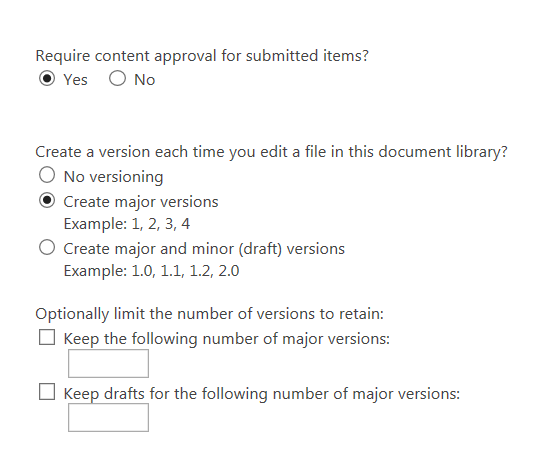
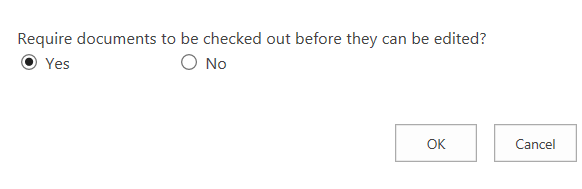
A quick and easy way to help your users avoid pitfalls is to simplify the version settings for their document libraries. You may have some complicated process in mind that requires specific settings, but if that process is confusing your users, you should consider simplifying the version options. For example, if you don't need versioning, just turn it off completely. If you don't need minor versions, turn them off. People new to SharePoint usually don't know that there minor versions are only visible to them by default.One easy way to prevent conflicting changes is to enforce check out before documents are edited. This is a simple radio button in the version settings.
You would use this if you’re worried about your users making conflicting edits. Requiring that they check out documents before editing will eliminate the problem of conflicting changes, but you’ll need to educate them on checking in the docs when they’re done.
To add the column, go to the doc lib's settings page and find the "Columns" section. From there, choose the "Add from existing site columns" link and then select the "Checked Out To" column from the list.
#2 Add the “checked out to” Column
Since I just mentioned enforcing check-out before editing, the next tip has to be one of my favourites—adding the “Checked Out To” column to the default view. This simple change can make life so much easier for people new to SharePoint.
If you add this column to the default view, it's obvious to everyone which documents are checked out and who has them checked out.
#3 Show draft documents by default
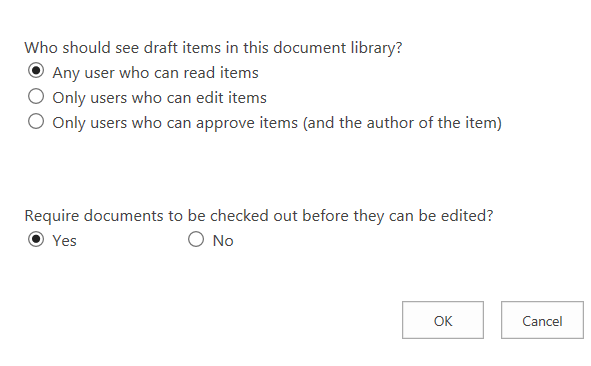
Another option that is related to simplifying versioning is to show draft documents by default. This way you can allow people to see draft documents before they have been checked in. If a user sees a draft, he or she can talk to the person working on the document before making changes that would potentially conflict with the existing draft.
This saves lots of hassle because it's common for users to forget to check in new docs, or simply not understand why it has to be done before other people can see that a file has been added.
#4 Keep the permission model simple and manageable
#5 Show your users how to sync their document libraries to their local folders
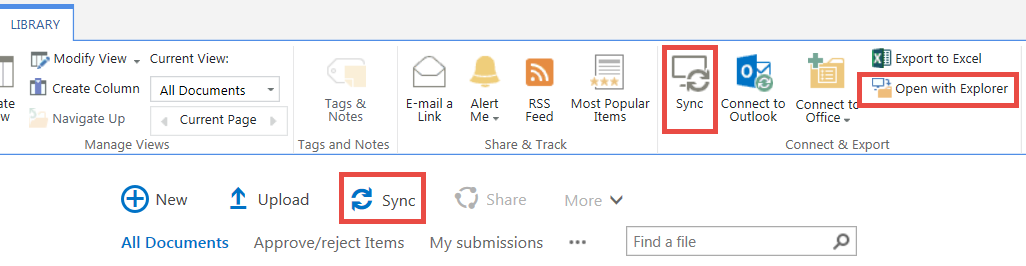
Note: You may need to install the install the SharePoint 2013 OneDrive Pro client to get this to work.Many users feel more comfortable working in the Windows file system. They can do this with their SharePoint document libraries by choosing the "Sync" options or the "Open with Explorer" link. Once you have the SharePoint library syncing to a local folder, you can easily do things like paste files into the doc lib to upload them to SharePoint.
#6 Bonus Tip For Admins and Power Users
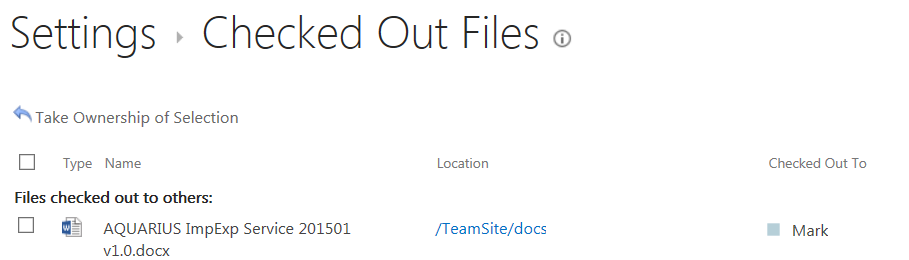
If you go to the library settings, you can use the "Managed checked out files" option to see all the checked out files and from there, you can even take ownership of them by choosing the "Take Ownership of Selection" option.This is great when a document isn't showing because it only has a draft version and you're not sure who has it checked out.
Tuesday, March 31, 2015
RabbitTxt Text Messages is My First App
I’ve been working with a friend of mine on a simple iOS app called RabbitTxt—you can grab it for free right now from the Apple iOS App Store. The idea is to enable quick, one handed, pre-canned text messages to people or groups. Basically, tap, tap, send. Or if you’re sending the same thing to the same person, just… tap.
The app will remember the last person (or group) you sent a message to and also which message you sent, so you don’t have to select them again.
Unfortunately, my grand idea of the fastest text/SMS messages possible ran into an iOS restriction. Once you tap “Send Text” in RabbitTxt, you’ll need to press send again when the iOS messenger app opens. Sadly, there’s nothing we can do about that. The fastest possible text message interface on iOS is… tap… tap… Shrug.
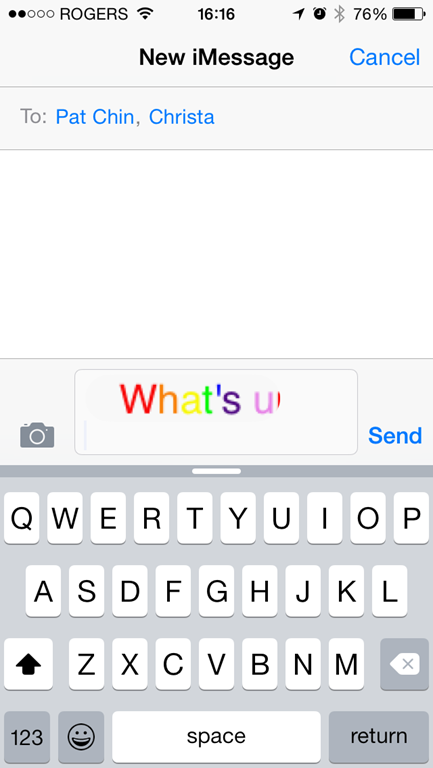
It was Pat’s idea to add the “Jazzify” feature and it’s pretty snazzy. This feature converts your text message into a flashing image. Perfect to get someone’s attention.
Thursday, February 26, 2015
Fairchild TV Interview about the Vancouver Tech Scene
I was recently interviewed by Fairchild TV (a national Chinese language station) for a segment about the Vancouver tech scene.
If you’re interested in the story, here are links to the video. Note that it’s a Cantonese language station.
(You can download the video if you find it's playing too slowly on the site.)
Part 1:
http://www.fairchildtv.com/newsarchive_detail.php?n=27&topic=375&episode=690
Part 2:
http://www.fairchildtv.com/newsarchive_detail.php?n=27&topic=375&episode=691
Friday, January 23, 2015
Interview for Elements Academy of Martial Arts
Update: Some of their posts have been removed during spring cleaning I assume.
Monday, December 08, 2014
Chromebook 2 Feedback and Review
In general, I'm still thrilled with the machine. It's an inexpensive computer with a full laptop typing experience. The audio and video are good, the battery life and charge times are fantastic, and so much is available via web apps these days that I can almost use it for everything. I also like that the operating system is simpler than a traditional desktop O/S. For all the reasons I mentioned in my previous post (Why I Just Bought a Chromebook), I think it's a fantastic device and I'm recommending it to people.
My issues pretty much stem from the fact that Chrome OS has a tiny web app store at this point. There are two ways to fix these issues, either more web apps in the Chrome Web Store or enabling Android (Google Play) apps on Chromebooks. There are rumours of Google Play capability coming to Chromebooks, but I'm not optimistic that will happen on my Chromebook 2. However, I sincerely hope my pessimism is poorly placed.
Here are the main issues I've encountered:
1. GoToMeeting doesn't work (even the web version only allows you to listen--you can't share your video or talk). This is a deal breaker for using my Chromebook as my only computer. Whether it's GoToMeeting or WebEx, I have to be able to participate in meeting using the technology that my employer and customers are using. Yes, Google Hangouts and Sqwiggle work--that's great--but it doesn't solve the problem. (As I pointed out in my last post, I'm not trying to replace my phone with my laptop and I can actually use WebEx or GoToMeeting on my phone, so that mitigates this problem.)
2. Skype doesn't work. This isn't a work problem for me, so I'm putting it in a different point. I use Skype with family, so I want it on my laptop. (Again, I can use this on my phone.)
3. Torrent files. I'm working on this one, but I have yet to find a good solution for downloading files via torrents. There are apps in the Chrome Web Store, but I tried one and it just didn't work. I'll have to try another. There's one that costs a few dollars--I might have to resort to actually paying for an app.
4. Heat. I'm not actually using a thermometer, but the Chromebook feels hot to me when I'm using it on my lap. By comparison, my wife's MacBook Air doesn't seem to get as warm, but my old Acer laptop is actually hotter than the Chromebook.
5. Google Cloud Print. I was pleased to learn about the Google Cloud Print option. It allows me to print to a printer connected to another machine (because you can't install print drivers on Chrome OS). However, it simply doesn't work very well. My printer isn't that old (it's wireless), but printing with Google Cloud Print results in such bad results that it's almost useless. For example, it's common for my documents to print with the last few characters of every line cut off.
6. SD Card. This is a minor annoyance, but every time I open my Chromebook, I'm told to safely remove my SD card--not on reboot mind you, but literally every time I login. I don't want to remove the card and I shouldn't get that error all the time. I just ignore it, but I'm not the only one seeing this issue and I hope it gets resolved in an update.
Saturday, November 08, 2014
Why I Just Bought a Chromebook
But before I get to that, I think it’s important to mention that I took my time with this decision. What else did I consider? I weighed the pros and cons of many different options: MacBook Air, MacBook Pro, Windows laptop, Ubuntu laptop, Microsoft Surface, Windows tablet, Android tablet, and iPad. We already have a MacBook Air, Windows desktop and iPad in the house, so that also played into my decision.
1. Affordability -- Chromebooks are remarkably affordable. Unlike a MacBook Air, or a Surface 3, they're cheap. I bought my new Toshiba CB35-B3340 Chromebook 2 for $329.99. That's about a third of what I would have paid for the others. Even if it turns out that I don't like the Chromebook, I've made a small investment to find that out.
2. Getting my work done -- I don't care about brands very much and I'm not a zealot when it comes to technology. I just want to get my work done and spend more time with my wife and daughter. If I can do everything I need to do on the Chromebook, I'm happy. These days, I spend most of my time either in email and Word documents. I can use web versions of Outlook, Gmail and Word to do all that. If I need something else, I can remote into my Windows Server at home or my Windows desktop at work, or just use my Wife's MacBook Air. An obvious example is Visual Studio for coding. However, these is a web version that I can try even for that. I'm very curious what the dev experience will be like on a Chromebook.
3. I’m not replacing my phone -- While it's true the Chrome App Store doesn't offer the millions of apps in the iOS Store, or the Google Play store, or even the Windows App Store, that's not what I need in a laptop. I have my phone with me at all times and I don't need to send text messages or play Flappy Bird on my laptop. (BTW -- Angry birds is in the Chrome App Store)
4. ‘Traditional’ operating systems are too much work -- I was already thinking this way, but a few weeks ago, I picked up a Windows 8 tablet I use at work and found that it was running Windows Update. I just wanted to write a note in OneNote, and I couldn't because the operating system is huge and powerful and therefore takes time to update. This is just one example of the ways that large traditional operating systems (Windows, MacOS, Linux) are just too much work for my use case (see "Getting my work done" above). Chrome O/S is simple and I like the sound of that.
Update: Now that I have my Chromebook (I'm writing this update on it), I can say that I'm impressed. I ran into a minor issue during set up (Chromebook setup freezes at Determining Device Configuarion) but restarting was enough to quickly resolve the issue. Since then I haven't hit any hurdles and I'm really enjoying the experience.
Thursday, October 30, 2014
Chromebook setup freezes at "Determining Device Configuration"
Tuesday, September 30, 2014
Leaving the Microsoft MVP Program
In a few days, my time as a Microsoft Most Valuable Professional (MVP) will come to a close. Sad, yes I know… OK, not really so much sad as the natural evolution of things. I first received the MVP award a mere four days before my daughter was born. Even back then, I knew that I would have to eventually bow out of the program. Of course, there are people in the program who successfully juggle their job, home life, and somehow still manage to be excellent MVPs, but I don’t feel I’m one of them, so I’ve asked not to be renewed this year.
The MVP program is excellent and I’ve enjoyed being a part of it. Most of all, I’ll miss going to the MVP Summit and hanging out with the other MVPs. There are other benefits of course—access to early information, free software—but those don’t match the amount of effort it takes to get the award. As I describe in the post mentioned below, you really have to doing community work because you love doing community work—otherwise the time investment just doesn’t make sense.
I already sent the obligatory “so long and thanks for all the fish” message to my fellow MVPs. I wish you all well and keep up the excellent work!
BTW -- If you don’t know what the Microsoft MVP award is, here’s some content from a post I wrote called How do I Become a Microsoft MVP?
First of all, if there is only one thing to remember about the MVP award, it’s this: the Microsoft Most Valuable Professional (MVP) award isn’t a certification. There are no set criteria or steps that someone can take to become an MVP. As the name implies, it’s an award.
“This award is given to exceptional technical community leaders who actively share their high quality, real world expertise with others. We appreciate your outstanding contributions in SharePoint Services technical communities during the past year.”
- Microsoft
In practical terms, this means helping with community-focused resources such as contributing to newsgroups, speaking at conferences, writing/blogging about your subject (e.g., SharePoint) and contributing code to CodePlex (an open source site).
Wednesday, August 27, 2014
My ALS Ice Bucket Challenge Video
Here is my ALS Ice Bucket Challenge video. I was challenged by my good friend and advocate for ALS fundraising efforts, Rasool Rayani.
You can contribute online to the Walk for ALS (ALS society of BC).
"Also known as Lou Gehrig's disease, amyotrophic lateral sclerosis is a progressive neurodegenerative disease that affects nerve cells in the brain and the spinal cord. There is no cure and only one medicine to slow its progress has been approved."
http://www.cbc.ca/news/business/ice-bucket-challenge-brings-millions-of-dollars-to-battle-als-1.2739663
Thursday, July 10, 2014
MVPs and the Evolution of Windows
I’ve been mentioned on the Microsoft MVP Award Program blog. The post is about MVPs and the evolution of Windows.
From the article:
For more than two decades, MVPs have been on the forefront of helping people around the world make the most of their Microsoft technologies, including its centerpiece, the Windows operating system, from Windows 3.1 to Windows 8.1 and all the releases in between. Today, with Microsoft’s new rapid release cadence, their expertise is more important than ever…
In Canada, five MVPs produced guidance for the Windows XP End of Life campaign. Here are some highlights:
Brian Bourne | Windows XP End Of Support – Mitigating the Security Concerns
Yannick Plavonil | Chères entreprises, réveillez-vous Windows XP c’est fini dans un mois!
Sean Wallbridge | I Love My Surface Pro 2 and Windows 8.1
Colin Smith | XP End of Support – Do You Need New Hardware?
Stephen Cawood | Windows XP End of Life Is Coming
Turn off Image or Video Prompt in Snagit 12
If you haven’t tried Snagit, you should check it out. It’s much better than relying on the old school screen capture mechanisms. When I was taking screenshots for my books, Snagit saved me a great deal of time. As just one example, try capturing an open dropdown menu using just Windows screen capture shortcuts—it’s like trying to catch a greased pig.
I just upgraded to Snagit 12 and found that every time I take an image capture, I’m prompted to select either a video or image capture (see the big blue buttons in the screenshot below). I rarely use the video capture, so this is a waste of time. Here’s how to turn it off.
First, check if you’ve got an old version of Snagit installed. I had 11 and 12 installed and was not getting the behaviour I wanted. I had to uninstall Snagit 11 to get rid of the old editor.
Next, go to the preferences window and check the hotkey associated with the default capture profile. I like to use print screen, so I’m going to change the “Global capture” shortcut key to something else. To get to the preferences window, you can right-click the icon in the task menu (bottom right corner of your screen with the hidden icons), then choose Preferences and the Hotkeys tab.
After I’ve freed up the right shortcut key, I’m going to associate that key (PrtScn) with a profile that doesn’t ask if I want to take video.
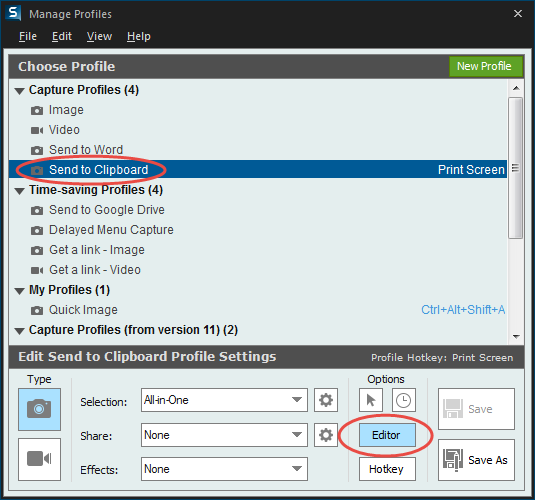
To do this, choose the “Send to Clipboard” profile from the Manage Profiles dialog, and then click the Hotkey button at the bottom to associate this with the keyboard shortcut you’d like to use. Note that I wanted to go directly to the Snagit editor, so I have that enabled.
Now I’m back to the lightning fast capture that I’ve come to love. When I use the hotkey, I go straight to the Snagit editor. If I wanted, I could add styles (such as borders) as part of the profile and they would be automatically applied.
p.s., If you’re wondering how I captured the Snagit windows. I cheated. I used Alt+PrtScn to do it old school.
Wednesday, June 18, 2014
Aquatic Informatics Blog Post: AQUARIUS: Where Smart Water Data Meets the SMART Tunnel
Check out my first blog post on the Aquatic Informatics blog: AQUARIUS: Where Smart Water Data Meets the SMART Tunnel
In this post, I discuss the engineering feat that is the SMART (Stormwater Management and Road Tunnel) Tunnel. It stretches 9.7 km beneath Malaysia’s capital and function both as a roadway as a storm drainage system.
- Image Courtesy: ENTURA, Hydro Tasmania
From the post:
The “Stormwater Management And Road Tunnel” (SMART Tunnel), has been featured in many news stories and television shows such as Extreme Engineering on the Discovery Channel, Build It Bigger on the Science Channel, Megastructures on the National Geographic Channel, and Man Made Marvels on the Science Channel. The reason the Kuala Lumpur tunnel is so amazing starts with its length: it is the second longest storm drainage tunnel in Asia at 9.7 km (6.0 mi). The truly amazing aspect of the SMART tunnel is that it’s the first dual-use storm drainage and road structure in the world. The tunnel is mainly used to ease traffic congestion in Kuala Lumpur, but there is a storm drainage system under the two decks of cars. Essentially, the tunnel acts as a reservoir to decrease the peak of water flows of the Klang river and therefore mitigate the severity of floods. However, that’s not all. In the event of a bad flood, the road decks can also be used to drain the storm water away from the city. That’s right. The car levels can be completely filled with water as well!
Update: It was recently announced that a similar tunnel project is planned for Jakarta:
Jakarta Announces Plan for Integrated Tunnels to Manage Traffic and Floods
Thursday, May 29, 2014
Windows XP End of Life Update: Win a Microsoft Gift Card for Commenting on This Post
Leave a comment below and let me know what you think is the single most important reason to upgrade from Windows XP, or your favourite new feature of Windows 8.1 and you will be entered to a random draw for a $100 Microsoft Store Gift Card. Winners will be selected on July 15th.
Wednesday, April 09, 2014
Add Wikipedia App to Microsoft Word 2013
Office 2013 and SharePoint apps are great, but I have to admit that I haven’t done much with them yet. Today, I found myself wondering what I’d have to do to get Wikipedia to open when I right-clicked on a word or phrase in Word 2013.
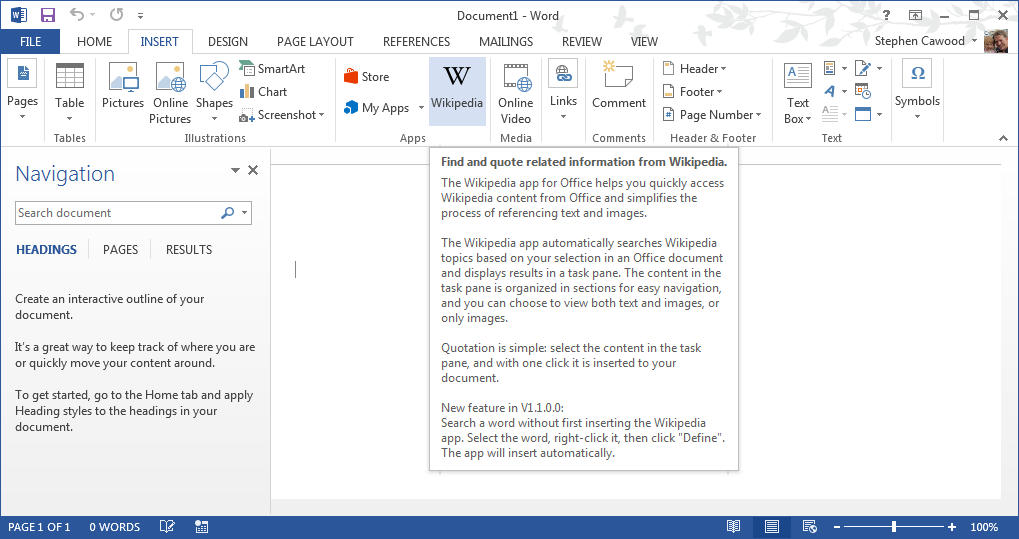
To add Wikipedia, all I had to do was choose Insert from the Ribbon menu at the top of the screen and then click the Wikipedia icon. If you click “My Apps,” you can navigate to the Office 2013 app store and check out what other interesting apps are available.
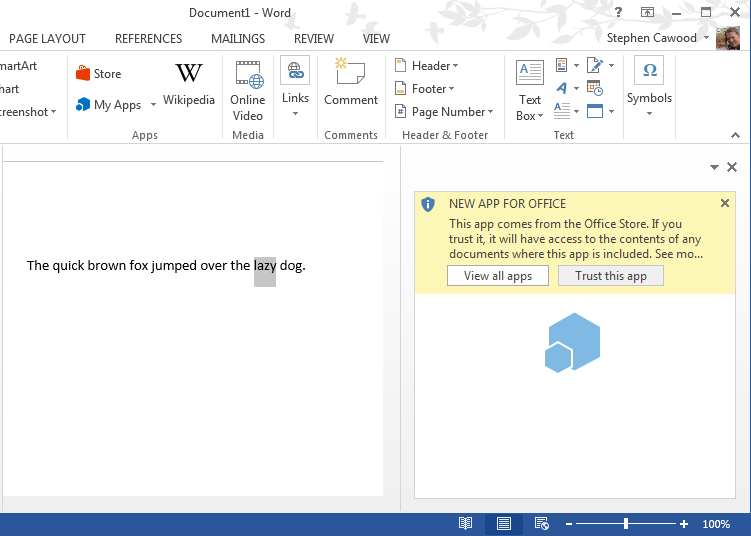
Once you click the icon, you’ll need to confirm that you trust this new app.
After you’ve trusted the app, you can now quickly look up words or phrases from your Word documents in Wikipedia. Very cool!
Switching the app that opens by default when you choose the “Define” option is not obvious. To choose a different app, you first need to hide the Wikipedia app my clicking “My Apps” in the Ribbon and then clicking “Manage My Apps.”
For example, let’s say you wanted to use the Bing dictionary for the Define option. You can add the Bing app, then choose Manage My Apps—which opens a web page—and hide Wikipedia from that page. Once you hide an app, you should be able to click the “Refresh” button in the My Apps view and see that the app is no longer there.
After you’re done, you can unhide Wikipedia. Note that some people have reported that they had to restart Word after hiding Wikipedia.
I should mention that it’s also possible to have multiple apps running. In the screenshot below, I have both the Bing dictionary and the Wikipedia app open.