Saturday, February 26, 2011

Microsoft MVP Summit 2011

I’m currently in Vancouver and tomorrow I’ll be making my way down to the Seattle area for the Microsoft MVP Summit. Last October, I received an MVP Award for Microsoft SharePoint, so this is my first visit to the summit.

Unfortunately, for my blog, everything at the summit is under the umbrella of the MVP non-disclosure agreement, so I won’t be able to blog or tweet about the content of the sessions.

clip_image001

As usual, I’ll try to find time to meet up with my former colleagues in the area, but I’m really looking forward to the summit itself. The main keynote speaker is Steve Ballmer, CEO, Microsoft. I once lost $10 because a friend bet me that I’d speak to or shake hands with Ballmer or Gates within a year of starting work in Redmond. I bumped into Ballmer backstage at a Microsoft conference in New Orleans and I was $10 the poorer.

Friday, February 04, 2011

Twitter for Business: Beyond what you had for lunch

Since Twitter launched in 2006, I’ve heard many criticisms of the short message communication system. Some of the limitations of Twitter are obvious—after all, you can’t expect to be able to express every idea in 140 characters or less. However, I’ve also found that many hacks against Twitter are unfounded and stem from a lack of understanding about how Twitter works and the value it can add. This is particularly true in the context of using Twitter for business purposes.

Recent events have shown that Twitter has profound value in other contexts. For example, political rallies or disaster scenarios. Messages can be sent about demonstration locations or places to find food and shelter. I successfully use Twitter to keep up-to-date on what’s happening in the Microsoft SharePoint community, so I take it a little personally when someone claims that the technology has no value. Here’s a quick defense of the value of Twitter for business.

Update: I’ve now posted a second part to this post: Twitter for Business Part 2: Twitter Usage and Etiquette

Twitter is Open

Some people love to rant that, “Twitter makes no sense because we already have Facebook status.” What these people don’t realize is that unlike Facebook status, Twitter is open. Sure, the Twitter direct message (“DM”) system can be used for private messages, but most messages are not sent as DMs; most Twitter messages are public.

What this means is that any user has the ability to ‘follow’ any other user and read their messages. I doubt Bill Gates would accept a friend request from me, but I can follow him on Twitter to see how his foundation is faring in its fight against polio. Once you’re following a user, it makes it easier for you to see their messages—a.k.a. tweets—but you’re not even required to follow someone to read their tweets. You can visit their Twitter page anonymously and read what they’ve written.

This is great for business because anyone interested in a particular subject—let’s say SharePoint migration software from Metalogix—can read tweets by @metalogix or create a search for tweets with “SharePoint” in the text (or “#SharePoint” if you prefer Twitter hashtags). In other words, if I send out a tweet with key terms, I know that I’ll be reaching an audience interested in those subjects.

Twitter is Democratic

With the exception of some “Who to follow” or “Highlighted users” suggestions, Twitter is largely a democratic system. Each user chooses who he or she will follow and whether a tweet becomes popular depends on how many users choose to ‘retweet’ it. This is radically different than traditional marketing or public relations because business users might choose to follow a software developer’s account instead of the corporate PR account. This must be frightening to old school media types, but companies that effectively use Twitter can reach audiences that might otherwise simply ignore their marketing efforts.

Hypothetically, I might not want to follow a movie studio’s twitter account, but if I choose to read the tweets of an actor starring in one of their movies, I would still see some (maybe a lot?) of plugs for their movie.

Twitter is an Instant Worldwide Bulletin Board

The most common complaint I hear about Twitter is that it’s used for glib messages that no ones cares about. In an episode of the TV show Criminal Minds, a killer tracked social networking users who sent out tweets such as, “Mmm scones.” This is the sort of thing that many associate with Twitter. So much so that, I’ve heard Twitter called “keyboard masturbation.” What these critics need to realize is that those using Twitter in a business context aren’t going to behave this way.

Think of standing on a corner and having a constant flow of people walking by giving you Post-It Notes about the subjects that interest you. It can be incredibly useful and powerful to have that sort of instant access to what people are typing about any subject at any point in time.

When someone tries to put down Twitter, I simply say that if I follow someone for business reasons, and all he does is tweet what he had for lunch (not that I’ve ever done that), I’ll just unfollow him. Besides, it’s a lot less insulting than being un-friended.

Update: I’ve now posted a second part to this post: Twitter for Business Part 2: Twitter Usage and Etiquette

Follow me on Twitter: @cawood

Friday, January 07, 2011

Add Push Notification to SharePoint Apps

I’ve been working on an application to help me with some SharePoint 2010 API/web services/client OM performance testing—I’ve given this app the sufficiently geeky name ‘SharePoint Genesis Device.’ The operations that this application runs can take many hours, and I don’t want to have to keep checking if it has completed. For this reason, I’ve added Growl/Prowl support so that I can receive push notifications on my PCs and smart phone.

image

                                                 - A Prowl notification sent to my phone

I’ve just started on this project, but the screenshot below shows what the SharePoint Genesis Device looks like today. I’m going to use Prowl ($2.99) as my mobile app for Growl notifications, but there are other options out there. However, I found Prowl to be easy to set up, so I recommend it.

image

After adding Growl (PC notifications) and Prowl (iPhone notifications) support, I am able to send push notifications both to PCs and smart phones. If you would like to do the same, I suggest you focus on getting Growl working first. It’s a requirement for the Prowl setup, so don’t worry about Prowl until you have Growl notifications working.

Follow these steps to add Growl and Prowl support to your C# application:

1. Download the Growl for Windows client and install it.

2. Download the Growl SDK and read the Growl documentation for details on adding Growl code to your application. Here is the code I used:

using Growl.CoreLibrary;
using Growl.Connector;

DateTime stopTime = DateTime.Now;
wlConnector growl = new GrowlConnector();
Growl.Connector.Application application = new Growl.Connector.Application("SharePoint Genesis Device");
application.Icon = @"\GrowlNetLibraries\growl4windows.jpg";
NotificationType operationComplete = new NotificationType("COMPLETE", "Operation Complete");
growl.Register(application, new NotificationType[] { operationComplete });
Notification notification = new Notification("SharePoint Genesis Device", "COMPLETE", "ID", "Operation Complete", "End time: " + stopTime.TimeOfDay.ToString());
growl.Notify(notification);

After you execute this code, you should see your application registered in Growl and the updates should appear on your PC. To open Growl, right-click on it in the system tray and choose Open Growl.

image

                           - Updates from my SharePoint app in Growl

If you have Growl set up and working, then you can add Prowl to send notifications to your phone. If you only want PC notifications, then you’re done.

3. Register for Prowl.

4. Login to the Prowl website and get your Prowl API key. You will need to enter this key into the Growl client so that notifications can be forwarded to your Prowl device.

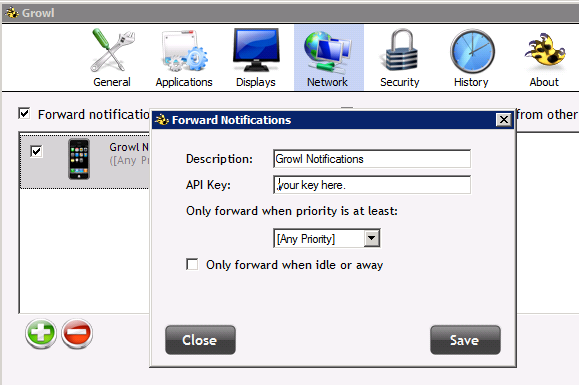
5. Open the Growl client on your PC and add Prowl as a computer for forwarded notifications. Use the API key from Prowl.

image

6. Install Prowl on your iPhone from the app store and enter your login credentials.

That’s all! You’ve now got push notifications on your PC and smart phone.

Thursday, December 23, 2010

Free Motion Chart Visualization

If you’re not familiar with Hans Rosling's work, you should take a look at The Economist’s rollup of his TED talks about infant mortality. His style is engaging enough for the article to be entitled “Hans Rosling's greatest hits.” Hans is a great speaker and his presentations are interesting unto themselves, however, another interesting aspect of his talks is that you can leverage his cool visualization software for your own purposes.

The software that powers the bubble motion charts was purchased by Google and is free at Google Motion Chart—you just need to enter your data and run the HTML on any web server.

I have the sample data running on my web server and I’ve also entered the data for the Metalogix support team so that people can visualize how our support workload has fluctuated over time.

Wednesday, November 10, 2010

New Microsoft Community Contributor Award

I’m happy to say that (minutes ago) Microsoft announced a new award called the Microsoft Community Contributor Award that will recognize individuals who make value contributions to the online Microsoft community.

image

“The Microsoft Community Contributor Award seeks to recognize notable contributions to Microsoft online community forums such as TechNet, MSDN® and Answers. The value of these resources is greatly enhanced by participants who voluntarily contribute their time and energy to improve the online community experience for others. Each day around the world, Microsoft Community Contributor Award recipients contribute to Microsoft online technical communities in a range of ways, including providing helpful answers, translating online resources into local languages and serving as moderators.”

This is a very different award than the Microsoft Most Valuable Professional (MVP) which recognizes people who have focused on specific technologies and are contributing to the community via conferences, blog posts, webinars, etc. Although MVPs also may contribute to forums, there are plenty of people out there doing good work in the forum who aren’t necessarily able to do things like attend conferences around the world.

“Through the Microsoft® Community Contributor Award, we express our thanks to individuals who freely volunteer their time and energy to help improve the Microsoft online technical community experience for others.”

I think this is a great idea as there are a group of hardcore contributors out there that keep forums such as TechNet and MSDN relevant. Without their voluntary efforts, the forums would have a difficult time keeping up with the vast volume and broad range of questions that are submitted.

For more information, refer to the Microsoft Community Contributor Award FAQ.

Monday, November 08, 2010

Critical Information SharePoint Server October Cumulative Update

From the Microsoft SharePoint Team Blog:

"Microsoft has discovered a critical issue in the recently released October Cumulative Updates for SharePoint Server 2010 and Project Server 2010, and we have removed the files from download availability.  If you have already downloaded the CU, do not install it.  If you have installed the CU, please contact Microsoft Support for assistance.  We will be posting additional information about the issue here as soon as we have it, and will make the Cumulative Update available for download again as soon as the issue has been fully resolved."

Tuesday, November 02, 2010

Microsoft Tech Days in Halifax!

Microsoft TechDays is in Halifax November 2-3 at the World Trade Centre.

This is a great local event and I’m happy to see that Microsoft decided to come back to Halifax after the sold out show last year.

From the Tech Days session page: “If you're a technical professional in Canada, review from the six tracks offered through the two day Tech•Days experience in each venue. Select from over 50 sessions to build your schedule.”

Last night, I went to the speaker dinner and met a bunch of the people who have flown in to present on various topics.

I highly recommend this event. Check it out!


image

Thursday, October 28, 2010

Rally to Restore Sanity This Weekend

This weekend, comedian Jon Stewart, from The Daily Show, will be leading a rally in Washington, DC called Rally to Restore Sanity.

Some opponents have made strong negative statements about this event, but I have to say that it makes perfect sense to me. From the perspective of someone outside the system, it seems quite clear that a portion of the media and some politicians in the U.S.A. have convinced a lot of people that they cannot have a rational conversation with someone who doesn’t share their ideology. This creates a toxic environment where people cannot reach reasonable compromises, and it also paralyzes the government because politicians are more loyal to the concept of fighting the other party than they are to their personal values.

So, why would anyone criticize a rally designed to promote rational conversation? Why wouldn’t someone support a forum for people who aren’t extremists? Perhaps because they’re part of the problem.

Jon Stewart Daily show RallyToRestoreSanity_TDS_RallyPoster Geeklit blog

Friday, October 01, 2010

Microsoft SharePoint MVP 2010

I’m happy to say that I’ve received a Microsoft Most Valuable Professional (MVP) Award for SharePoint.

What is that you ask? According to Microsoft:

“This award is given to exceptional technical community leaders who actively share their high quality, real world expertise with others. We appreciate your outstanding contributions in SharePoint Services technical communities during the past year.”

In practical terms, this means helping with community-focused resources such as contributing to the SharePoint newsgroups, speaking at conferences, writing about SharePoint and contributing to CodePlex (an open source site used by the SharePoint community).

Getting into the MVP program has been a long story for me. Back in 2001, NCompass Resolution became Microsoft Content Management Server (MCMS) and I had started what became the MCMS FAQ. The FAQ was a searchable CHM containing hundreds of questions and answers. I created it partly for the consulting team, but it was mainly targeted at the community at large. When NCompass Resolution became MCMS, I wondered if I could be an MVP. However (and I’m not complaining), I was hired by Microsoft and employees aren’t eligible for the MVP program.

In 2004, the MCMS team was folded into the SharePoint team, and I started getting involved with the SharePoint community. But I took a break to do some writing, so it really wasn’t until 2008 that I was deeply involved with SharePoint community activity.

Thank you to everyone who helped along the way. My employer, Metalogix Software, has been tremendously supportive and I wouldn’t have received this award without their help.

MVPverbose

Wednesday, September 29, 2010

SharePoint Taxonomy Series Featured in SPTechReport

My blog series on SharePoint taxonomy (SharePoint Enterprise Metadata Management) has been featured in this week’s SharePoint Tech Report newsletter.

This e-mail newsletter is free and you can sign up quickly by visiting the SD Times website.

SPTechReportBanner

Friday, September 10, 2010

SharePoint Incompatible Web Part markup detected

I was working on my Game of Life SharePoint 2010 taxonomy sample, when I suddenly started to get this error message when I tried to add my web part to a page:

“Incompatible Web Part markup detected. Use *.dwp Web Part XML instead of *.webpart Web Part XML.”

image

The problem is that the .NET framework web part and SharePoint web parts are not the same thing. If you’re deriving your web part from System.Web.UI.WebControls.WebParts.WebPart, then you are using the .NET web part. But if you’re using Microsoft.SharePoint.WebPartPages.WebPart, then it’s a SharePoint web part.

As far as I can tell, you can actually use either one inside SharePoint, but there are differences in the way that you code them. If you’re using a SharePoint web part, then you should have a .dwp file in your feature. If you’re using the .NET class, then it should be .webpart. The error about the web part markup occurs when you try to use the wrong one. The .dwp and .webpart files are both XML, but they use a different schema. So if you change from one to the other, you can’t just rename the file, you have to re-write it.

I don’t know why my project suddenly decided that it didn’t want to work. As far as I can remember, all I did was change the assembly version number, but anyway…

To resolve the issue, I had to ensure that I was consistent across my project. I want to use the .NET webpart class, so this is what the beginning of my webpart.cs file looks like. I’ve used the long format for the WebPart class to make things crystal clear:

using System;
using System.ComponentModel;
using System.Web;
using System.Web.UI;
using System.Web.UI.WebControls;
using System.Web.UI.WebControls.WebParts;
using Microsoft.SharePoint;
using Microsoft.SharePoint.WebControls;

//Added references
using System.Xml.Serialization;

namespace GameOfLifeWebPartProject.GameOfLifeWebPart
{   
[ToolboxItemAttribute(false)]  [DefaultProperty("Text"), ToolboxData("<{0}:GameOfLifeWebPart  runat=server></{0}:GameOfLifeWebPart>"), XmlRoot(Namespace = "GameOfLifeWebPart")]
public class GameOfLifeWebPart :
System.Web.UI.WebControls.WebParts.WebPart
    {

Now that I’ve clarified which type of web part I’m using, any custom properties that I add have to be in the correct format for that type of web part. If you add custom properties using the other format, the project may compile and deploy, but the properties won’t appear in the web part property pane.

// Custom web part property for the term group name
private string m_termStoreGroupName = "Game of Life";
[System.Web.UI.WebControls.WebParts.WebBrowsable(true),
System.Web.UI.WebControls.WebParts.WebDisplayName("Term Store Group Name"),
System.Web.UI.WebControls.WebParts.WebDescription("The name of the term store group you'll use."),
System.Web.UI.WebControls.WebParts.Personalizable(
System.Web.UI.WebControls.WebParts.PersonalizationScope.Shared),
System.ComponentModel.Category("Game of Life Settings"),
System.ComponentModel.DefaultValue("Game of Life")]
public string TermStoreGroupName
{
     get { return m_termStoreGroupName; }
     set { m_termStoreGroupName = value; }
}

This is what the same property would have looked like if I was using .dwp and the SharePoint web part class:

private string m_termStoreGroupName = "Game of Life";
[Category("Game of Life Settings")]
[WebPartStorage(Storage.Personal)]
[FriendlyNameAttribute("Term Store Group Name")]
[Browsable(true)]
[Description("The name of the m_group you'll use in your term store.")]
[DisplayName("Term Store Group Name")]
[XmlElement(ElementName = "TermStoreGroupName")]
public string TermStoreGroupName
{
     get { return m_termStoreGroupName; }
     set { m_termStoreGroupName = value; }
}

If you decide to change from .webpart to .dwp or vice versa, you’ll need to add the new file to your project and also update the feature package. If you don’t add the new file to the feature package, your web part won’t appear in the web part gallery because it requires that XML file.

Thursday, September 09, 2010

SharePoint Game of Life Web Part on CodePlex

Earlier this year, I presented a session at SharePoint Saturday New York on the new SharePoint 2010 taxonomy features (Enterprise Metadata Management). At the time, I offered to provide the source code for the visual web part sample I used in the developer portion of the talk.

The sample is a simple SharePoint 2010 visual web part based on John Conway’s Game of Life cellular automaton. I wrote about the SharePoint Game of Life web part previously on this blog. If you’re interested in SharePoint taxonomy, you can also check out my blog series on Enterprise Metadata Management (EMM).

The idea is that each term in the SharePoint taxonomy term store represents an organism. As you run through each generation, terms are added and deleted based on the parameters of the simulation.

image

It took a few months, but I’ve cleaned it up, added better error handling and uploaded the code to the SharePoint 2010 Game of Life Web Part project on CodePlex. This project is written in C#. It requires Visual Studio 2010 and SharePoint 2010 Server.

The Long Tale: This SharePoint 2010 taxonomy sample is actually a port of an old-school ASP code sample that I wrote in 1999 for the NCompass Resolution API. Resolution went on to become Microsoft Content Management Server (MCMS).

image

Wednesday, September 01, 2010

Visual Studio Designer View Doesn’t Work After Adding a Table

I’ve been working to clean up my SharePoint Game of Life web part so that I can give it out publicly. I found recently that when I added an ASP.NET  Table control to an ASCX page, I could no longer select the individual controls on the page. This is annoying since I you can’t quickly get to their property grids.

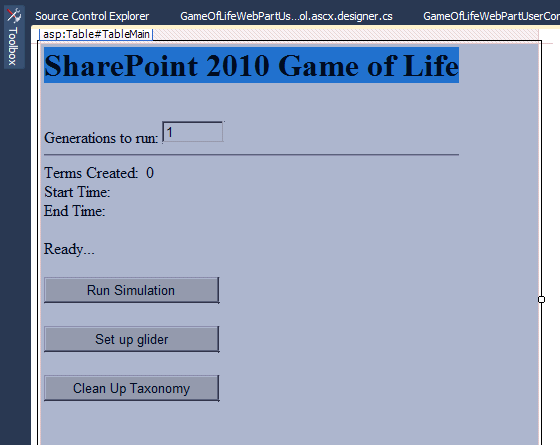
In the Visual Studio designer view, I could only select the Table control that now encompassed all of the other controls.  If I clicked on anything, it just selected the large table. The other ways of selecting nested controls that I would use with WinForms don't work either.

image                         - after adding the table, only the whole table could be selected

After messing about, I found the solution. Since I don't actually need the main table to be a Table control, all I had to do was change it to a simple HTML table. So instead of <asp:Table><asp:TableRow><asp:TableCell>…. I used: <table><tr><td>…

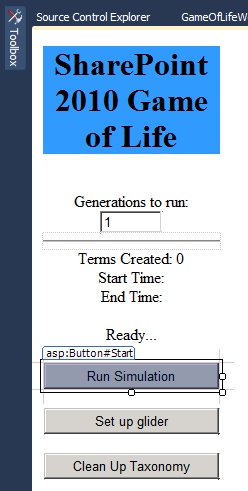
Now the designer is usable again!

image                                                  - after removing the ASP Table control, controls are accessible again

Monday, August 30, 2010

SharePoint Web Part Property Default Value

I’ve been working on the final touches of my SharePoint 2010 taxonomy ‘Game of Life’ web part. I showed this web part during my SharePoint Enterprise Metadata Management (EMM or taxonomy) talk at SharePoint Saturday in New York earlier this year.

One of the final changes is taking the settings out of the ASPX page (and also removing the hard-coded ones), and moving them into the web part properties pane. This isn’t difficult to do, but I ran into a minor snag when I tried to set the default value of the properties. For example, most people playing with this control will be using the default term store name, so I may as well have that name, "Managed Metadata Service", already in the property box.

You can see these properties working in the image below (bottom, right).

WebPartProperties

At first, I thought the format was pretty obvious. I specified the default value like this: [DefaultValue("Managed Metadata Service")]. However, that didn’t work—the default property value was blank. I also tried adding a const string variable and using that to set the value: private const string m_TermStoreDefault = "Managed Metadata Service"; and then [DefaultValue(c_TermStoreDefault)]. But that didn’t work either—I still had an empty default value.

The solution was to set the member variable for the property to the default value. So instead of private string m_termStoreName; I used private string m_termStoreName = "Managed Metadata Service";. This sets the member variable that’s used for the property get method to the default value I want.

Note that if you don’t specify where you want your custom properties stored (see “XmlRoot(Namespace” below), you will see an error when you try to edit a property. Something like “Cannot save the property settings for this Web Part.”

For clarity, here’s what the file looks like (I’ve cut out some stuff that isn’t useful to this post) :

using System;
using System.ComponentModel;
using System.Web;
using System.Web.UI;
using System.Web.UI.WebControls;
//using System.Web.UI.WebControls.WebParts;
using Microsoft.SharePoint;
using Microsoft.SharePoint.WebControls;

//Added references
using Microsoft.SharePoint.WebPartPages;
using System.Xml.Serialization;

namespace GameOfLifeWebPartProject.GameOfLifeWebPart
{
    [ToolboxItemAttribute(false)]
    [DefaultProperty("Text"), ToolboxData("<{0}:GameOfLifeWebPart  runat=server></{0}:GameOfLifeWebPart>"), XmlRoot(Namespace = "GameOfLifeWebPart")]
   
public class GameOfLifeWebPart : WebPart
    {
        // Visual Studio might automatically update this path when you change the Visual Web Part project item.
        private const string _ascxPath = @"~/_CONTROLTEMPLATES/GameOfLifeWebPartProject/GameOfLifeWebPart/GameOfLifeWebPartUserControl.ascx";

        protected override void CreateChildControls()
        {
            Control control = Page.LoadControl(_ascxPath);
            Controls.Add(control);
        }

        // Set the default value
       private string m_termStoreName = "Managed Metadata Service";
        // Create a custom category in the property sheet
        [Category("Game of Life Settings")]
        // Property is available in both Personalization and Customization mode
        [WebPartStorage(Storage.Personal)]
        // The caption that appears in the property sheet.
        [FriendlyNameAttribute("Term Store Name")]
        [Browsable(true)]
        [Description("The name of the term store you'll use.")]
        [DisplayName("Term Store Name")]
        [XmlElement(ElementName = "TermStoreName")]
        public string TermStoreName
        {
            get { return m_termStoreName; }
            set { m_termStoreName = value; }
        }
   …
    }
}

Friday, August 27, 2010

Web Part Error -- The type is not registered as safe

I’ve been working on a SharePoint 2010 web part project and when I pressed F5 to debug, I ran across the error: “A Web Part or Web Form Control on this Page cannot be displayed or imported. The type is not registered as safe.”

webparterrorondebug

This can be caused by innocently renaming your assembly/namespaces/classes. The first thing to check is: SharePointProjectItem.spdata. Your web part should be properly referenced in the SafeControl section.

<ProjectItemFile Source="VisualWebPart1UserControl.ascx" Target="CONTROLTEMPLATES\VisualWebPartProject2\VisualWebPart1\" Type="TemplateFile" />
  </Files>
  <SafeControls>
    <SafeControl Name="SafeControlEntry1" Assembly="$SharePoint.Project.AssemblyFullName$" Namespace="VisualWebPartProject2.VisualWebPart1" TypeName="*" IsSafe="true" IsSafeAgainstScript="false" />
  </SafeControls>
</ProjectItem>

You can also get this error if you've added a web part to a page (e.g., debugging) and then the web part has been removed from the gallery.

If that doesn't resolve it, check your other files.

e.g. VisualWebPart1.webpart file:
<type name="VisualWebPartProject2.VisualWebPart1.VisualWebPart1, $SharePoint.Project.AssemblyFullName$" />
 
VisualWebPart1.ascx.cs namespace name
namespace VisualWebPartProject2.VisualWebPart1
{
    public partial class VisualWebPart1UserControl : UserControl
    {
   
VisualWebPart1.ascx
<%@ Control Language="C#" AutoEventWireup="true" CodeBehind="VisualWebPart1UserControl.ascx.cs" Inherits="VisualWebPartProject2.VisualWebPart1.VisualWebPart1UserControl" %>

VisualWebPart1.cs
namespace VisualWebPartProject2.VisualWebPart1
{
    [ToolboxItemAttribute(false)]
    public class VisualWebPart1 : WebPart
   
Elements.xml
<File Path="VisualWebPart1\VisualWebPart1.webpart" Url="VisualWebPartProject2_VisualWebPart1.webpart" Type="GhostableInLibrary" >
 
Assemblyinfo.cs
[assembly: AssemblyTitle("VisualWebPartProject2")]
...
[assembly: AssemblyProduct("VisualWebPartProject2")]

Windows Live Writer 2011 Beta

Last year, I posted a message about Windows Live Writer for blog Authoring and I mentioned that I had heard a rumour that Live Writer would soon have the Office ribbon UI. Well the future is now.

The Windows Live Writer 2011 Beta is out and it does indeed have the ribbon interface.

WindowsLiveWriterBeta2011

I’ve only written one post so far (this one), but I really am happy to see that ribbon. I have to say though that a couple of things seem to be missing in this Beta. For example, pasting in a picture from the clipboard isn’t working for me (I use that all the time), so I had to use the ribbon Insert option. Also, I don’t see the Format Painter. I dig the Format Painter.

You can read my original Live Writer post if you’re curious why I choose to use this great app. But the short list is: access to multiple blog accounts, easy editing and image handling with my FTP server and having the power of a rich-client.

Friday, August 20, 2010

Outlook 2010 Quick Steps

So I finally got around to adding some quick steps in Outlook 2010 and I’m glad that I took the time to discover the value of this feature. I work at Metalogix Software and anyone who works in a technology company will get a lot of e-mail. I previously posted about how I use Outlook Quick Parts, Outlook Safe Senders and how I manage my inbox (Don’t be an E-Mail Hoarder).

Quick steps allow you to create an action that contains a number of other actions. For example, you might want to move a message to a particular folder and mark it as done at the same time. The quick steps saves you the time of having to complete each action individually. In this way, you could say that Quick Steps are like macros.

I didn’t jump right on this feature because I didn’t initially appreciate that it could save me time. However, when playing around with it, I discovered that I can associate a keyboard shortcut with a Quick Step. Now, that’s interesting to me. Perhaps I only want to perform one action, such as moving messages to a folder, but now I can do it with a keyboard shortcut. That will save me time.

To create a Quick Step, you can go up to the ribbon, or you can right-click a message and find the option in the context menu.

OutlookQuickSteps1

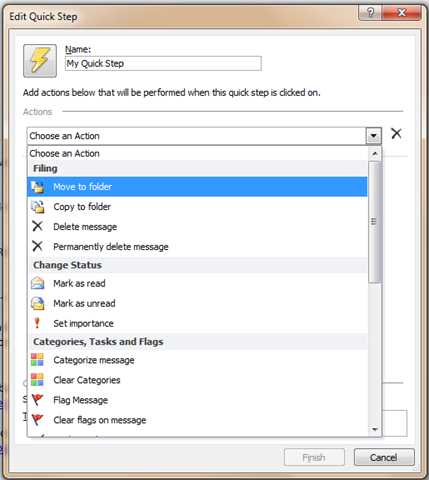
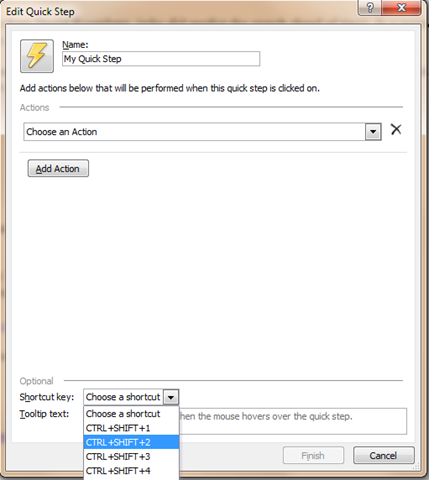
With the context menu open, choose Create New to bring up the Edit Quick Step dialog. In this window, you can give your new Quick Step a name and choose the actions that you’d like to apply. Some of the options include moving, copying, deleting, marking as read or unread, setting the message importance, flagging the message, etc.

image 

Once you have your Quick Step defined, you can go to the bottom of the dialog and choose a shortcut key and you can even add a tooltip to remind you how this Quick Step is meant to be used.

OutlookQuickSteps3

That’s it! You’re all sort to start streamlining your Outlook mail management.

Wednesday, August 18, 2010

SharePoint Web Services in Visual Studio 2010

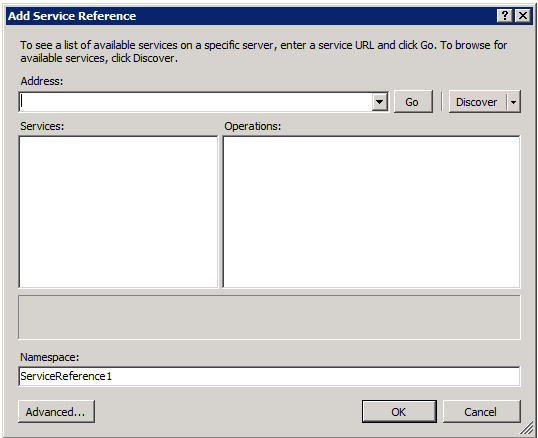
When you want to add a reference to your SharePoint 2010 web services, you might be confused by the “Add Service Reference” option in Visual Studio 2010. If you choose this option, everything will seem to generate fine, but you won’t end up with what you want.

To use the SharePoint 2010 (or MOSS) web services in VS 2010, you should choose Add Service Reference, but don’t enter the URL into the address box. Instead, click the Advanced button at the bottom.

image 

Once you get to the Service Reference Settings dialog, click Add Web Reference at the bottom. This will open the familiar Web Reference dialog that you would have used in Visual Studio 2005.

image

With the good ‘ol Add Web Reference dialog open, you can feel free to enter the URL of your web services (e.g., http://servername/_vti_bin/Webs.asmx). Now you can use the same code you had previously used to leverage SharePoint web services in your applications.

image

Update: If you right-click on Web References, and choose Add Web Reference you can get to this option right away. However, you may need to create one the other way to get the Web Reference folder to appear.

If you do try to add a service reference to the SharePoint web services (e.g., http://servername/_vti_adm/Webs.asmx), you may see this error message:

There was an error downloading 'http://servername/_vti_adm/Webs.asmx'.
The request failed with the error message:
<html><head>
<title>The file you are attempting to save or retrieve has been blocked from this Web site by the server administrators.<nativehr>0x800401e6</nativehr>

WPF DockPanel and StatusBar Gotcha

I’ve only recently started to work with Windows Presentation Foundation (WPF) on an actual project. WPF is the new Microsoft technology for building powerful user interfaces.

I ran into this simple gotcha with the DockPanel control and thought I’d share. The issue was that my status bar would not dock properly at the bottom of the UI.

I wanted to add a toolbar, then some controls underneath that which are contained in a StackPanel control, and then the StatusBar control at the bottom. From an XML/HTML perspective, the following code made sense to me.

<DockPanel HorizontalAlignment="Stretch" Width="Auto" Height="Auto">
     <ToolBarTray HorizontalAlignment="Stretch" DockPanel.Dock="Top">
        <ToolBar Name="toolBarMain" Height="28" HorizontalAlignment="Stretch">
            …
        </ToolBar>
    </ToolBarTray>

    <StackPanel DockPanel.Dock="Top">
        <StackPanel Orientation="Horizontal">
            …
        </StackPanel>
    </StackPanel>
    <TabControl DockPanel.Dock="Left" TabStripPlacement="Bottom">
        …   
          </TabControl>

     <StatusBar DockPanel.Dock="Bottom" HorizontalAlignment="Stretch">
        <StatusBarItem>
            <TextBlock Text="Status..."/>
        </StatusBarItem>
    </StatusBar>
</DockPanel>

However, this didn’t work. The other controls messed up the StatusBar even though it was the only one set to dock to the bottom. The solution was to move the StatusBar all the way to the beginning of the DockPanel control. The reason this was happening makes sense to me now (for example, you might want the control on the left to go all the way to the bottom), but I assumed that if controls weren’t nested, then they wouldn’t affect one another.

<DockPanel HorizontalAlignment="Stretch" Width="Auto" Height="Auto">
    <StatusBar DockPanel.Dock="Bottom" HorizontalAlignment="Stretch">
        <StatusBarItem>
            <TextBlock Text="Status..."/>
        </StatusBarItem>
    </StatusBar>

    <ToolBarTray HorizontalAlignment="Stretch" DockPanel.Dock="Top">
        <ToolBar Name="toolBarMain" Height="28" HorizontalAlignment="Stretch”>
            …
        </ToolBar>
    </ToolBarTray>

    <StackPanel DockPanel.Dock="Top">
        <StackPanel Orientation="Horizontal">
            …
        </StackPanel>
    </StackPanel>
    <TabControl DockPanel.Dock="Left" TabStripPlacement="Bottom">
        …   
          </TabControl>
</DockPanel>