Thursday, December 24, 2009

Using SharePoint Term Stores

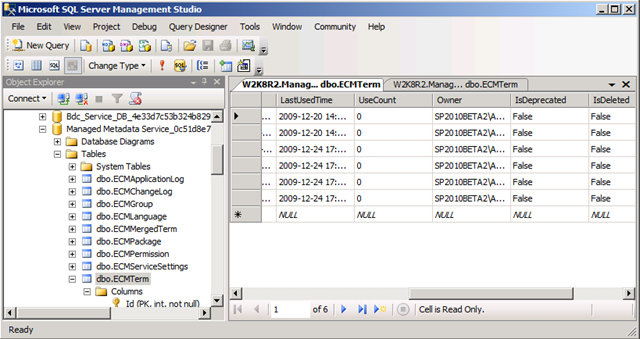
In the new SharePoint 2010 Managed Metadata feature (a.k.a. Managed Metadata Service [MMS]), all taxonomy data is stored within a SQL Server database called the term store. Creating a managed service application will create a term store that you can use to build your taxonomy hierarchy within, or as it reads on TechNet, “A managed metadata service publishes a term store and, optionally, content types; a managed metadata connection consumes these.”

When you install SharePoint 2010, a managed metadata service called “Managed Metadata Service” is created for you. This term store maps to a SQL DB that begins with the same name.

image
- Managed Metadata Service DB in SQL Server

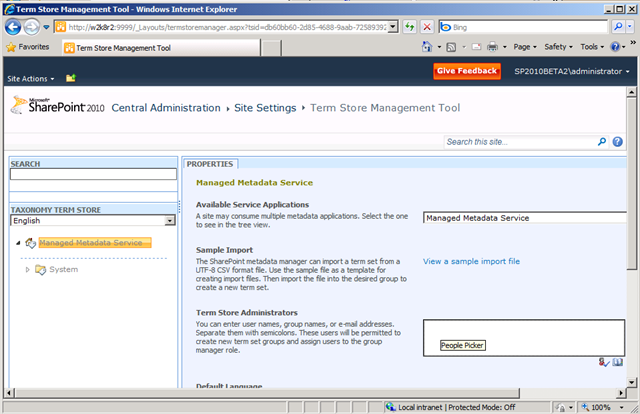
However, if you go to the Term Store Management Tool (through Central Administration or Site Settings), you’ll find that you don’t have any options to create or manage terms. The reason for this is that you need to add yourself to the administrators group for the managed metadata service.

image
- The Term Store Management Tool without any administrators

After you add yourself and save the changes, you’ll be able to create groups, term sets and terms.

image
- Once you add your admins, you can start to use the term store

At this point, you can try to tag SharePoint content. If you open a list and try to tag something, and you see the message, “This control is currently disabled. You might not have the right permission level to use this, you might need to select an object or item, or the content might not work in this context,” then you either have a rights issue, or another problem with your server.

image
- Tagging control disabled in the ribbon

Creating Your Own Term Store

If you want to create your own term store, you’ll need to follow the steps below to create a new managed metadata service. Creating a SharePoint 2010 Managed Metadata Term Store is covered on TechNet, but I’ll be delving into Managed Metadata development in a future post, so I figure I should cover the basics as well.

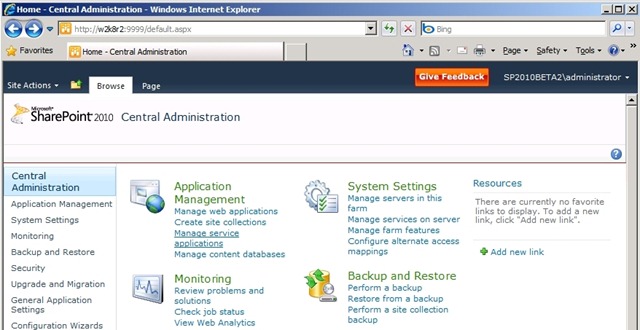
1. First you’ll need to open SharePoint 2010 Central Administration and select Manage Service Applications from the Application Management section.

ManagedService1

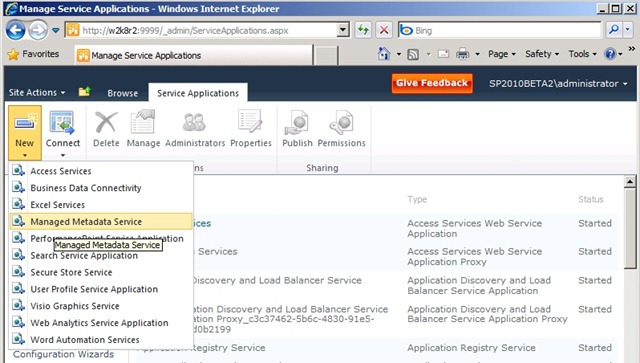
2. At this point, the Service Applications tab should be selected at the top of the page. Next, click the dropdown arrow under New and and click on Managed Metadata Service.

ManagedService2b

3. This opens the Create New Managed Metadata Service dialog.

ManagedService5

The fields in this dialog are:

Name: This is simply the name of your new managed metadata service.

Database Server: Name of your database server.

Note from Microsoft: “If you are using SQL Express, do not change the default value of <machine name>\SharePoint. ”

Database Name: The database on the selected server you wish to use. If the DB does not exist, it will be created.

Note from Microsoft: “The only way to obtain the name of a database if you have deleted the managed metadata connection to the database is by using SQL Server Management Studio.”

Database authentication: The recommended option is Windows authenticated, but SQL authentication is also available.

Failover Database Server: If you’re using a failover DB server, you can enter it here.

Web Application Pool: You can either create a new pool or choose an existing one from the dropdown menu. Note: Ensure that the selected application pool is actually running before you try to use your term store.

Content Type Hub: From Microsoft: “If you want the managed metadata service to provide access to a content type library as well as to a term store, type the URL of the site collection that contains the content type library in the Content Type hub box. The service will share the content type library at the root of the site collection.”

There are also two checkbox options at the bottom:

- Report syndication import errors from Site Collections using this service application

Note from Microsoft: “When another Web application imports the content types that this service shares, the import process might generate errors. To record these errors in the error log of the site collection that is exporting (as well as to the error log of the site collection that is importing), select Report syndication import errors from Site Collections using this service application.”

- Add this service application to the farm’s default list

Note from Microsoft: “The service is automatically added to the Default proxy group for the farm. To have a connection to this service created automatically when a new Web application is added to the farm, select Add this service application to the farm’s default list.”

From the same area of central admin, you have the option to perform numerous other operations on your term store. For example, delete a term store, modify the term store permissions, add term store administrators, etc.

image
- The ribbon offers more term store management options

Here’s some quick and dirty code to check the term stores available on your server:

using (SPSite site = new SPSite("http://localhost/%22))
{
//Instantiates a new TaxonomySession for the current site.
TaxonomySession session = new TaxonomySession(site);

foreach (TermStore termstore in session.TermStores)
{
Label1.Text += "\n" + termstore.Name.ToString();
}
}

SharePoint Managed Metadata (Taxonomy) Posts:

SharePoint Taxonomy Part One – Introduction to SharePoint Managed Metadata
SharePoint Taxonomy Part Two – End-User Experience
SharePoint Taxonomy Part Three – Administrator Experience
(including Using SharePoint Term Stores and SharePoint Taxonomy Hierarchy)
SharePoint Taxonomy Part Four – Developer Experience
(including SharePoint 2010 Visual Web Parts and SharePoint 2010 Taxonomy Reference Issues)

Managed Metadata Best Practices from Microsoft:

Plan managed metadata (SharePoint Server 2010)
Managed metadata overview (SharePoint Server 2010)
Managed metadata service application overview (SharePoint Server 2010)
Managed metadata roles (SharePoint Server 2010)
Plan terms and term sets (SharePoint Server 2010)
Plan to import managed metadata (SharePoint Server 2010)
Plan to share terminology and content types (SharePoint Server 2010)

[Disclaimer: This information is based on SharePoint 2010 Beta 2 and may differ from the RTM build.]

Sunday, December 20, 2009

Introduction to SharePoint Managed Metadata

I have the day off and as I ate my brown sugar Mini-Wheats, I naturally came to the conclusion that today would be the day that I would finally begin to write a series of blog posts about the biggest new SharePoint 2010 feature: Enterprise Managed Metadata (a.k.a. EMM, Managed Metadata Service (MMS) or SharePoint 2010 taxonomy).

image

Update: These are the posts currently in this series:

SharePoint Taxonomy Part One – Introduction to SharePoint Managed Metadata
SharePoint Taxonomy Part Two – End-User Experience
SharePoint Taxonomy Part Three – Administrator Experience
(including Using SharePoint Term Stores and SharePoint Taxonomy Hierarchy)
SharePoint Taxonomy Part Four – Developer Experience
(including SharePoint 2010 Visual Web Parts, SharePoint 2010 Taxonomy Web Part Development Screencast, SharePoint 2010 Taxonomy Reference Issues, and SharePoint Game of Life web part on CodePlex.)

Back in 2005, I’m pretty sure I was one of the SharePoint Program Managers most disappointed when we learned that taxonomy wasn’t going to make the cut for Microsoft Office SharePoint Server 2007 (MOSS). I didn’t work on the specs, but I believed quite strongly that it needed to be built. It wasn’t a huge surprise that it got cut though. The Enterprise Content Management (ECM) team had plenty of work to do—mainly focused on providing Microsoft Content Management Server (MCMS) features in SharePoint. However, with the MOSS release out the door and MOSS for Internet sites popping up all over the Internet, it was time to tackle taxonomy. I know it was a Herculean task, so I tip my cap to my old friends on the SharePoint team who have made it a reality in SharePoint 2010.

What’s all the fuss about?

Managed Metadata definition from Microsoft TechNet: “Managed metadata is a hierarchical collection of centrally managed terms that you can define, and then use as attributes for items in Microsoft SharePoint Server 2010.”

Why is taxonomy arguably the most important new feature in SharePoint 2010? Hasn’t SharePoint always had metadata? There are many useful tagging features in the new release, but another important aspect is the potential unlocked by the new infrastructure. As a Microsoft PM, I heard a clear refrain from customers and partners. I’ll paraphrase it in this way: “Sure, we’d like you to do everything, but we know you can’t. Please just give us the foundation so we can do what’s necessary for our business needs.” [Pardon the SharePoint Foundation pun.] By adding the managed metadata service plumbing to SharePoint, customers and partners have the opportunity to use and extend the taxonomy system.

Before the 2010 improvements, organizations using SharePoint would have to either build their own taxonomy solution, or rely upon business rules for how their users should add metadata to SharePoint items—this meant that different users could be tagging items with slightly different terms and eliminating most of the value of taxonomy. There were also technical constraints that prevented creation of a custom solution. For example, the logical place to store terms would be in a list, but lists couldn’t be shared across the site collection boundary, so the same content would have to be duplicated if the terms were to be shared. There was also no concept of hierarchical metadata and there was no way to share a collection of terms with delegated permissions. But if all that isn’t enough for you, MVP Chris O’Brien wrote a whole post about why SharePoint 2010 taxonomy is important and here’s a list of Benefits of using managed metadata from TechNet:

More consistent use of terminology
Managed metadata facilitates more consistent use of terms, as well as more consistent use of the managed keywords that are added to SharePoint Server items. You can pre-define terms, and allow only authorized users to add new terms. You can also prohibit users from adding their own managed keywords to items, and require them to use existing ones. Managed metadata also provides greater accuracy by presenting only a list of correct terms from which users can select values. Because managed keywords are also a type of managed metadata, even the managed keywords that users apply to items can be more consistent.

Because metadata is used more consistently, you can have a higher degree of confidence that it is correct. When you use metadata to automate business processes—for example, placing documents in different files in the record center based on the value of their department attribute—you can be confident that the metadata was created by authorized users, and that the value of the department attribute is always one of the valid values.

Better search results
A simple search can provide more relevant results if items have consistent attributes.

As users apply managed terms and keywords to items, they are guided to terms that have already been used. In some cases, users might not even be able to enter a new value. Because users are focused on a specific set of terms, those terms—and not synonyms—are more likely to be applied to items. Searching for a managed term or a managed keyword is therefore likely to retrieve more relevant results.

Dynamic
In previous versions of SharePoint Server, to restrict the value of an attribute to being one of a set of values, you would have created a column whose type is "choice", and then provided a list of valid values. When you needed to add a new value to set of choices, you would have to modify every column that used the same set of values.

By using managed metadata in SharePoint Server 2010, you can separate the set of valid values from the columns whose value must be one of the set of valid values. When you need to add a new value, you add a term to the term set, and all columns that map to that term set would use the updated set of choices.

Using terms can help you keep SharePoint Server items in sync with the business as the business changes. For example, assume your company's new product had a code name early in its development, and was given an official name shortly before the product launched. You included a term for the code name in the "product" term set, and users have been identifying all documents related to the product by using the term. When the product name changed, you could edit the term and change its name to the product's official name. The term is still applied to the same items, but its name is now updated.”

image - Adding keywords to a document in SharePoint 2010 Beta 2

What’s in this release?

To borrow a joke from Dan Kogan’s SharePoint Conference 2009 (#SPC09) talk, when we talk about terms, we need to first define our terms. From MSDN’s definitions of SharePoint Managed Metadata:

term
A word or phrase that can be associated with an item in SharePoint Server 2010.
term set
A collection of related terms.
managed term
A term that can be created by users only with the appropriate permissions and often organized into a hierarchy. Managed terms are usually predefined.
managed keyword
A word or phrase that has been added to SharePoint Server 2010 items. All managed keywords are part of a single, non-hierarchical term set called the keyword set.
term store
A database that stores both managed terms and managed keywords.

Also, one definition that isn’t in the list:
group
In the term store, all term sets are created within groups. In other words, group is the parent container for term sets.

image - The Term Store Management Tool

These are the elements within the SharePoint 2010 managed metadata functionality, but the pieces aren’t the only consideration—it’s also important how they fit together. According to information management experts Earley & Associates, there are three different types of relationships in taxonomies:

Equivalent (Synonyms: "LOL = Laughing out loud")
Hierarchical (Parent/Child : "Sports Equipment => ball")
Associative (Concept/Concept: "Bouncy things - ball")

SharePoint 2010 will provide SharePoint users, administrators and developers with the UI and API required for the first two. This means that faculties such as centrally managed terms, folksonomy and tag clouds (social tagging) are enabled. The third type—that SharePoint 2010 will not be offering—is ontologies. Here’s a quick discussion of each type.

Equivalent Terms

SharePoint taxonomy will allow synonyms and preferred terms. Synonyms allow a central understanding that LOL is the same as “laughing out loud,” and preferred terms specify which of the two should be used.

The other side of the equivalence coin is dealing with words with more than one meaning. To help disambiguate terms, SharePoint term descriptions show in a tooltip so that users can differentiate between G-Force (the recent movie featuring a specially trained squad of guinea pigs) vs. G-Force (my favourite childhood cartoon) from Battle of the Planets.

Hierarchical Terms

A central repository of terms enables consistency across users. Providing a hierarchy allows for information architecture and organization. In the SharePoint Term Store Management Tool, users with sufficient permissions will be able to perform many operations on terms in the hierarchy. These include: copying, reusing, moving, duplicating (for polyhierarchy), deprecating, and merging. The hierarchy is broken down into a term store at the top, then a group, term sets, and finally, managed terms.

image - Example of a taxonomy hierarchy (image courtesy Microsoft)

Note: managed keywords (or just keywords) will be stored in a separate single database. Keywords will be used for social tagging such as tag clouds and folksonomy, but keywords can be promoted to managed terms.

Associative Terms

An ontology is a means of classifying data based on an associative relationship. There are endless possibilities for these types of relationships. For example, I could have a hierarchy of terms in SharePoint 2010 that includes the terms “ball” and “bat” as children of the term “sports equipment.” An ontology would allow me to also create a relationship between “Bouncy things” and “ball” because they are conceptually related. Why didn’t the SharePoint team add ontologies? That’s a reasonable question, but the fact is that it simply may not have been worth the effort to tackle such a specialized function when they were already trying to build an ambitious feature. Also, many people wonder if anyone but a library scientist or a taxonomist will complain.

How will SharePoint taxonomy be used?

Obviously, the most popular end-user use of EMM will be taxonomy to fulfill business needs and social tagging. Many content types will ship with a Managed Metadata data-type column and users will be able to tag their list items, documents, etc, with shared terms. This end-user associated metadata will then be used to classify, organize, find and share information within SharePoint. By tagging external pages, users have a way to add links to their favourite browser’s bookmarks.

However, another aspect of the new managed metadata functionality is how it could be used for enhanced navigation and search. For example, terms can be used to enable more advanced parametric search features, targeted search and possibly even lemmatisation in FAST search—but I’m not a search expert, so I’d have to do some more research to find out what’s happening on the search side. One thing is for sure, customers and partners will find interesting ways to use the taxonomy framework.

In terms of navigation, the ability to alter the way you navigate your data based on tags is also referred to as faceted navigation. When I was working on SharePoint navigation, we nicknamed faceted navigation, “navigation goggles.” The idea being that you could choose different types of navigation the same way you can shift between song view, albums or artists on many MP3 players.

For developers, SharePoint 2010 EMM also includes the Taxonomy APIs. Most of the EMM classes are found in the Microsoft.SharePoint.Taxonomy namespace.

• TaxonomySession class
• TermStore class
• Group class
• TermSet class
• Term class
• CommitAll method
• IsAvailable property
• Name property
• CreateLabel method
• SetDescription method

This block of sample code (courtesy of Microsoft) shows how the taxonomy API can be used.

using (SPSite site = new SPSite(http://localhost/))
{
//Instantiates a new TaxonomySession for the current site.
TaxonomySession session = new TaxonomySession(site);

//Instantiates the connection named "Managed Metadata Service
//Connection" for the current session.
TermStore termStore = session.TermStores["Managed Metadata Service Connection"];

// Creates and commits a Group object named Group1, a TermSet object
// named termSet1, and several Term objects. Term1, Term2, and Term3 are
// members of termSet1. Term1a and Term1b are children of Term1.
Group group1 = termStore.CreateGroup("Group1");
TermSet termSet1 = group1.CreateTermSet("TermSet1");
Term term1 = termSet1.CreateTerm("Term1", 1033);
Term term2 = termSet1.CreateTerm("Term2", 1033);
Term term3 = termSet1.CreateTerm("Term3", 1033);
Term term1a = term1.CreateTerm("Term1a", 1033);
Term term1b = term1.CreateTerm("Term1b", 1033);
termStore.CommitAll();

// Sets a description and some alternate labels for term1 and commits
// the changes to termStore.
term1.SetDescription("This is term1", 1033);
term1.CreateLabel("TermOne", 1033, false);
term1.CreateLabel("FirstTerm", 1033, false);
termStore.CommitAll();

// Deletes an unnecessary term, term3, from termStore and commits changes
term3.Delete();
termStore.CommitAll();

}

Multilingual Taxonomy In SharePoint 2010

In the Enterprise Metadata Management documentation it states that Managed Terms could be used when metadata "Can be applied in one language, but might be viewed in other languages"

This is available in term stores because Managed terms can be assigned multiple labels. When someone types in any of the labels (which could be in different languages), they will be applying the same term. This creates a multilingual term system.

Here is the documentation page about Multilingual term sets (SharePoint Server 2010)

Note: Labels are different than descriptions. There can only be one description on a term and it's generally used for disambiguation. (e.g., "this is Dallas the city, not Dallas the TV show")

Conclusion

The new SharePoint 2010 Managed Metadata functionality is exciting and provides a framework to build more taxonomy features. Through managed metadata, SharePoint users gain access to functionality such as folksonomy, social tagging (tag clouds) and more powerful search options. EMM also provides a way to centrally manage bookmarks.

The Term Store Management Tool available in Central Administration (and Site Settings) enables administrators to manage a central vocabulary of terms for the whole farm. Operations that administrators can perform on the term hierarchy include copying, reusing, moving, duplicating, deprecating, and merging. Furthermore, having a managed repository enforces consistency across users.

Enterprise Metadata Management is a huge topic. In fact, how SharePoint 2010 exposes the taxonomy features (e.g., the new tag cloud web part) is worthy of its own post, so I’m not going to try and sum it all up in one.

These are the upcoming posts:

SharePoint Taxonomy Part One – Introduction to SharePoint Managed Metadata
SharePoint Taxonomy Part Two – End-User Experience
SharePoint Taxonomy Part Three – Administrator Experience
(including Using SharePoint Term Stores and SharePoint Taxonomy Hierarchy)
SharePoint Taxonomy Part Four – Developer Experience
(including SharePoint 2010 Visual Web Parts, SharePoint 2010 Taxonomy Web Part Development Screencast and SharePoint 2010 Taxonomy Reference Issues)

Managed Metadata Best Practices from Microsoft:

Plan managed metadata (SharePoint Server 2010)
Managed metadata overview (SharePoint Server 2010)
Managed metadata service application overview (SharePoint Server 2010)
Managed metadata roles (SharePoint Server 2010)
Plan terms and term sets (SharePoint Server 2010)
Plan to import managed metadata (SharePoint Server 2010)
Plan to share terminology and content types (SharePoint Server 2010)
SharePoint Enterprise Content Management

[Disclaimer: This information is based on SharePoint 2010 Beta 2 and may differ from the RTM build.]
Tuesday, December 15, 2009

Hail UBC Fight Song

My alma mater has a new fight song. From the UBC grad gazette:

New UBC Pep Song Something to Cheer About

“That UBC even has a pep song – let alone a newly recorded one – may prompt some surprise. University fight songs are rare in Canada, where the tradition isn’t held as dear as in the United States.


At UBC, an older version of Hail UBC that’s been kicking around since the 1930s wasn’t even suitable to be played over the loudspeakers at games.

This proved troubling to UBC associate athletic director Steve Tuckwood and former athletic director Bob Hindmarch, who last year began asking around for a new version of ‘Hail UBC.’” [more]

Listen to the new Pep Song

- UBC’s Cecil Green Park House – where I was lucky enough to get married


Thursday, December 10, 2009

Windows Live Writer for blog Authoring

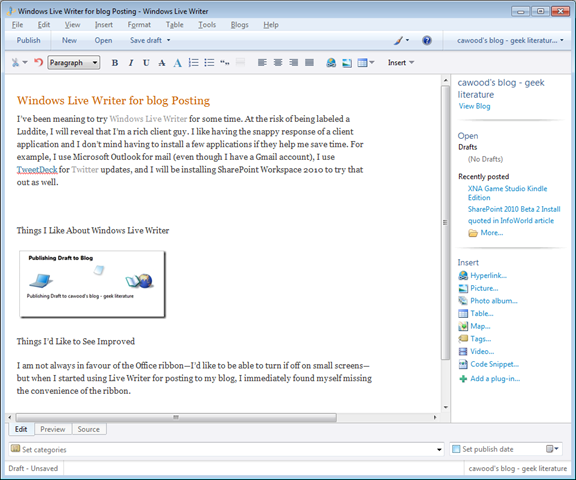
I’ve been meaning to try Windows Live Writer for some time. At the risk of being labeled a Luddite, I will reveal that—when it comes to authoring--I’m a rich client guy. I like having the snappy response of a client application and I don’t mind having to install a few applications if they help me save time. I fully appreciate having online access to SharePoint, e-mail and other assets, but when it comes to authoring, I like to be offline and take my time. For example, I use Microsoft Outlook for mail (even though I have a Gmail account), I use TweetDeck for Twitter updates, and I will be installing SharePoint Workspace 2010 to try that out as well.

image- Windows Live Writer is a great client for posting to most blogs

Things I Like About Windows Live Writer

Image Management: The first killer feature I discovered in Live Writer is the image management capabilities. For my own overly cautious backup reasons, I upload all of my blog images to my own FTP server. This means that even if there was an issue with the server, I would still have a neatly filed copy of every image that I could quickly reference and use for other purposes. I didn’t want to just blindly upload my images or squash them all into a single FTP folder. I was happy to discover that Live Writer allowed me to add my FTP server credentials and every time I publish a post, the images are neatly filed into one folder for each post.

Publishing Flexibility: The most fundamental feature of Live Writer is the ability to write content for different publishing targets. At this time, you have the options to add accounts for these platforms: Windows Live Spaces, SharePoint blogs, Blogger, WordPress, TypePad and other blogging sites.

Once I created an account for my blog, I can happily work on my post offline and publish it whenever I want. My blog supports taxonomy categories, so I can also tag my posts in Live Writer. In addition, I can post a draft to my blog online and then go to a different machine with Live Writer and work on the post from there. Being able to add my SharePoint Intranet blog as a publishing target is a nice bonus.

image

Plug-ins: Live Writer has a nice plug-in system that allows third-party plug-ins to be developed and made available through http://gallery.live.com. I added a plug-in to let me format code snippets in colour.

Things I’d Like to See Improved

FIXED: Add the Ribbon: I am not always in favour of the Office ribbon—I minimize it on small screens (e.g., net books)—but when I started using Live Writer for posting to my blog, I immediately found myself missing the convenience of the ribbon. [Update: Since I wrote this posts, the ribbon has been announced for Live Writer]

Plug-in Fixes: Ironically, I tried to insert a sample code snippet above using the two most popular Live Writer code plug-ins, but neither came out properly formatted. Apparently, I need to massage the CSS myself to use these add-ons.

Despite these minor issues, I’m going to stick with Live Writer. If you’re looking for a blog authoring tool, try Windows Live Writer. As the SharePoint Workspace slogan goes… “Work where you want when you want.”

XNA Game Studio Kindle Edition

The Microsoft XNA Game Studio Creator's Guide has been doing well in the reviews for the Amazon Kindle edition.

51NRo80MBxL__SL500_AA246_PIkin2,BottomRight,4,34_AA280_SH20_OU01_

“I purchased this book specifically because it was the second edition and it seemed as though the authors' credentials exceeded the average book on XNA. Also, I was interested in the math behind game programming. I was not disappointed.”

- Rob "ActivelyX”

“This is a great book for XNA developers! My son and I are working through this book together and we are having a great time learning XNA! The author takes the time to explain complex gaming concepts simply, the code examples are almost without error, and the reader is taken through a wide variety of examples including everything from collision algorithms to writing games for Zune.”

- James Anderson "Avid Reader"

Monday, December 07, 2009

quoted in InfoWorld article

While at the Microsoft Professional Developers' conference (#PDC09), I was interviewed by Paul Krill (editor at large at InfoWorld) for an article about Microsoft's cloud computing platform: Windows Azure.
 
“A Microsoft SharePoint software vendor sees Azure's potential for purposes such as extranets. ‘A lot of applications I can see being extended to the cloud,’ said Stephen Cawood, community director at Metalogix. ‘For big companies, they're still going to want to have their own datacenters and host things like SharePoint, but I can see them using cloud computing possibly for extranet scenarios where they're working with partners or even customers.’”
 
 
image


Friday, December 04, 2009

SharePoint 2010 Beta 2 Install

There are already some articles out there about installing SharePoint 2010 Beta 2, so I’m not going to write one from scratch. Instead, I’m going to use the most comprehensive one that I could find and blog about my experience. I did start reading articles about installing the new Beta (some are linked below), but I decided it just wasn’t worth trying to start from scratch. I have other things to do—like taking my cat to the vet.

I didn’t have to struggle through the maze of patches and service pack downloads because CriticalPath Training has published a free 47 page installation guide for creating a SharePoint 2010 Beta 2 Hyper-V virtual development machine. One of the best things about this document is that it provides links to all the service packs, hotfixes and cumulative updates that SP 2010 Beta 2 requires. If you’re put off by the weight of 47 pages, don’t worry. The document also includes the installation of the Office 2010 Beta and Visual Studio 2010 Beta. If you don’t need those, you can skip about 10 pages.

image

You can get the setup guide from the CriticalPath Training website, but you’ll need to register as a member first (also free). After you register, you’ll see a Members link in the top navigation. Click Members and the SharePoint Server 2010 Beta 2 Virtual Machine Setup Guide will be in the list of articles.

For this install, you’ll need to either copy an existing W2K8 R2 (64bit) Hyper-V image or create a new one. SharePoint 2010 requires a 64bit O/S. It can be installed on Windows Server 2008 or Windows 7 (for dev only).

Note: The virtual hard drive needs to start with at least 12GB (just to install the O/S) and at least 15GB (just to install SQL Server). I’m starting with 40GB, so I’ll see how that goes. Remember to activate Windows, run Windows Update, and change the machine name (if you want) before you get too far into the install.

Next, grab the SharePoint 2010 Beta 2 install (either Server or Foundation) from the TechNet site. Note: WSS is now called SharePoint Foundation. Once you have the download and the key is sent to you in e-mail, your can follow the instructions in the CriticalPath Training setup guide.

Notes

Some of these points may be related to the difference between the public download (the option I chose) and the MSDN subscriber download.

1. Typo: On page 8 DWORD (64-bit) Value should be DWORD (32-bit) Value.

2. SQL Install: As per the SQL Server Setup blog, you can ignore the error the SQL Setup error:  “Invoke or BeginInvoke cannot be called on a control until the window handle
has been created.”

2. SharePoint Server Install: When I got to page 25 and started the actual SharePoint Server install, I didn’t extract the files first and run PrerequisiteInstall.exe as described in the docs. I simply ran the installer. When I was prompted with the screen below, I chose Install software prerequisites.

image

3. Farm Configuration: I was prompted for a username and password to access the site. I was not initially asked to participate in the feedback program as mentioned in the install guide. However, the Initial Farm Configuration Wizard threw an error. When I refreshed the page, I was asked about submitting error reports and then the wizard continued.

4. User Profile Service Error: I did, however, get an error during the Farm config:

The service application proxy "User Profile Service Application" could not be provisioned because of the following error: The request channel timed out while waiting for a reply after 00:00:19.7128502. Increase the timeout value passed to the call to Request or increase the SendTimeout value on the Binding. The time allotted to this operation may have been a portion of a longer timeout.

This likely happened because I only have about 1.5GB of RAM allocated to the VM. For now, I’m just going to move on and not worry about it. I have another server on order that will allow me to up the RAM to the recommended 4GB.

The web application creation confirmation screen reads “SharePoint Foundation” web application has been created. Obviously, Foundation is the platform, but it seems funny to have that wording if Server is installed.

5. Site Collection Creation Typo: The text for the primary Site Collection Administrator on page 36 reads WINGTIP\SP_WorkerProcess, but the screenshot shows WINGTIP\Administrator. The admin account is the correct one.

image

6. Page 40 Typ0 and getting SharePoint Designer 2010: “SharePoint Designer 201” should obviously be “SharePoint Designer 2010.” The guide seems to imply that SharePoint Designer 2010 Beta is provided with the Office 2010 Beta; this isn’t the case. If you are an MSDN subscriber, you can get the SharePoint Designer 2010 Beta from MSDN. If you’re not a subscriber, you may be able to get a SharePoint Designer 2010 trial download.

Thanks to the CriticalPath guide, I saved a bunch of time getting SharePoint 2010 Server Beta 2 running.

Other SharePoint 2010 Beta 2 Installation Articles

Installing SharePoint 2010 beta 2 on a single machine
Installation Notice for SharePoint 2010 Public Beta article

Tuesday, December 01, 2009

Don’t be an E-mail Hoarder–Improve Your Outlook Productivity

I'm sure there are many people out there who find their incoming e-mail to be difficult to manage, but if you work in software, the deluge can be overwhelming. I've been doing some traveling lately and I'm quite far behind on my bailing.

Partly as a reminder to myself, I thought I'd document some of the techniques I use to keep my inbox hoarding to a minimum. I currently have 1042 messages in my inbox and this is how I'm going to cut that down by 100 a day until I get it back to normal (about 40 or so). One of the reasons I’m a fan of the Microsoft Outlook client is that it allows for these management techniques.

Tips for Inbox Hoarding Prevention

1. Use Outlook Rules
Outlook rules enable you to automatically deal with messages as they arrive. You can access rules by going to Tools > Rules and Alerts. The options for rules are extensive; whether you want to move, delete or forward messages automatically, you’ll find what you need under the rule settings. I use rules to file messages that are sent to distribution lists (DLs) and I’m on, but don’t necessarily have to read right away.

2. Use Formatting to Highlight Important Messages
I don’t see a lot of people use this option, but colouring messages as they arrive is a good way to identify the messages that need to be dealt with first. My instinct is to go to Rules and Alerts to set this up, but you actually do it by selecting a message from the person (or DL) that you want to colour and choosing View > Current View > Customize Current View.

OutlookFormatting1

Next, from the Customize View dialog, choose Automatic Formatting > Add. In the Automatic Formatting dialog, choose your conditions and then specify message coming from a particular person (or any other condition from the available options).

OutlookFormatting2

Once you’ve set the condition, you can apply custom formatting. You could have messages from different people formatted with different fonts, or bold, italics, etc. I like to use colouring to identify messages from my family and Metalogix executives.

Tips for Inbox Hoarding Treatment

Note About Size: If the size of your inbox is the most important consideration for you, start by sorting by Size. This will allow you to file or delete the largest messages first.

1. Sort by From
When I want to quickly cut down my inbox clutter, the first thing I do is sort by who sent the message. I find this to be a great way to eliminate the easiest messages to handle. This can include duplicate reminders about events or bill payments, etc. I just used this to file or delete 126 messages in about 10 minutes. (916 messages left)

2. Sort by Conversation
The next thing I’ll do is sort by Conversation and delete messages that are contained in latter messages within the same thread. To do this, simple sort by Conversation and then look for the dropdown arrow that indicates a thread of messages. When you expand the thread, messages that appear indented are replies that generally contain the message above. Some people may choose to do this as step 1, but I find that I don’t get quite as many this way, so I prefer to start with the action that reduces the most clutter. I just removed 65 more messages by deleting messages that were part of threads. (851 messages left)

3. Use Reminders Instead of Keeping Messages in Your Inbox
One of the reasons I have issues keeping my inbox tidy is that I use e-mail messages as my daily to-do list. This means that messages could potentially sit around because I’m waiting for the day that I need to take action on them. To prevent this, assign a reminder to the message and then file it into a temporary folder (such as “TODO”). To set a reminder on an e-mail message, right-click the message, choose Follow Up > Add Reminder. Once the custom reminder dialog opens, you can specify when you would like to be reminded of this message. The reminder will pop up just like an appointment, but clicking on it will open the e-mail—very handy. You can use this same technique to assign coloured flags to messages.

4. Use Folders (But Not Too Many)
Although Gmail has come along to claim that folders are unnecessary, I still use them. There are times when I want to look at all the messages related to a topic (e.g., a conference) but I don’t want to rely on search to decide which ones fit my criteria. The Gmail method of doing this is to use labels, but in my mind, if you’re taking the time to do that, you may as well be using folders. Either way, you’re adding metadata to the message and it takes about the same amount of time. I have, however, hit the bar of having too many folders (exactly the problem Gmail avoids) and I have recently started to ‘flatten’ my tree of folders. Once your folder tree is under control, it’s a lot easier to drag messages from your inbox to the folder view in Outlook. If you find that a deeply nested folder is being used a lot, you can either move it up the tree or add it to your Outlook favourite folders by simply dragging it into the favourites window.

5. Don’t Spend Your Time Writing Blog Posts When You Should be Cleaning Your Inbox

I’ll probably add more points when I think of them. I hope this is somewhat useful to all you e-mail hoarders out there.

Update: here’s a Microsoft at Work article on the same productivity topic: Empty your Inbox: 4 ways to take control of your email. The best part in there is the “4 Ds.”

Decide what to do with each and every message

How many times have you opened, reviewed, and closed the same email message or conversation? Those messages are getting lots of attention but very little action. It is better to handle each email message only once before taking action—which means you have to decide what to do with it and where to put it. With the 4 Ds model, you have four choices:

  1. Delete it

  2. Do it

  3. Delegate it

  4. Defer it

Wednesday, November 18, 2009

Berliners love bears

While I was in Berlin for the Microsoft TechEd Europe conference, I had to take time out to collect further evidence to support my ongoing thesis that Berliners love bears.


- the last one on the left is a marzipan bear and the one above it is a giant panda bear

Tuesday, November 17, 2009

Microsoft PDC 2009

I've arrived in L.A. for Microsoft #PDC09. It's just like L.A. Story--sunny.... 72.

Thursday, October 29, 2009

SharePoint Conference 2009 Wrap-up

"Wow..." -- a Microsoft Vice President's reaction when I told him at this year's sold out Microsoft SharePoint Conference (#SPC09) that Metalogix Software has migrated and upgraded over 1000 customers to SharePoint.

SPC09 was amazing; with over 7400 attendees, it was larger than the Mircosoft TechEd Conference and TechEd is for ALL Microsoft products. Although, I have been to a few conference over the last year, I still had a great time catching up with old friends from my Microsoft days.


- the Metalogix booth at Microsoft SharePoint Conference 2009

Metalogix Booth and Zune HD Giveaway

This year, Metalogix had a fun conference giveaway. Each day, the person who scored the highest score on our custom Xbox 360 game, Metalogix SharePoint Shooters, won a brand new (and highly acclaimed) Zune HD.


- the exhale games sign for Metalogix SharePoint Shooters


- trying to win a Zune HD from Metalogix


- winning a Zune HD from Metalogix

Metalogix Session

CTO, Julien Sellgren, and I were pleased to have the opportunity to deliver a session at such a key conference. We spoke about SharePoint upgrade and migration, showcasing two demos: SharePoint Site Migration Manager for SharePoint 2010 and Website Migration Manager. The last time I presented at the Microsoft SharePoint Conference was in 2004. That year, there were about 900 attendees, so things have changed considerably.

The expo was on a similar scale as the Microsoft TechEd show. There were a few new names, but mainly the usual suspects.


Gannotti Interview

With over 36,000 followers (and counting), SharePoint social media expert Michael Gannotti (the SocialMedia Samurai, @gannotti) is one of the most prolific tweeters/bloggers in the SharePoint community.

During Microsoft SharePoint Conference 2009 (#SPC09), Mike came by and did two interviews with me at the Metalogix booth. The first one has been posted here: http://socialmedia.mikegannotti.com/Lists/Posts/Post.aspx?ID=278 (direct link to video: http://www.vimeo.com/7262459).

In this first interview, we talk about Metalogix SharePoint Site Migration Manager and how it makes upgrade to SharePoint 2010 a whole lot easier. Migration and upgrade to SharePoint 2010 was also the topic of my session at SPC09.


Since I posted about this interview in my blog, the second interview has been posted. In the second video, we talk about Metalogix Website Migration Manager (WMM). Website Migration Manager can migrate any web pages from other web systems to SharePoint. e.g., Interwoven, Oracle Content Server (Stellent), HTML, cold fusion, ASP, ASPX, Vignette, etc.

Keynote Address

I think the keynote was the largest session I've seen at any Microsoft conference. There were around 7,000 people in the audience.

Steve Ballmer and Jeff Teper were the main speakers, but a few others (e.g., SharePoint point man, Arpan Shah) went on stage to do demos. They showed off the new editing experience, but most demos were pretty technical.


Venue

Las Vegas is an interesting venue for this type of conference. The distraction of having so many things going on here (gambling, shows, parties) made it difficult to monitor the twitter feed and blog posts because attendees talk about so many things they're doing that aren't related to SharePoint. For example, my tweets about meeting comedian Louie Anderson while waiting for my flight to Vegas.


- the Mandalay Event Center hosted SPC09

Although I found myself either working or sleeping, I did manage to fit in a visit to the Mandalay Shark Reef Aquarium after the show was over.


- Kimodo Dragon


- puffer fish


- lion fish

HUG SharePoint


During SPC09, I announced the launch of the Halifax Users Group for SharePoint (http://www.hugsharepoint.org/). HUGSharePoint will provide Atlantic Canada with its first SharePoint user group. This is one of two SharePoint projects that I have in the works.

Wednesday, October 28, 2009

Microsoft Tech Days Halifax Sold Out

Next week, Halifax will host the Microsoft Tech Days conference. I'm happy to say that the Halifax event is sold out.

The sessions include a wide range of interesting topics: Visual Studio 2010, Expression Blend, Windows 7 UI development, ASP.NET, RESTful web services, and collaborating with SharePoint. I plan to use this opportunity to get the word out about the Halifax Users Group for SharePoint (HUG SharePoint).


Monday, October 26, 2009

Michael Gannotti Interview

With over 31,000 followers, SharePoint social media expert Michael Gannotti (the SocialMedia Samurai, @gannotti) is one of the most prolific tweeters/bloggers in the SharePoint community.

During Microsoft SharePoint Conference 2009 (#SPC09), Mike came by and did two interviews with me at the Metalogix booth. The first one has been posted here: http://socialmedia.mikegannotti.com/Lists/Posts/Post.aspx?ID=278 (direct link to video: http://www.vimeo.com/7262459).

In this first interview, we talk about Metalogix SharePoint Site Migration Manager and how it makes upgrade to SharePoint 2010 a whole lot easier. Migration and upgrade to SharePoint 2010 was also the topic of my session at SPC09.


- @gannotti and @cawood talk about SharePoint 2010 upgrade and management


Unlike the out of the box options, upgrading to SharePoint 2010 with SharePoint Site Migration Manager does not require the same software, hardware, DB and service pack prerequisites. For example, you can migrate from SPS 2003 on SQL Server Express running on a 32 bit version of Windows in a simple copy and paste interface.

Update: Since I posted about this, the second interview has been posted. In the second video, we talk about Metalogix Website Migration Manager (WMM). Website Migration Manager can migrate any web pages from other web systems to SharePoint. e.g., Interwoven, Oracle Content Server (Stellent), HTML, cold fusion, ASP, ASPX, Vingette, etc.

Thursday, October 22, 2009

HUG SharePoint!

The Halifax Users Group for SharePoint is up and running.

If you're in the Halifax, Canada area and you're a SharePoint fan, contact me.

Friday, October 16, 2009

Ballmer: The SharePoint business is absolutely on fire

Today's Microsoft PressPass article helps explain the motivation behind the success of SharePoint. At Metalogix we’re the world champs at getting people onto SharePoint from other systems.

Here's an excerpt:

"PressPass: Starting on Monday, you are kicking off a busy week of activities for Microsoft, and your first stop is the SharePoint Conference in Las Vegas. Why did you choose to begin there?

Ballmer: The SharePoint business is absolutely on fire, and I’m excited to meet with our customers, partners and developers who are driving this success. I’ll have the opportunity to catch up with customers and hear how they use SharePoint to collaborate, work together and drive intranet and external Web sites. This product has such a wealth of value that the customer, partner and developer stories are incredible.

In addition, the SharePoint community is discovering that in the same way Office delivers a valuable suite of productivity technology, SharePoint unleashes a suite of capabilities that dramatically improves the way people work — it is so much more than the sum of its parts. I find it enlightening to hear their questions and gain new insights about how SharePoint is impacting businesses all over the world.

PressPass: To date, SharePoint is one of the fastest growing server products in Microsoft’s history — what is behind this growth?

Ballmer: Businesses and consumers are facing significant challenges in today’s climate with the increase in information across numerous technologies and devices. With amplified pressures to control costs, businesses are looking for new ways to harness the increasing amounts of information in a productive and cost-effective way. That is exactly what SharePoint does — it is built as a business collaboration platform to allow people to interact with each other, with content, and with both internal and external data to increase their productivity. As a result, SharePoint helps companies deal with the ever-growing and ever-changing business landscape."


Monday, October 12, 2009

SharePoint Conference is Sold Out

The Microsoft SharePoint Conference for 2009 is sold out! I'll be presenting a session about SharePoint upgrade and it's good to see that the wave of SharePoint enthusiasm continues.

From the Microsoft SharePoint Team Blog:

"We’re officially SOLD OUT! With 7000+ SharePoint experts, developers, partners, users, MVP’s and enthusiasts this is officially the BIGGEST SHAREPOINT CONFERENCE EVER!!! We’ve had a phenomenal response to the conference this year with a 94% increase in attendance and we can’t wait to see you all in just over 10 days!"

Saturday, October 03, 2009

Moving to the Cloud

Tomorrow, I leave for a conference road trip to Tampa and Denver for the Moving to the Cloud Migration Solutions Series for Microsoft Business Productivity Online Suite (BPOS).

I'll be showing Microsoft partners how they can migrate their customers' data to the cloud using Metalogix software. In particular, I'll be demonstrating how to move content from on-premise SharePoint servers to SharePoint Online with Metalogix SharePoint Site Migration Manager, and also how to move files and web content using FileShare Migration Manager and Website Migration Manager.

And who knows, maybe I'll even give a sneak peak of one of our new Microsoft Exchange apps.